







Linking LinkedIn Ads as a source


Let AI connect your sources for you
Skip the manual setup — run this in your project and the wizard auto-detects your databases and APIs and connects them to PostHog.

You can sync data from LinkedIn Ads reports by configuring it as a source in PostHog. The supported reports that can be synced include Accounts, Campaigns, Campaign Stats, Campaign Groups, Campaign Group Stats, Creatives, and Creative Stats, as described here:
- Accounts
- Campaigns
- Campaign Groups
- Campaign Stats: Ad analytics by CAMPAIGN
- Campaign Group Stats: Ad analytics by CAMPAIGN_GROUP
- Creatives: Ad-level creative objects
- Creative Stats: Ad analytics by CREATIVE
Additional reports will be added based on user feedback we receive via our in-app support form.
Requirements
- A LinkedIn Ads account with permission to access data from accounts you want to sync.
- Your numeric account ID from the campaign manager (digits only – see how to find it in the image below, or take it from the URL like
https://www.linkedin.com/campaignmanager/accounts/(ID here)/overview?businessId=personal)
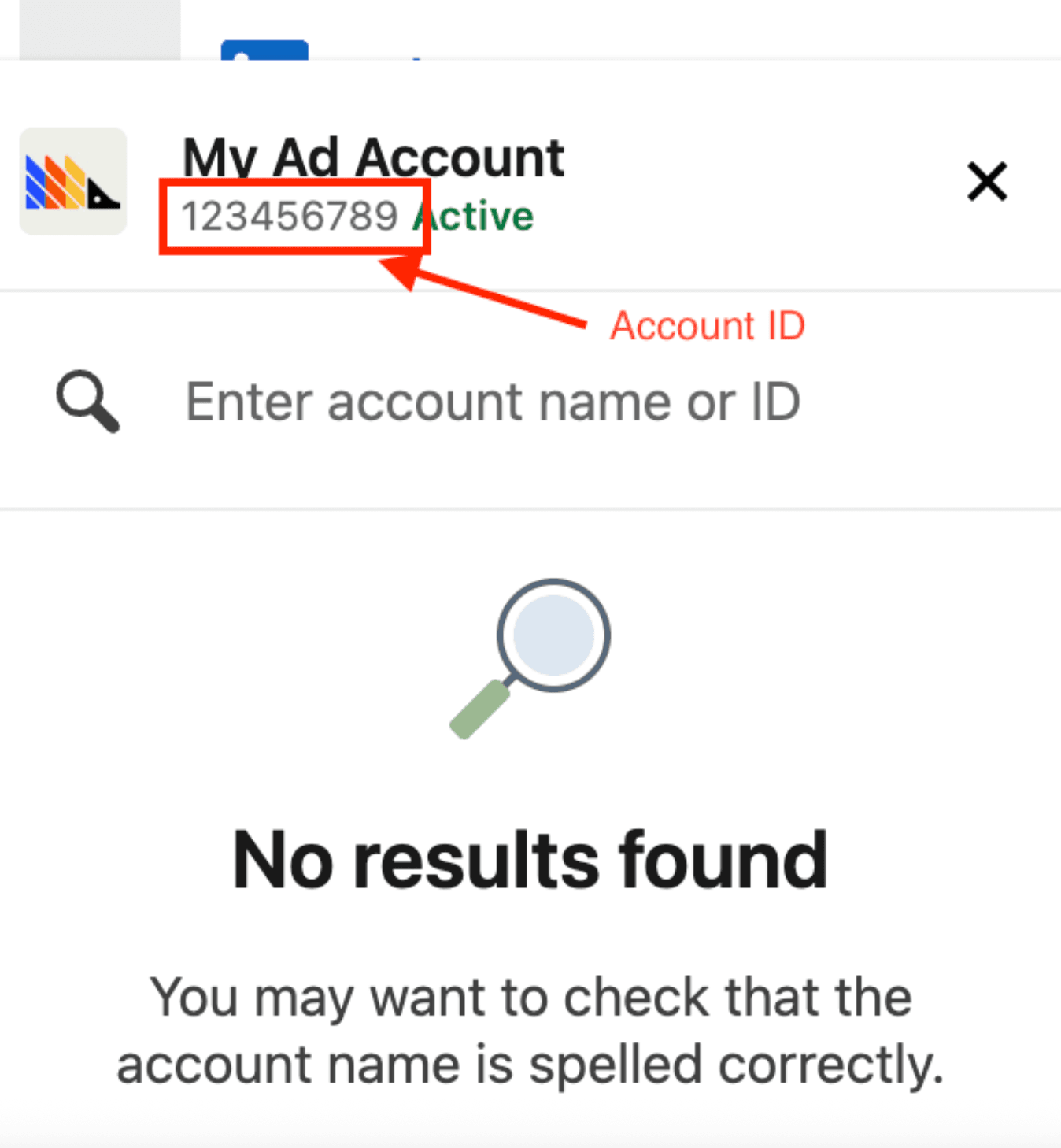
Configuring PostHog
Connect PostHog to your LinkedIn Ads account using a LinkedIn account. The LinkedIn account must have permission to access data.
- In PostHog, go to the Data pipelines tab.
- Open the + New drop-down menu in the top-right and select Source.
- Find LinkedIn Ads in the sources list and click Link.
- Enter the numeric Account ID of the LinkedIn Ads account you want to sync (digits only).
- Select an existing LinkedIn Ads account, or create a new integration
- (Optional) Add a prefix for the table name.
Configuration
| Option | Type | Required |
|---|---|---|
LinkedIn Ads account | oauth | Yes |
Account ID | oauth-account-select | Yes |
Supported tables
| Table | Description | Sync method | Incremental field | Primary key |
|---|---|---|---|---|
accounts | A LinkedIn advertising account (ad account) used to run and bill campaigns. | Full refresh | — | — |
campaigns | A LinkedIn ad campaign — a budget, schedule, and targeting wrapper around creatives. | Full refresh | — | — |
campaign_groups | A group of LinkedIn ad campaigns sharing a budget and schedule. | Full refresh | — | — |
creatives | A LinkedIn ad creative — the content shown to members within a campaign. | Full refresh | — | — |
conversions | A conversion rule defined on the ad account, describing an action on the advertiser's site that LinkedIn attributes back to ads. | Full refresh | — | — |
campaign_stats | Daily performance analytics for LinkedIn ad campaigns, pivoted by campaign. | Incremental, Full refresh | date_start | — |
campaign_group_stats | Daily performance analytics for LinkedIn ad campaign groups, pivoted by campaign group. | Incremental, Full refresh | date_start | — |
creative_stats | Daily performance analytics for LinkedIn ad creatives, pivoted by creative. | Incremental, Full refresh | date_start | — |
member_company_stats | Daily ad analytics broken down by the company members work at. LinkedIn approximates professional demographic metrics to protect member privacy: only the top 100 values per creative per day are returned, values with fewer than 3 events are dropped, and the data is retained for two years. | Incremental, Full refresh | date_start | — |
member_company_size_stats | Daily ad analytics broken down by the headcount band of the company members work at. LinkedIn approximates professional demographic metrics to protect member privacy: only the top 100 values per creative per day are returned, values with fewer than 3 events are dropped, and the data is retained for two years. | Incremental, Full refresh | date_start | — |
member_country_stats | Daily ad analytics broken down by the country members are in. LinkedIn approximates professional demographic metrics to protect member privacy: only the top 100 values per creative per day are returned, values with fewer than 3 events are dropped, and the data is retained for two years. | Incremental, Full refresh | date_start | — |
member_industry_stats | Daily ad analytics broken down by the industry members work in. LinkedIn approximates professional demographic metrics to protect member privacy: only the top 100 values per creative per day are returned, values with fewer than 3 events are dropped, and the data is retained for two years. | Incremental, Full refresh | date_start | — |
member_job_title_stats | Daily ad analytics broken down by member job title. LinkedIn approximates professional demographic metrics to protect member privacy: only the top 100 values per creative per day are returned, values with fewer than 3 events are dropped, and the data is retained for two years. | Incremental, Full refresh | date_start | — |
member_seniority_stats | Daily ad analytics broken down by member seniority. LinkedIn approximates professional demographic metrics to protect member privacy: only the top 100 values per creative per day are returned, values with fewer than 3 events are dropped, and the data is retained for two years. | Incremental, Full refresh | date_start | — |
Troubleshooting
Account not found
If your sync fails with the error "LinkedIn could not find the configured ad account", it means LinkedIn returned a RESOURCE_NOT_FOUND response. This happens when:
- The Account ID in your source settings is incorrect or doesn't exist.
- PostHog no longer has access to the LinkedIn ad account.
To resolve this:
- Verify the Account ID is the correct numeric ID from your LinkedIn Campaign Manager.
- Confirm PostHog still has access to the ad account by re-authorizing the LinkedIn Ads integration.
- Re-sync the source.
Invalid Account ID format
If you see the error "The LinkedIn Ads Account ID must be the numeric account ID from your LinkedIn Campaign Manager (digits only)" when setting up your LinkedIn Ads source, it means the Account ID you entered is not in the correct format. PostHog validates this during setup so you can fix it immediately. This happens when:
- You entered a LinkedIn URL instead of the numeric ID.
- You entered a company name or other text instead of the numeric ID.
- The value contains extra whitespace or special characters.
To resolve this:
- Go to your LinkedIn Campaign Manager.
- Find your numeric Account ID – it appears in the URL (e.g.,
https://www.linkedin.com/campaignmanager/accounts/123456789/overview) or in the account dropdown. - Enter the numeric ID only (e.g.,
123456789) and try linking again.
Restricted member account
If your sync fails with an error mentioning RESTRICTED_MEMBER or "Member is restricted", it means LinkedIn has restricted the account that authorized this integration. This is a LinkedIn-side restriction (such as a suspended or flagged account) that prevents PostHog from accessing your ad data. Retrying won't help until the restriction is lifted.
To resolve this:
- Contact LinkedIn to resolve the account restriction.
- Once the restriction is lifted, re-authorize the LinkedIn Ads integration in PostHog.
- Re-sync the source.