







Subscriptions
Contents
Subscriptions enable you to send insights or dashboards to your email or Slack on a regular basis.
Where is this feature available?
Free / Open-source
Paid
Boost
Scale
Enterprise

Looking to subscribe to events or actions? See our realtime destination docs to learn how to send event or action data to webhooks, Slack, and more.
Viewing all subscriptions
You can view and manage all your subscriptions in one place by going to the Subscriptions Page. Access it by:
- Using the command bar (Cmd+K or Ctrl+K) and searching for "Subscriptions"
- Navigating directly to
/subscriptionsin your browser
The subscriptions page shows a paginated table of all subscriptions across your dashboards and insights. You can use tabs to filter by All subscriptions, My subscriptions, Dashboard, or Insight.
From here you can:
- Search for subscriptions by name
- Filter by delivery channel (email or Slack) and creator
- Sort by creation date, next delivery date, title, or creator
- Edit a subscription by navigating to its source insight or dashboard
- Test delivery to immediately send a subscription without waiting for the next scheduled delivery
- Delete subscriptions with an undo option
Creating a subscription
To create a subscription, click Subscribe in the sidebar of any insight or dashboard.
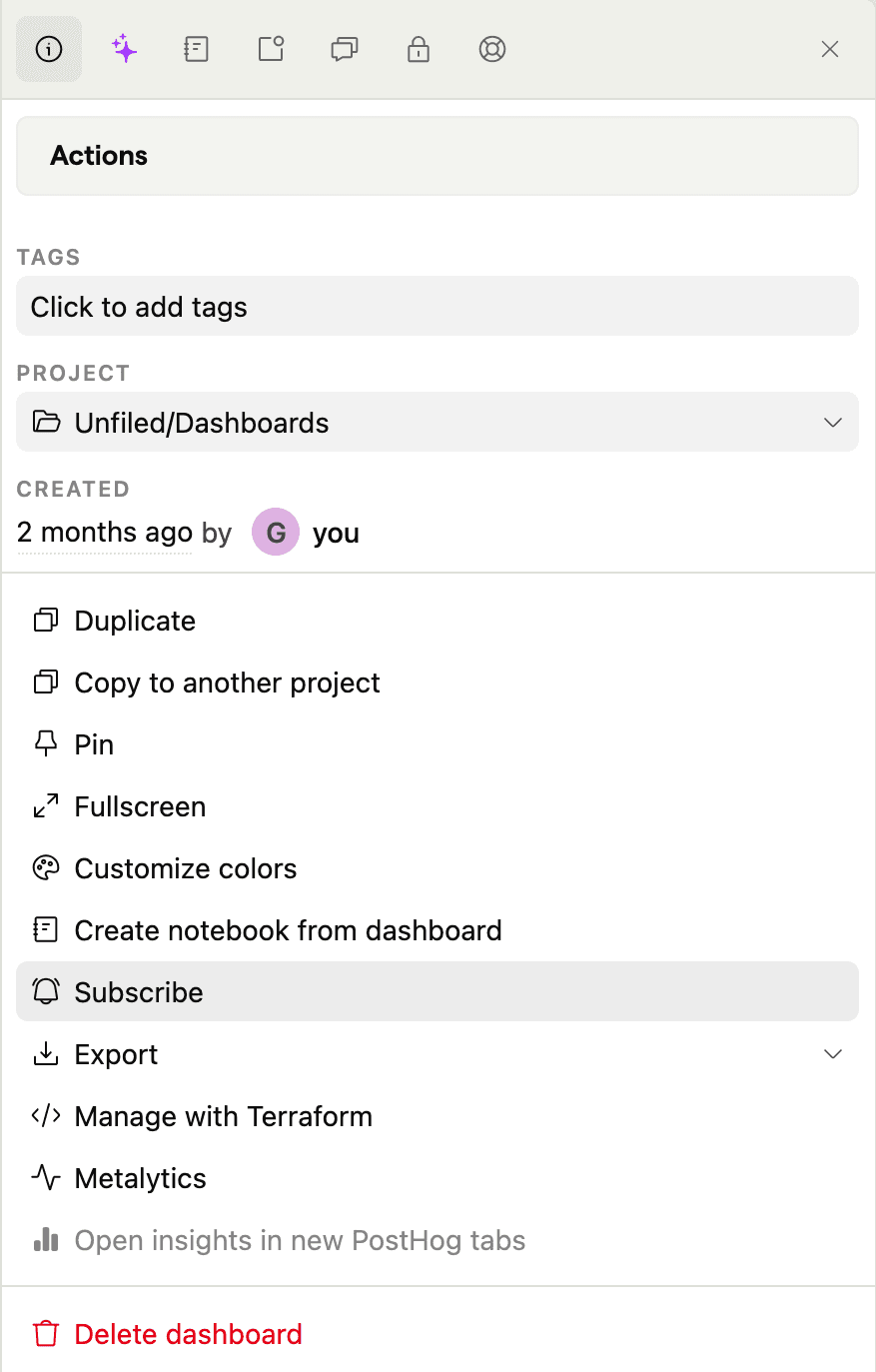
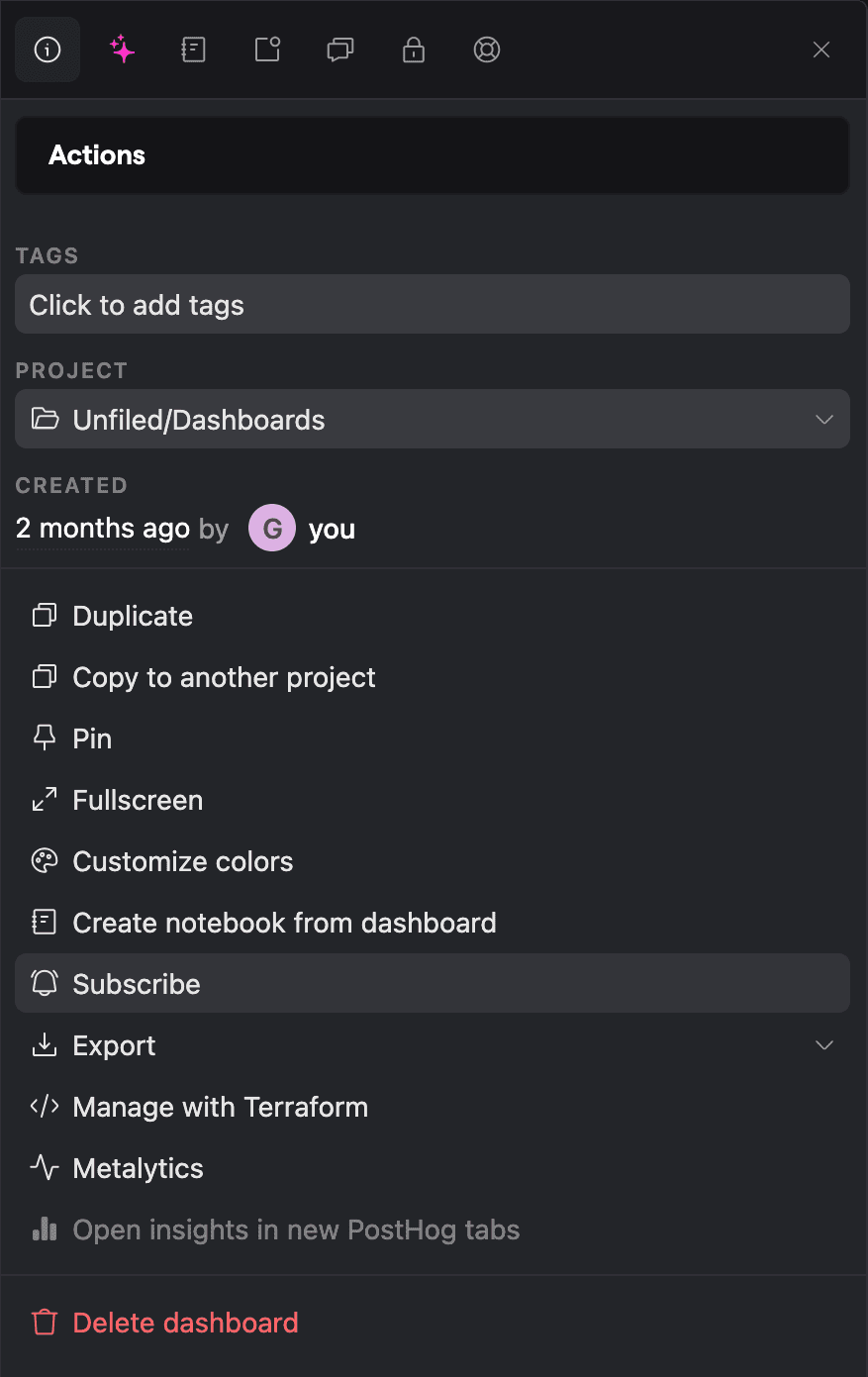
Selecting insights for dashboard subscriptions
When creating a subscription for a dashboard, you can select which specific insights to include. This is useful when different teams subscribe to the same dashboard but only need the insights relevant to them.
- You can include up to 20 insights per subscription.
- New subscriptions automatically pre-select the first 20 insights from the dashboard.
- For dashboards with more than 10 insights, a search box appears to help you find specific ones.
- Selected insights appear in the subscription in the same order as they appear on the dashboard.
Naming your subscriptions
You can give each subscription a custom name to help distinguish between them. This is especially useful when you have multiple subscriptions to the same dashboard or insight – for example, different reports for different teams or frequencies.
For Slack subscriptions, the custom name appears in the message header. For example, a subscription named "Weekly KPI Report" for a dashboard called "Main Dashboard" displays as Weekly KPI Report (dashboard: Main Dashboard) in the Slack message. Without a custom name, the message references the dashboard or insight name directly.
Email subscriptions
When configuring an email subscription you can subscribe multiple emails at once, whether they are a member of your PostHog team or not and set the frequency of the subscription.
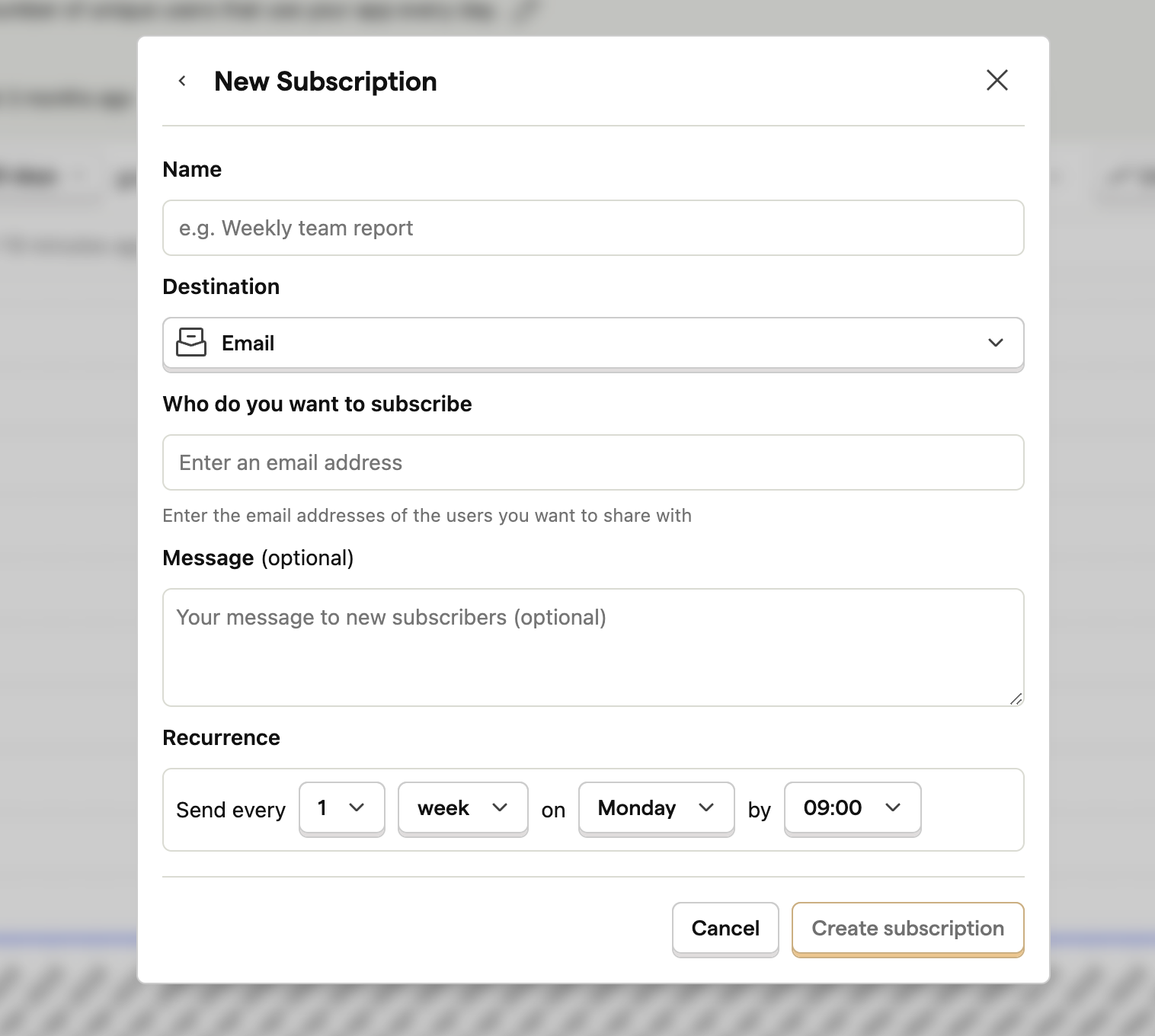
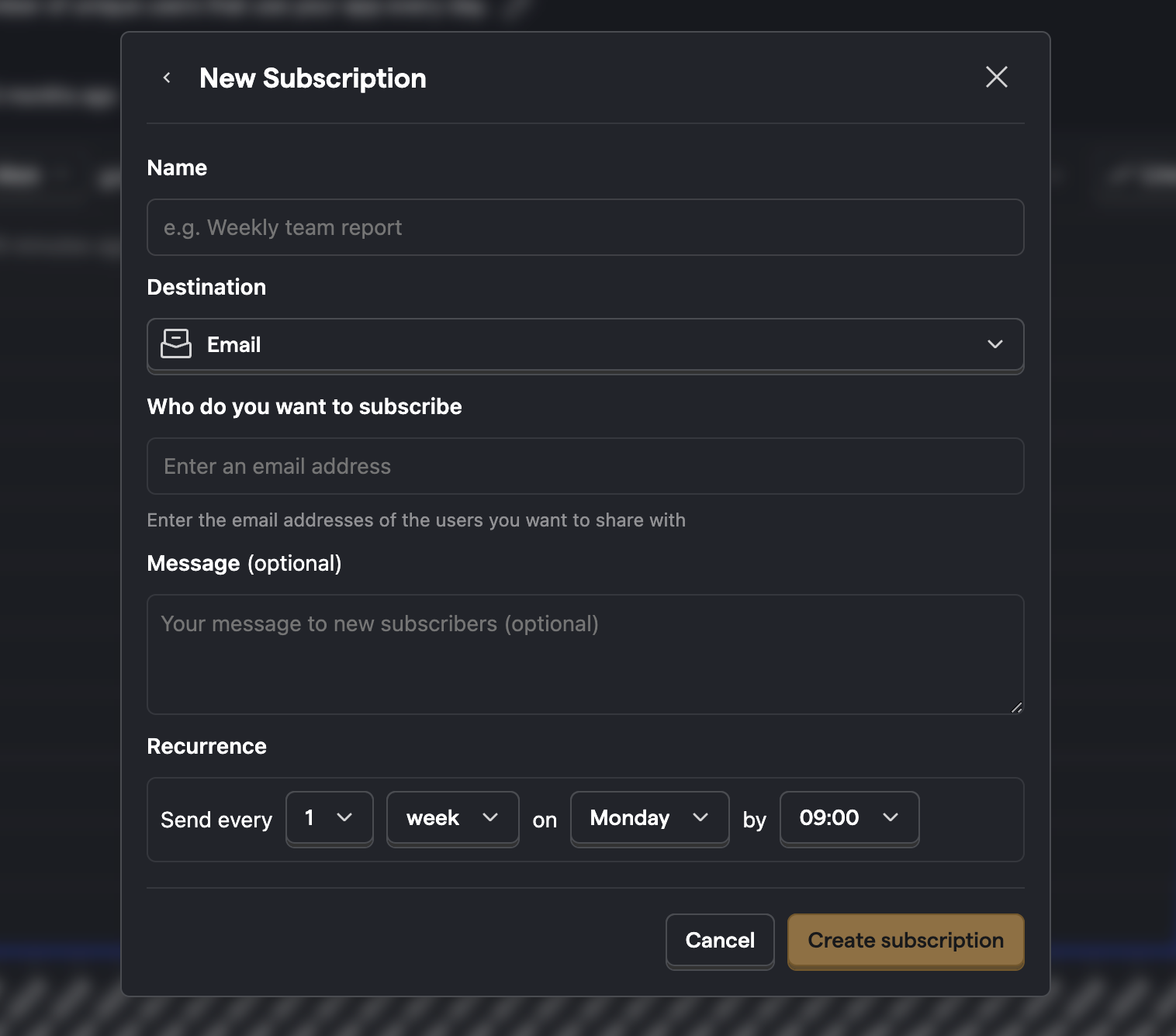
Once saved, any emails not already subscribed receives a notification email informing them what you have subscribed them to. You can optionally include a small personalized message that is sent along to them.
Slack subscriptions
There are three steps to setting up a Slack subscription:
- Adding the PostHog Slack app to your workspace
- Adding the PostHog Slack app to specific channels
- Creating a new Slack subscription in PostHog
1. Adding the PostHog Slack app to your workspace
Starting in PostHog, you can add the PostHog Slack app to your workspace on the Slack integration page.
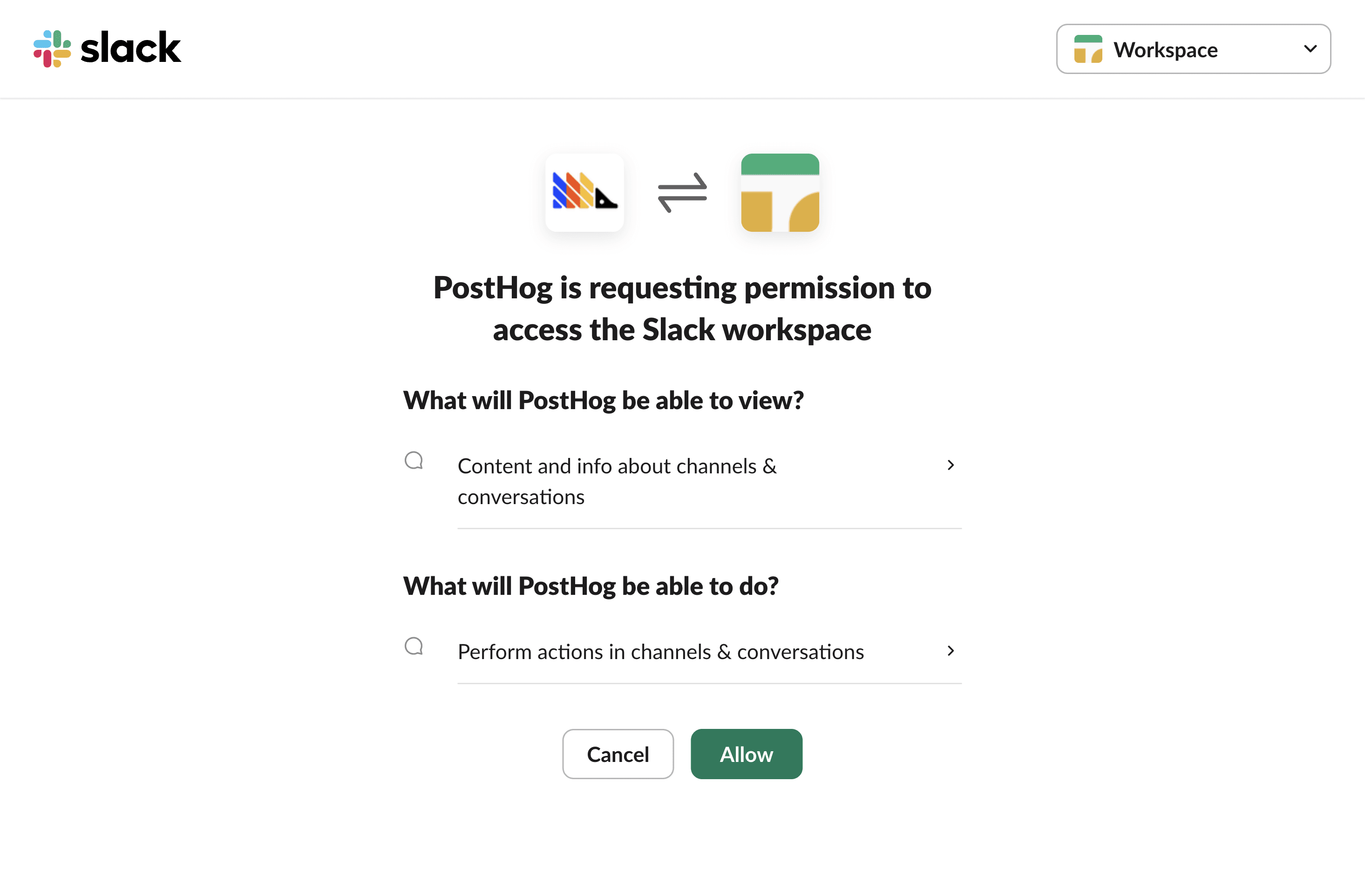
The PostHog Slack app will require some basic permissions which you can grant by clicking the Allow button.
2. Adding the PostHog Slack app to specific channels
Then, head to Slack and add PostHog to specific Slack channels. To do this:
- In the Slack channel header, click the top right menu and click Open channel details
- Navigate to the Integrations tab
- Click the Add an app button
- Under In your workspace, click PostHog
You can also try tagging the @PostHog bot in the channel to add it to the channel.
3. Creating a new Slack subscription in PostHog
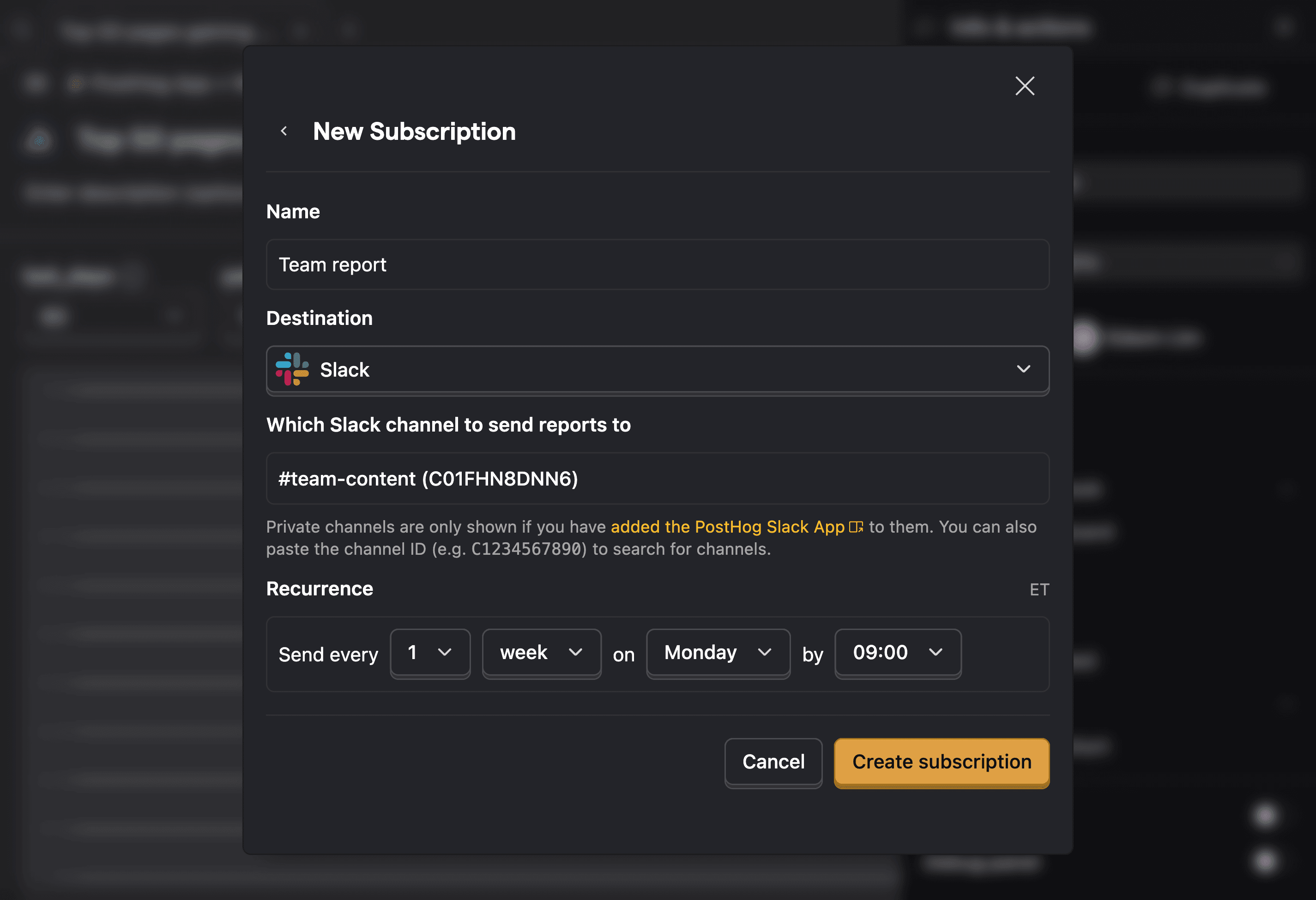
After installing the app, head back to PostHog and add a new subscription. You can do this in any dashboard or insight by clicking Subscribe in the sidebar, and then Add subscription.
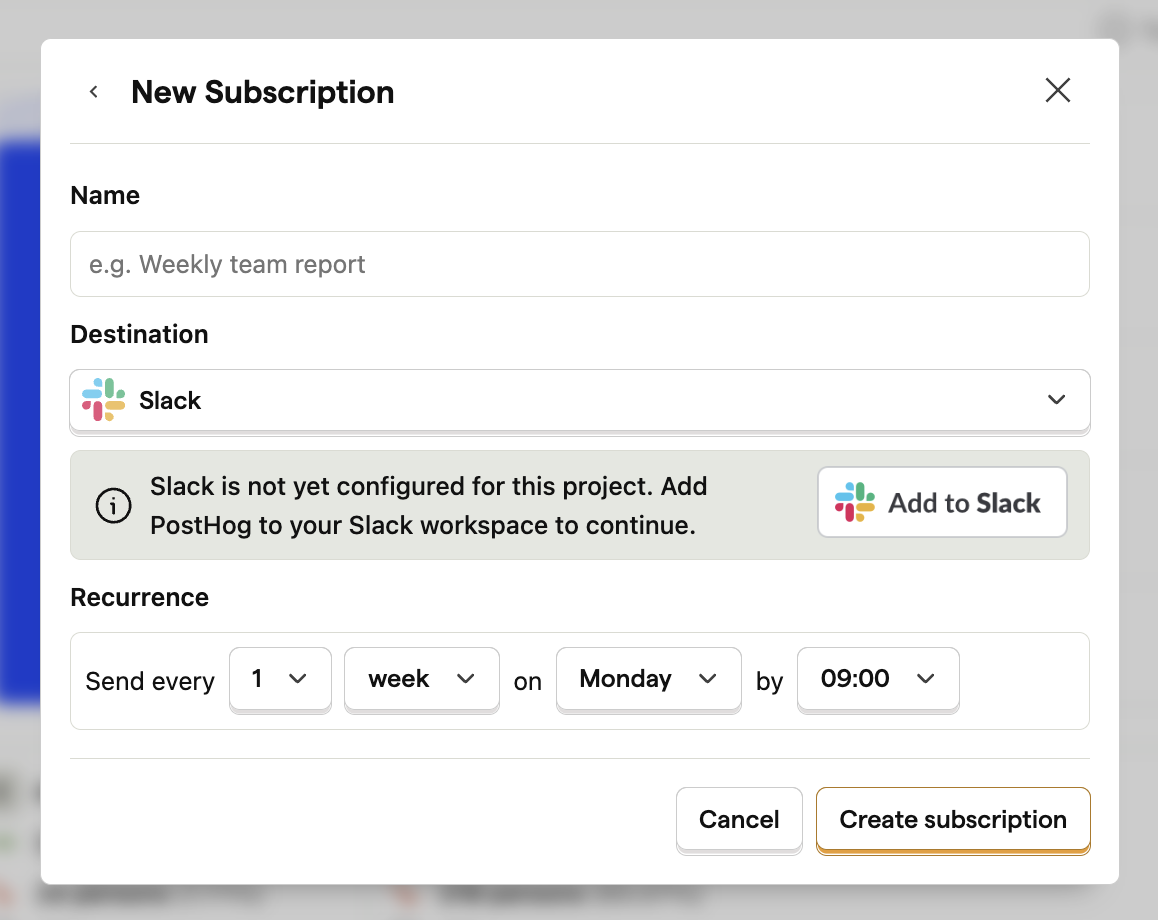
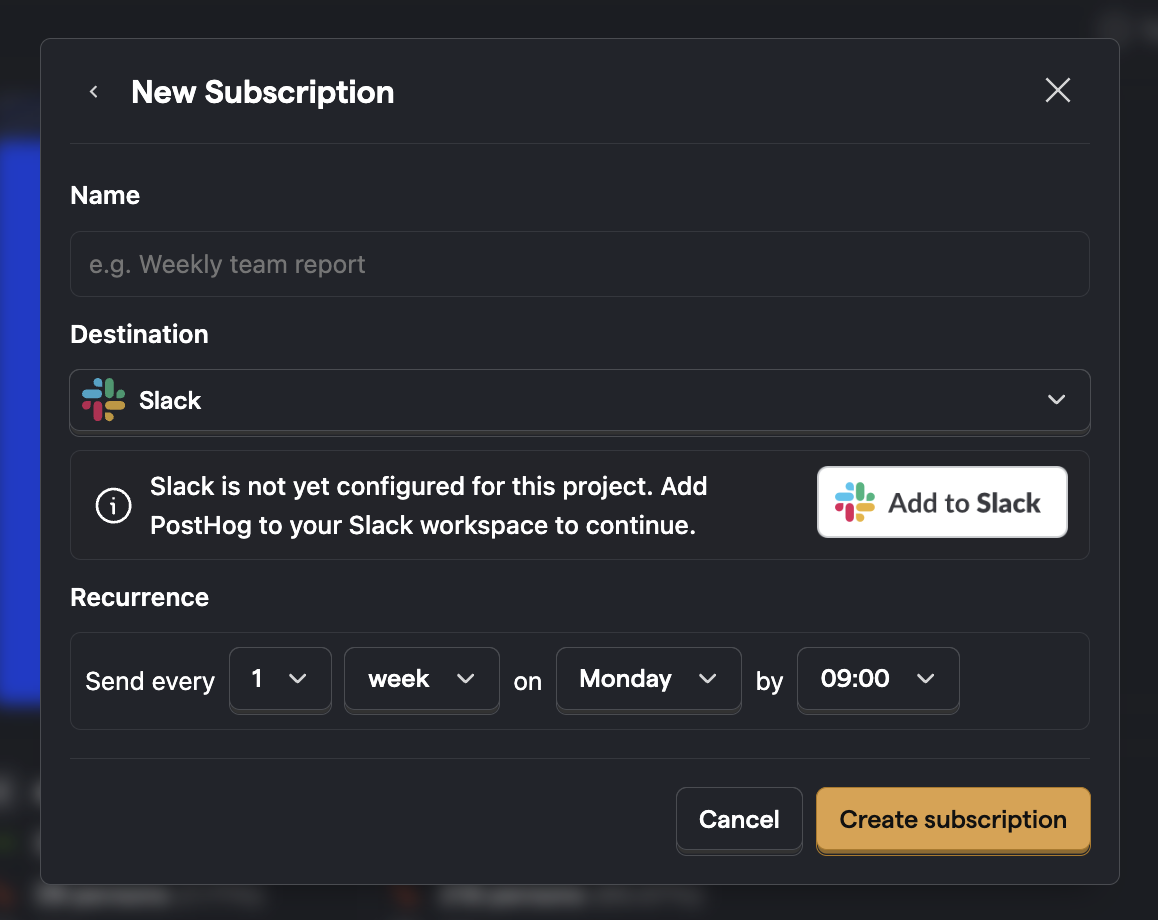
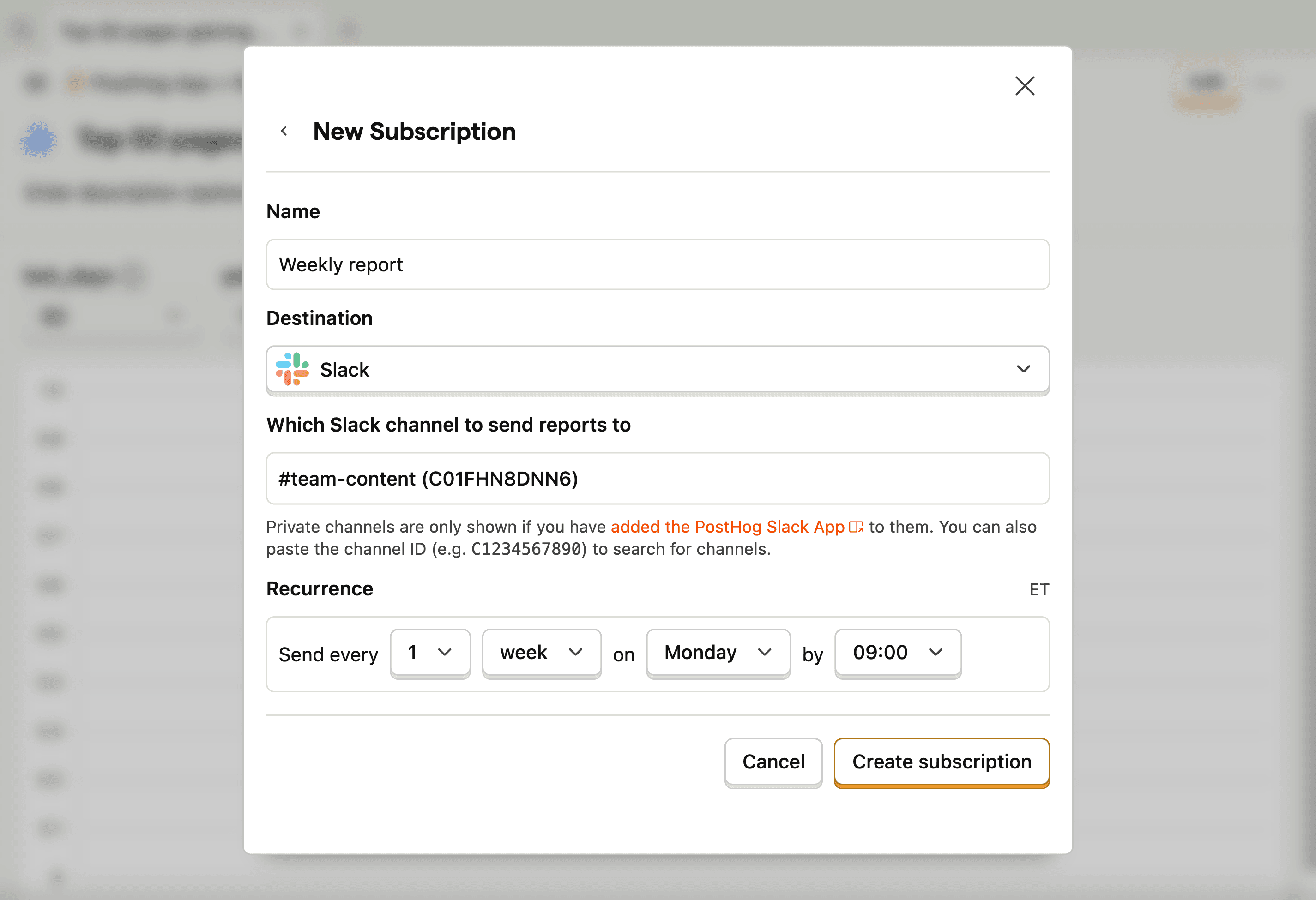
You can then select any channel the app has access to and set a frequency. Private channels are only listed if you have already added PostHog to the relevant channel.
How Slack reports are formatted
Slack subscription reports use native Slack formatting to preserve the structure of your data:
- Tables - Data tables render with proper column alignment and spacing
- Headings and lists - Structured content maintains its hierarchy and readability
- Code blocks - Any code in your report preserves its formatting
- Charts - Insight charts appear in a compact image gallery with direct links to each insight in PostHog
For large reports, PostHog automatically splits the content across multiple messages while keeping tables and code blocks intact.
AI-generated summaries also render with full formatting, including clickable links to relevant insights and dashboards.
Asking @PostHog about subscription reports
When you receive a Slack subscription, you can reply in the message thread and mention @PostHog to ask follow-up questions about the delivered report. If the PostHog Slack app is fully configured with the required scopes, a hint appears at the bottom of each subscription message encouraging you to do this.
If the hint links to setup docs instead, your Slack integration needs to be reconnected with updated scopes. See the PostHog Slack app setup guide for instructions.
This feature requires your organization to have AI data processing consent enabled in your organization settings.
Scheduling options
Subscriptions support three frequency options: daily, weekly, and monthly. You can also set a custom interval (e.g. every 2 weeks) and choose the time of day for delivery.
For monthly subscriptions, you can choose which day to send on:
- A specific weekday (e.g. Monday, Tuesday)
- Any day of the month (by ordinal position)
- A weekday (Monday–Friday) of the month – useful for business-focused reports that should skip weekends
Combine these with an ordinal position – first, second, third, fourth, or last – to schedule deliveries like "the first weekday of the month" or "the last Friday of the month."
AI summaries
You can enable AI-generated summaries for your subscriptions. When enabled, each delivery includes a short AI-generated summary highlighting key changes or takeaways from your data.
For recurring deliveries with previous data, the AI compares the previous and current snapshots to surface:
- Changes in key metrics
- New trends or reversals in direction
- The specific step or segment driving the change
For first-time deliveries without previous data, the AI summarizes the current state of your metrics, highlighting notable values and patterns.
Enable AI summaries
- Create or edit a subscription from any insight or dashboard.
- Toggle Include an automatic AI summary.
Your organization must approve AI data processing before you can enable AI summaries. This consent is managed in your organization settings.
Add context for the AI
You can optionally provide context to guide the AI's focus in the Context for the AI summary field. For example, you might write "This is a daily revenue health check – focus on revenue drop-off and churn signals."
This helps the AI prioritize which metrics to highlight in its summary.
Plan limits
Organizations have limits on how many active AI summaries they can have. If you've reached your plan limit, disable an existing AI summary or upgrade your plan to add more.
When AI credits run out
If your organization exhausts its AI credit budget, subscriptions with AI summaries will still deliver on schedule, but without the AI-generated summary:
- The subscription delivers as normal with your insights or dashboard
- The AI summary is skipped for that delivery
- No notification is sent since the subscription itself continues to function
- Once credits are available again, AI summaries automatically resume
This is different from prompt subscriptions which pause entirely when credits run out, and from disabled subscriptions which require manual intervention.
Prompt subscriptions
Prompt subscriptions are AI-powered recurring reports generated entirely from a free-text prompt. Unlike insight or dashboard subscriptions that deliver snapshots of existing data, prompt subscriptions use AI to plan and run HogQL queries based on your prompt, then synthesize the results into a markdown report.
For example, you could create a prompt subscription with "Summarize weekly signup trends and highlight any drop-offs in the onboarding funnel" and receive a fresh AI-generated analysis on your chosen schedule.
Prompt subscriptions support the same delivery options as other subscriptions – email or Slack – and the same scheduling frequencies (daily, weekly, monthly).
Prerequisites
- PostHog Cloud only – prompt subscriptions aren't available on self-hosted deployments
- AI data processing consent – your organization must approve AI data processing in your organization settings
- AI credits – each delivery consumes AI credits since the report is generated by an LLM
When AI credits run out
If your organization exhausts its AI credit budget, prompt subscriptions are paused entirely – no delivery is sent. This is different from AI summaries on insight and dashboard subscriptions, which continue to deliver but skip the summary.
When a prompt subscription is paused due to credits:
- The subscription's next delivery date is rescheduled to when your credits reset (the start of your next billing period)
- The subscription creator receives one email notification per billing cycle
- Once credits are available again, the subscription automatically resumes – no manual intervention needed
- The subscription stays enabled and isn't disabled
Analysis window
The analysis window controls which time range each prompt subscription analyzes. You can configure this when creating or editing a prompt subscription.
There are three modes:
- Since last report (default) – analyzes data from the previous successful scheduled delivery until now. This is gap-free, meaning each report picks up exactly where the last one ended. Test and manual deliveries don't move the anchor.
- Last N days – analyzes a fixed trailing window (e.g. the last 7 days) regardless of when the last report was sent.
- Between X and Y days ago – analyzes an explicit historical range. For example, "between 14 and 7 days ago" always looks at the same week-old window.
The analysis window is timezone-aware and uses your project timezone. This means a daily report sent at 4pm captures events from your local "today" rather than UTC midnight boundaries.
For period-over-period comparisons (like week-over-week trends), the AI automatically compares against the equivalent previous period based on your window selection.
Next delivery date
Each subscription displays its next scheduled delivery date, so you can see exactly when the next report is sent. This date updates automatically after each delivery.
When editing a subscription, a preview of the next delivery date appears below the scheduling options so you can verify your configuration before saving.
Testing subscriptions
You can manually trigger a test delivery for any subscription. Click the ... menu on a subscription in the list and select Test delivery. This immediately sends the subscription content to the configured target (email or Slack channel) without waiting for the next scheduled delivery.
This is useful for verifying that the subscription is configured correctly and the content looks as expected.
Automatically disabled subscriptions
PostHog automatically disables subscriptions when delivery can't succeed. This happens when:
- Slack integration disconnected – The Slack integration was removed or disconnected from your PostHog organization.
- Unsupported delivery channel – The subscription targets a delivery channel that's no longer supported.
- Slack channel access issues – PostHog can't post to the Slack channel. This includes archived channels, channels the PostHog bot was removed from, channels that no longer exist, or a revoked Slack token.
When a subscription is auto-disabled, the subscription owner receives an email notification explaining the reason. Disabled subscriptions display a Disabled tag in the subscriptions list and on the subscriptions page.
Disabled subscriptions don't deliver on their schedule and can't be test-delivered.
Re-enabling a subscription
To re-enable a disabled subscription:
- Fix the underlying issue (e.g., reconnect the Slack integration or re-add the PostHog bot to the channel).
- Navigate to the subscription and toggle the Enabled checkbox back on.
PostHog validates that the issue is resolved before allowing re-enable. If the prerequisite is still broken (e.g., Slack is still disconnected or the bot isn't in the channel), re-enabling is rejected with an error message.
When you successfully re-enable a subscription, PostHog immediately sends a confirmation delivery and sets the next scheduled delivery date.