





What to watch
Contents
What to watch is the first tab on the Replay Vision home. It reads the observations every scanner produced over a date range and picks the ones most worth a look, so you can start with a short list of sessions instead of a table per scanner. The heading shows how many it picked, like Top 12 sessions.
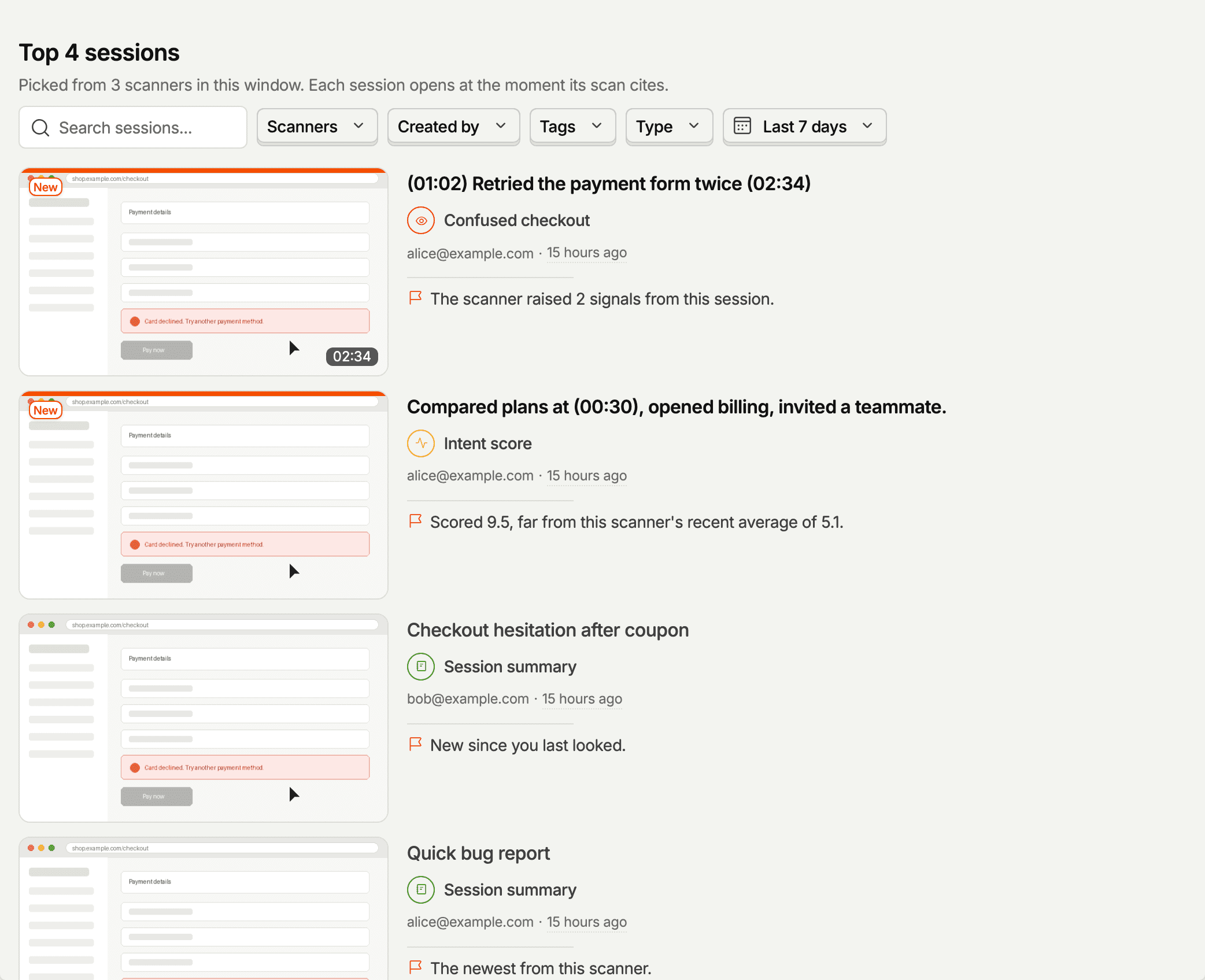
What each row shows
The feed is one list, and each row is one observation:
- Thumbnail – a frame from the recording, with the key moment's timestamp on it. The key moment is where the scan's answer rests most.
- Headline – the summary's title for summarizers. For other scanner types, it's the scan's sentence about what makes the session worth watching, or the first sentence of the reasoning when the scan didn't write one.
- Scanner – the scanner's name, with an icon in its type's color. Hover it to see the scanner's question and verdict. Click it to show only that scanner's sessions.
- Person and time – who was recorded, with a link to their person profile, and when the scan ran.
- Why this recording – one line on why the observation made the feed.
Rows for observations you haven't opened yet are marked New. This is tracked per user, and opening the observation's page clears it.
Watching a session
Click a row to open its observation page. The player there starts 3 seconds before the key moment, so you see what led up to it. Recordings without a key moment start from the beginning. Going back returns you to the feed.
Why a session is in the feed
Every row has a Why this recording line that gives one of these reasons:
| Reason | What it means |
|---|---|
| The scanner raised signals | The session fed findings into Signals. The row names the issue type (bug, crash, design flaw, or UX friction) and the findings' headlines |
| A rare answer | A monitor gave an answer that's unusual for it in this window |
| The scanner answered yes | A monitor hit, when the window is too thin to know which answer is unusual |
| Far from the recent average | A scorer's score is far from its average over the window |
| An uncommon tag | A classifier picked a category it rarely uses lately |
| Reads unlike the scanner's other sessions | A summary that differs from the scanner's other summaries in the window |
| Worth watching | The scan judged the session worth watching, whatever its answer was |
| Signs of friction | The scan describes errors, retries, or dead ends |
| New since you last looked | Nothing stood out, and you haven't opened it yet |
| The newest from this scanner | Nothing stood out, and it's among the most recent |
The last two only pad out a feed that has few findings. If every row is one of them, the feed says that nothing stood out in this window and shows the newest sessions.
Filtering the feed
The controls above the feed narrow what it picks from:
- Search sessions – matches the scan's own words (title, summary, reasoning, and the worth-watching sentence) and the scanner's name. It searches the whole window, not only the sessions that would have shown without it. For searching by meaning, use the Search tab, see searching observations.
- Scanners – follow only the scanners you pick. Use the All scanners row at the top to select or clear all scanners at once.
- Created by – filter by who created the scanner, showing only observations from scanners created by specific users.
- Tags – follow scanners with the tags you pick, handy when you have many scanners for one area.
- Type – one scanner type.
- Date range – the last 7 days by default, up to the last 90 days.
Clear filters resets them. The URL keeps your filters, so you can share a filtered feed.
When the feed is empty
An empty feed tells you why, and what to do about it:
- No scanners yet – the tab explains the feed with example cards and offers Create your first scanner.
- Your Replay Vision credits are used up for this period – scans are skipped until the period resets or you raise the limit. See quota and limits.
- None of your scanners are running – every scanner is turned off. Turn one on and its clips appear after the next matching recording.
- Every running scanner has reached its own credit limit – they stop scanning until the period resets. Raise a scanner's limit to start it again. Sessions they skipped aren't scanned later.
- No clips match these filters in this window – loosen your filters or click Clear filters.
- Nothing stood out in this window – try a longer date range.