





Alerts
Contents
An alert watches a scanner's observations and notifies you when something you care about happens. Alerts live on the scanner's Alerts tab and run on PostHog's shared alerts platform, so they behave like the alerts you already use elsewhere in PostHog.
If you want a written summary of what a scanner has been finding rather than a notification about a single condition, use a scout instead.
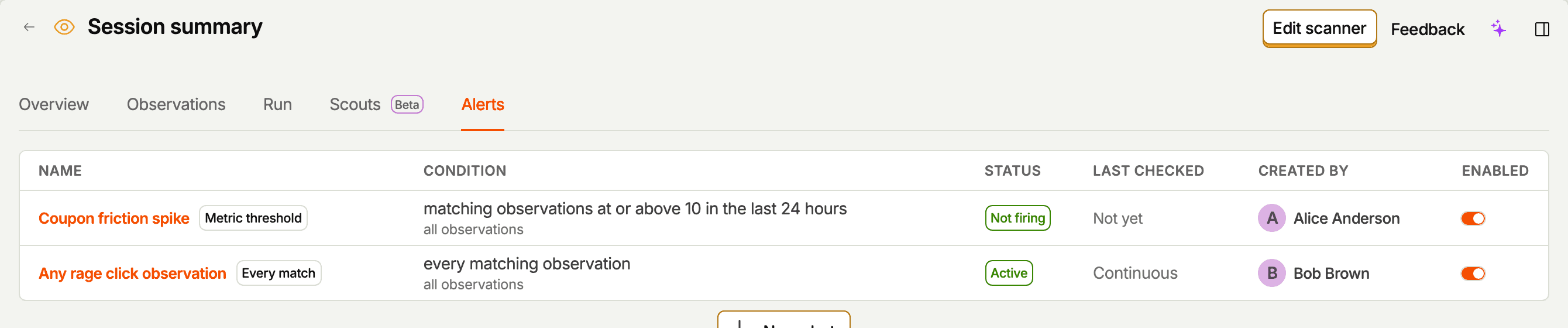
Creating an alert
New alert on the Alerts tab opens a four-step form: name the alert and pick its type, set what it triggers on, choose where notifications go, then review and save.
Alert types
Pick the type in the first step:
- Every matching observation notifies you about each observation that matches your condition, within about a minute. Matches that arrive together are bundled into one message, so a burst sends one notification instead of many. The message lists up to 10 matches, each with its verdict, score, tags, or title and a line of the scanner's own reasoning or summary, so you can see what happened without opening the recording.
- Metric threshold measures your matching observations over a rolling window and notifies you when the number crosses a limit you set. PostHog checks it about once an hour.
Which observations count
An alert first picks out the observations it cares about. The fields depend on the scanner type:
| Scanner type | What you can filter on |
|---|---|
| Monitor | Verdict: Yes, No, or Inconclusive. |
| Classifier | Tags. An observation matches if it carries any of them. The picker suggests the scanner's configured tags first, then freeform tags it has applied in past observations, and you can also type a tag it hasn't used yet. |
| Scorer | A minimum score, a maximum score, or both. |
| Summarizer | Nothing to filter on, so an alert covers every observation. |
Leave everything empty to match every observation the scanner produces. Only succeeded observations count. Failed and ineligible ones are never matched.
When it fires
For a metric threshold alert, you set:
- Measure – the number of matching observations, or their average score (scorers only).
- Direction and threshold – fires at or above, or at or below, the number you give.
- Window – 24 hours, 3 days, 7 days, 14 days, or 30 days.
An alert notifies you once when it starts firing, and again when it resolves, so a persistent problem doesn't message you every hour.
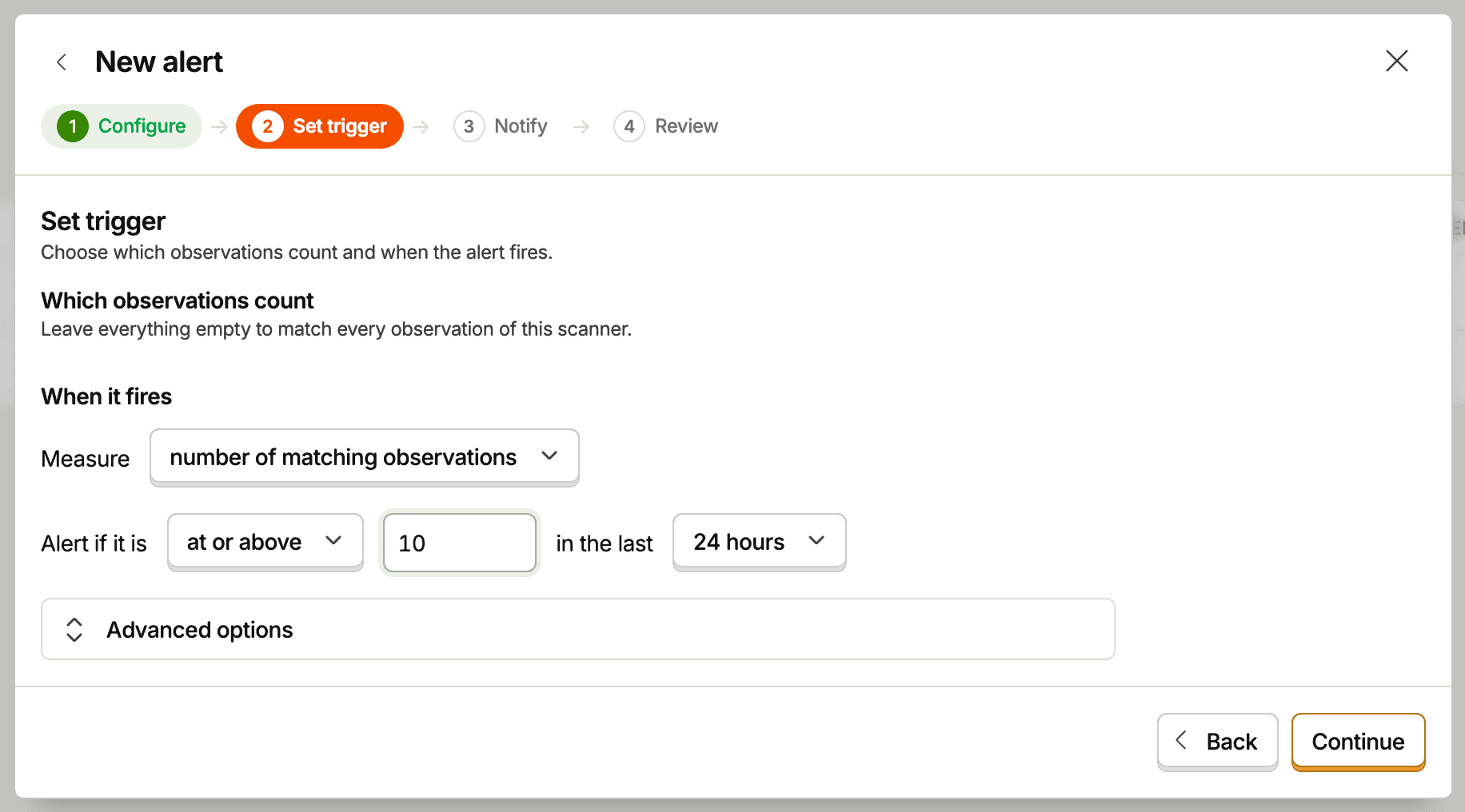
Three advanced options tune the noise:
- Noise reduction requires N of the last M checks to breach before the alert fires.
- Notification cooldown sets a minimum number of minutes between repeated notifications.
- Quiet hours hold notifications outside the hours you pick, in your project's timezone.
Quiet hours are also available on every matching observation alerts. The other two don't apply to them.
Delivery
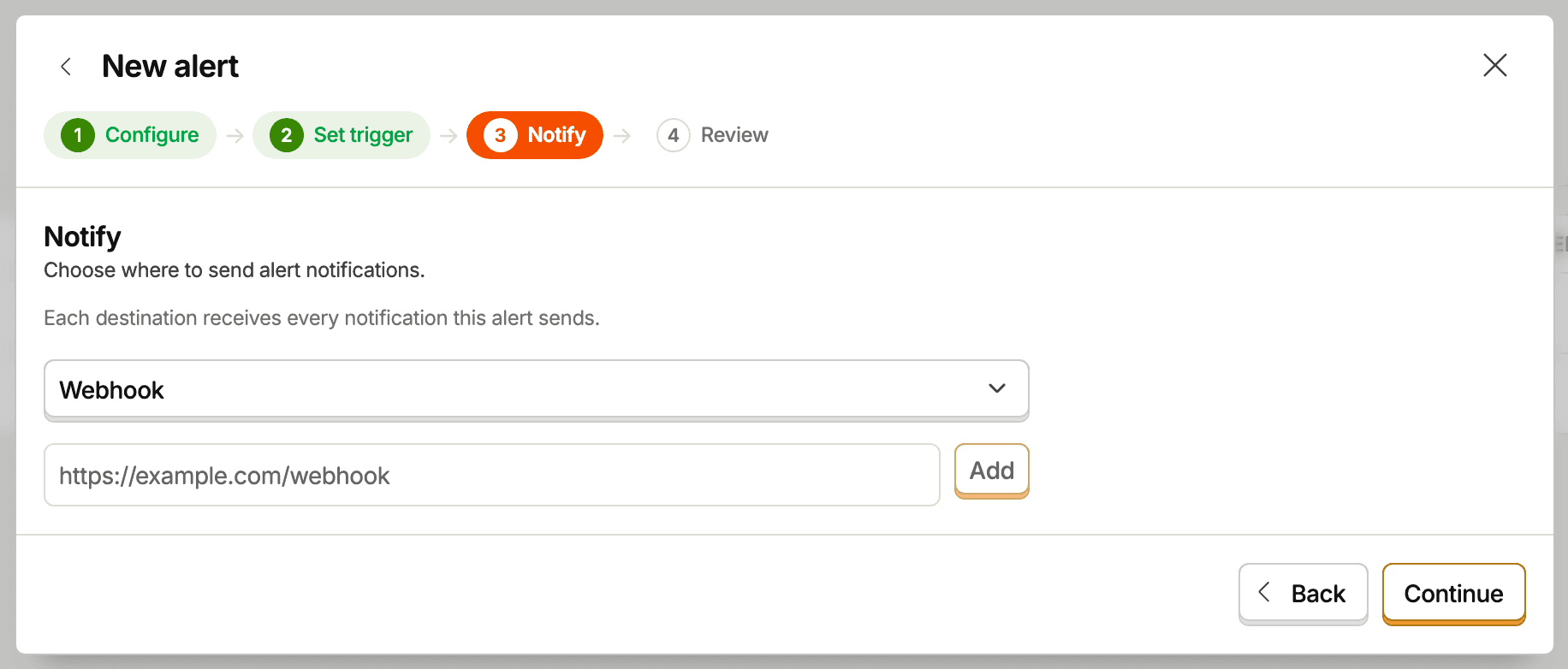
The Notify step is where destinations go, and you can add more later by editing the alert. On an existing alert, destination, snooze, and Enabled changes save automatically, without Save. Each destination receives every notification that alert sends:
- Slack – a channel in a connected Slack workspace.
- Webhook – an HTTPS URL of yours.
Every notification starts with the scanner's question, so a reader knows what was asked before they read the result.
Notifications are also recorded on the alert itself. Open an alert to see its evaluation history, so nothing is lost if a channel is misconfigured.
Webhook payloads
PostHog sends an HTTP POST with a JSON body.
- Headers:
Content-Type: application/jsonX-PostHog-Webhook-Version: 1is the payload version. New fields may be added to the body without changing it, so ignore unknown fields rather than rejecting the payload. A breaking change would ship under a new version.
The type field tells you what happened. Route on it:
type | Meaning |
|---|---|
replay_vision_alert.match | New observations matched an "every matching observation" alert. |
replay_vision_alert.firing | A metric alert crossed its threshold. |
replay_vision_alert.resolved | A firing metric alert came back within its threshold. |
replay_vision_alert.errored | A check couldn't run. The body carries error_message. |
replay_vision_alert.auto_disabled | Checks failed repeatedly and PostHog switched the alert off. |
A firing payload looks like this:
A replay_vision_alert.match payload carries matched_count, observation_ids, and summary in place of the metric fields. summary is plain text with one line per match, in the same form as the Slack message.
Alert states
The Alerts tab shows where each alert stands:
| State | Meaning |
|---|---|
| Active | An "every matching observation" alert, watching. These have no firing state. |
| Not firing | The metric is within its threshold. |
| Firing | The metric has crossed its threshold and you've been notified. |
| Snoozed | Someone snoozed the alert until a set time. |
| Errored | A recent check failed. PostHog keeps trying. |
| Broken | Checks failed repeatedly, so the alert was switched off. |
| Disabled | You turned it off. |
Notification cooldown and quiet hours hold back notifications, but they don't change the alert's state.
To snooze an alert, open it and pick a time from Snooze until. Over the API, set snooze_until. The alert starts checking again after that time. Clear snooze in the same menu ends a snooze early.
Use Reset on a broken alert to clear its state and run a fresh check shortly after.
Alerts don't spend credits. They read observations the scanner has already produced.
Creating, editing, and deleting an alert needs edit access to the scanner. Each change is recorded in your project's activity log, alongside changes to the scanner itself.
Alerts vs. insight alerts
Every observation is also a $recording_observed event, which gives you a second way to get notified: build an insight on those events and put a standard alert on it.
Reach for a scanner alert when you want the finding itself, with links straight to the matching sessions. Reach for an insight alert when you want a threshold on a metric derived from observations, combined with other data in PostHog's SQL.