





Scouts
Contents
Observations tell you what a scanner found, one session at a time. A scout reads them for you: it's a scheduled agent that looks at a scanner's new observations on a cadence you set, and writes up anything worth a look.
Scouts live on the scanner's Scouts tab. Each report a scout files lands in your inbox, and the latest one shows on the scanner's Overview tab. Scouts are part of self-driving, so a scanner's scouts sit alongside the rest of your project's scouts and follow the same rules.
If you'd rather be notified the moment an observation matches a condition, or when a number crosses a threshold, use alerts instead.
Creating a scout
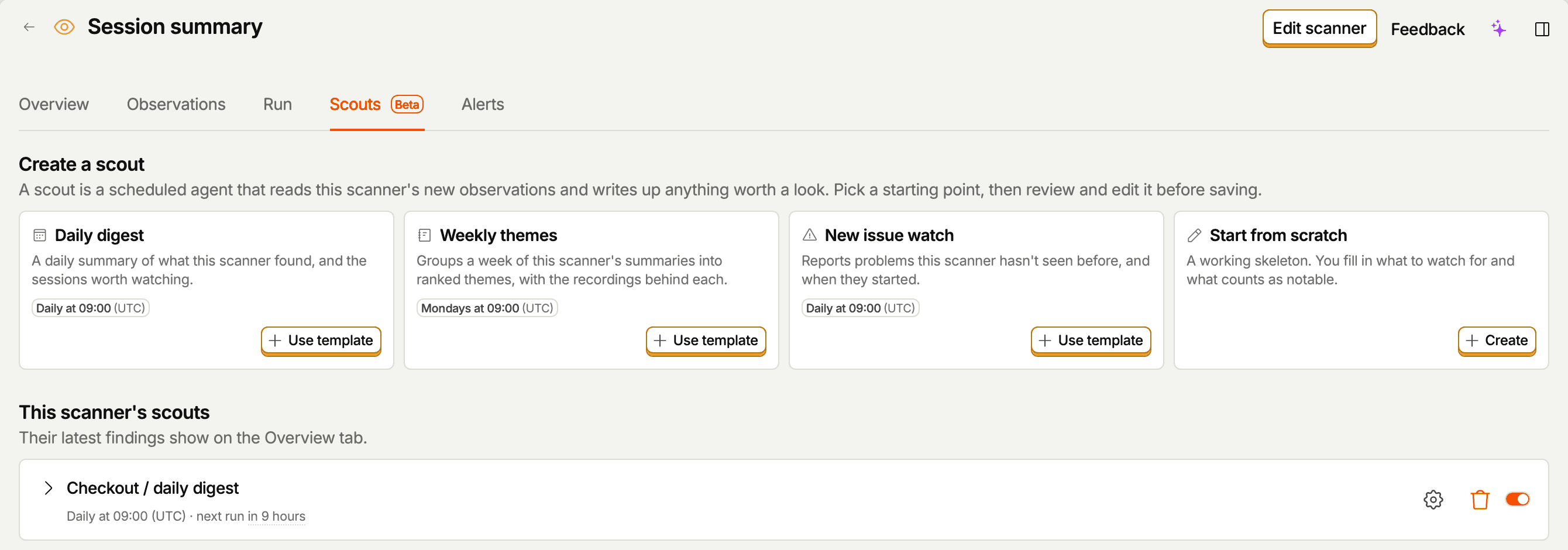
The Scouts tab opens on a row of starting points. Which ones you see depends on the scanner type. Pick one, review what it hands you, then save:
| Template | Offered on | Default schedule | What it does |
|---|---|---|---|
| Daily digest | Every scanner | Daily at 09:00 | A daily summary of what this scanner found, and the sessions worth watching. |
| Root cause | Monitors, classifiers, scorers | Mondays at 09:00 | Groups the scanner's findings into causes, with links to the recordings behind each. It reads the last 30 days and compares the sessions it explains against the rest: yes verdicts for a monitor, the problem end of the scale for a scorer, and up to three problem tags for a classifier. |
| Weekly themes | Summarizers | Mondays at 09:00 | Groups a week of the scanner's summaries into themes ranked by how many sessions each covers, and says which ones grew, shrank, appeared, or faded. |
| Trend watch | Monitors, classifiers, scorers | Mondays at 09:00 | Watches the scanner's own output over the last 28 days for shifts against its baseline: yes-rate for monitors, mean score for scorers, tag mix for classifiers. |
| New issue watch | Every scanner | Daily at 09:00 | Reports problems this scanner has never seen before, and when they started. |
| Start from scratch | Every scanner | Daily at 09:00 | A working skeleton with the judgment calls left as placeholders for you to fill in. |
Once a monitor, classifier, or scorer has at least 20 sessions for a root cause scout to explain, its Overview tab also offers one: Find out what's behind these results, with an Add scout button that opens the same form. The offer goes away once the scanner has a root cause scout, or when you dismiss it.
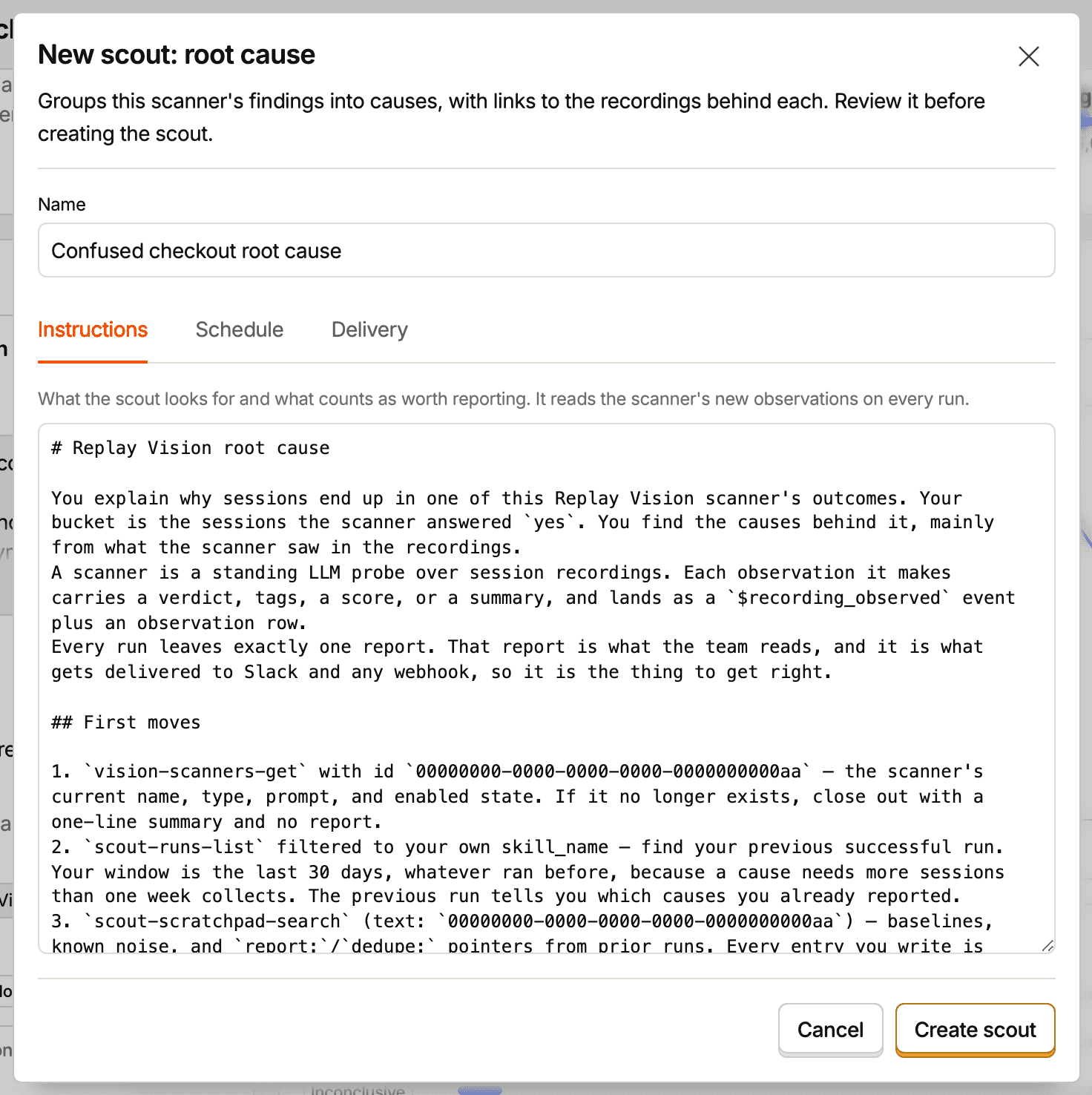
Every template opens the same form: a Name field, then three tabs. The name starts as the scanner's name plus the template, like "Checkout errors daily digest", and you can change it.
Instructions
What the scout looks for, and what counts as worth reporting. The templates come filled in, and you can edit the text before saving or any time afterwards. A scout reads the scanner's new observations on each run, so the instructions are about judgment, not about wiring up data access.
The Start from scratch template marks its open decisions in capitals. You have to replace or remove those before the scout can be saved.
Schedule
Pick a frequency (Every day, Weekdays, or Weekly (Mondays)) and a run time. The time uses your project's timezone, which the form names next to the field.
Delivery
Optional, and set up alongside the rest of the scout rather than afterwards:
- Slack – post each report to a channel in a connected Slack workspace. Reports post as a thread: a short lead message in the channel, with the rest of the report in replies.
- Webhook –
POSTeach report to an HTTPS URL of yours. Delivery runs through a destination in Data Pipelines, where you can see each attempt.
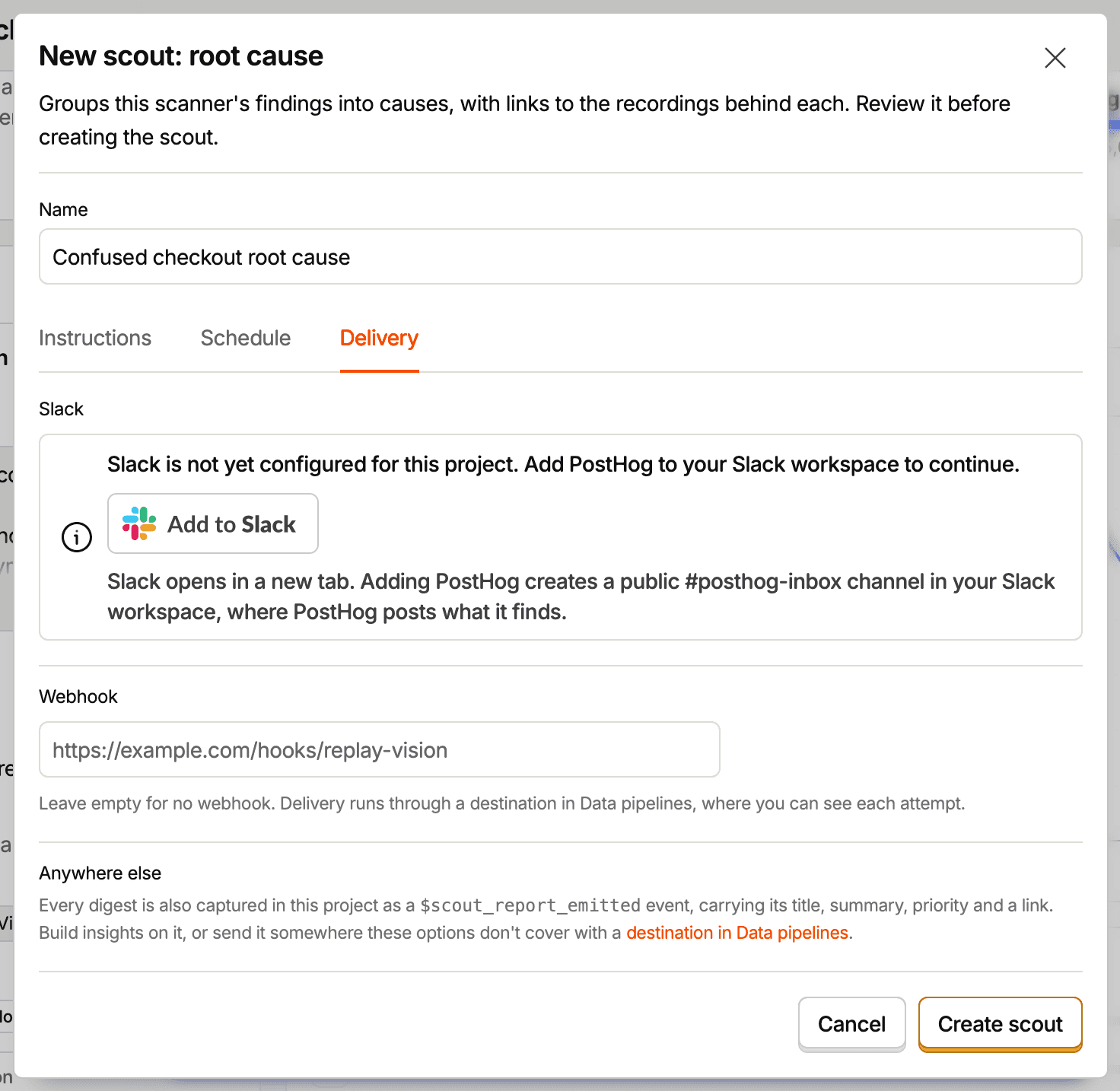
Reports reach your inbox whether or not you set up delivery, so a misconfigured channel never loses a finding.
Webhooks
Set a webhook URL on the scout's Delivery tab and PostHog sends an HTTP POST with a JSON body each time the scout files a report. The URL must start with https:// and must not embed credentials.
- Method:
POST - Headers:
Content-Type: application/jsonX-PostHog-Webhook-Version: 1is the payload version. New fields may be added to the body without changing it, so ignore unknown fields rather than rejecting the payload. A breaking change would ship under a new version.
| Field | Type | Description |
|---|---|---|
source | string | Always replay_vision_scout. Route on this. |
scout | string | The scout's internal name, unique in the project. It's set when the scout is created and doesn't change if you rename the scout. |
run_id | string | ID of the run that filed the report. Use it to dedupe retries. |
filed_at | string | ISO 8601 time the report was filed. |
digest.report_id | string | ID of the report in your inbox. |
digest.title | string | The report's title. |
digest.summary | string | The report's summary, as Markdown. |
digest.priority | string | The priority the scout assigned, P0 to P4. |
digest.url | string | Link to the report in PostHog. |
Delivery runs through a destination in Data Pipelines named Replay Vision · <scout name>, where you can see every attempt and its result.
Reports
Each run files one report, titled with the scout's name and the date: a Markdown write-up with a summary, sections ordered by what covers most of the window, and links that open a recording at the moment behind each claim.
A report lands in three places:
- The scanner's Overview tab, which leads with the latest one.
- Your inbox, alongside reports from your other scouts.
- Any delivery destination you set up.
A scout reads back what its earlier runs recorded, so it doesn't restate an unchanged problem every day. A recurring one comes back when it worsens, clears, or gains new evidence.
Running scouts
Each scout on the tab shows its cadence and its next run. Expand a row to see the reports it has filed, and open one to read it in place.
- Run now triggers an off-schedule run, which is useful while you're tuning instructions. A run costs credits, so it's only offered when the scout hasn't filed anything yet.
- The gear opens the same form you created the scout with, including its name. Changes take effect on the scout's next run.
- The toggle pauses and resumes the scout.
- Delete stops its scheduled runs permanently. Reports it already filed stay in your inbox.
Watcher scouts are selective on purpose. When nothing clears their bar, they file a short report that says so (for example, "Nothing notable" or "No clear cause") with a line on what they read, and that's the scout working rather than a gap. Digests and weekly themes summarize the window either way.
Sending reports somewhere else
Every report a scout surfaces is also captured in your project as a $scout_report_emitted event, carrying its title, summary, priority, and a link back to it. You can build insights on that event, or send it anywhere the Slack and webhook options don't cover with a destination in Data Pipelines.
Letting a scout edit scanners
By default a scanner's scouts are read-only: they report on what the scanner found and recommend changes, but never change a scanner themselves.
To let a scout fix what it finds, for example to update a scanner prompt that names UI you've since renamed, open the scout's settings in the inbox, expand Write access, and turn on Replay vision scanners. With that grant the scout can create and update any scanner in the project, and rate observations. Because scanners spend credits, PostHog holds a scout to stricter rules than a person:
- Any scanner a scout creates or enables needs a credit limit, and so does a change to the targeting, sampling, or model of an enabled scanner.
- A scout can raise a scanner's credit limit but never remove it, and the limit can't exceed your organization's Replay Vision credit quota.
- A scout can't delete a scanner. It can set one to disabled, which keeps its observations.
- A scout can't start manual scans, retries, or backfills.
Only the scout's author or a project admin can grant write access, and every change the scout makes shows in your project's activity log.
Requirements and cost
- Scouts run only on projects with self-driving enabled. The tab tells you when a project isn't set up yet, and any scout you save there waits rather than running.
- Creating a scout needs edit access to the scanner and to skills, since each scout is saved as a skill. Editing, pausing, or deleting one needs edit access to the scanner.
- Scout runs are billed as part of self-driving, separately from the credits a scanner spends on observations.