





Configure a workflows channel
- 1
Create a new workflows channel
RequiredBefore you can design a workflow, you need to configure a workflows channel. Channels let you dispatch actions or messages to your users.
To create a new channel, go to workflows > Channels tab > click + New channel, and select the channel you want to configure:
Only project admins and higher can create a channel. If your access level is member, ask a project admin to add the channel for you.
CDP channelsOther than the channels shown below, you can also dispatch to any realtime destination in CDP. If you plan to use a CDP destination, you can configure them directly when you design a workflow.
Email is the default workflows channel in PostHog.
You can use it to send drip campaigns, transactional messages, or announcements directly from the workflow builder.
To configure the channel, you need to provide the following details:
- Enter your from name (e.g.
PostHog Team). - Enter your from email (e.g.
team@yourdomain.com).
This is the address that recipients will see in their inbox. Each one is a separate channel, and only a sender that exists shows in the From dropdown of an email step in the workflow builder. To add another sender later, use the Channels tab again.
To maximize deliverability and avoid spam folders, you must verify your domain.
- After adding your email address, PostHog shows DNS records for SPF and DKIM.
- Copy these into your domain host (e.g. Cloudflare, GoDaddy).
- Verification may take a few minutes to propagate.
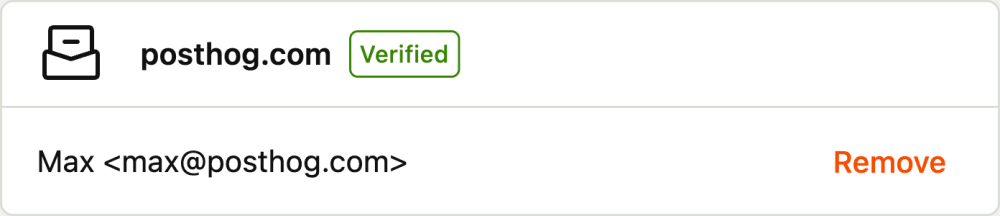
Once verified, you'll see a green check mark in your settings.
Verification applies to the domain, not to the address. If the domain is already verified for another sender in the same project, you do not need to add the DNS records again for a new address on that domain.
A Slack connection enables you to deliver messages to a Slack channel.
Starting in PostHog, you can add the PostHog Slack app to your workspace on the Slack integration page.
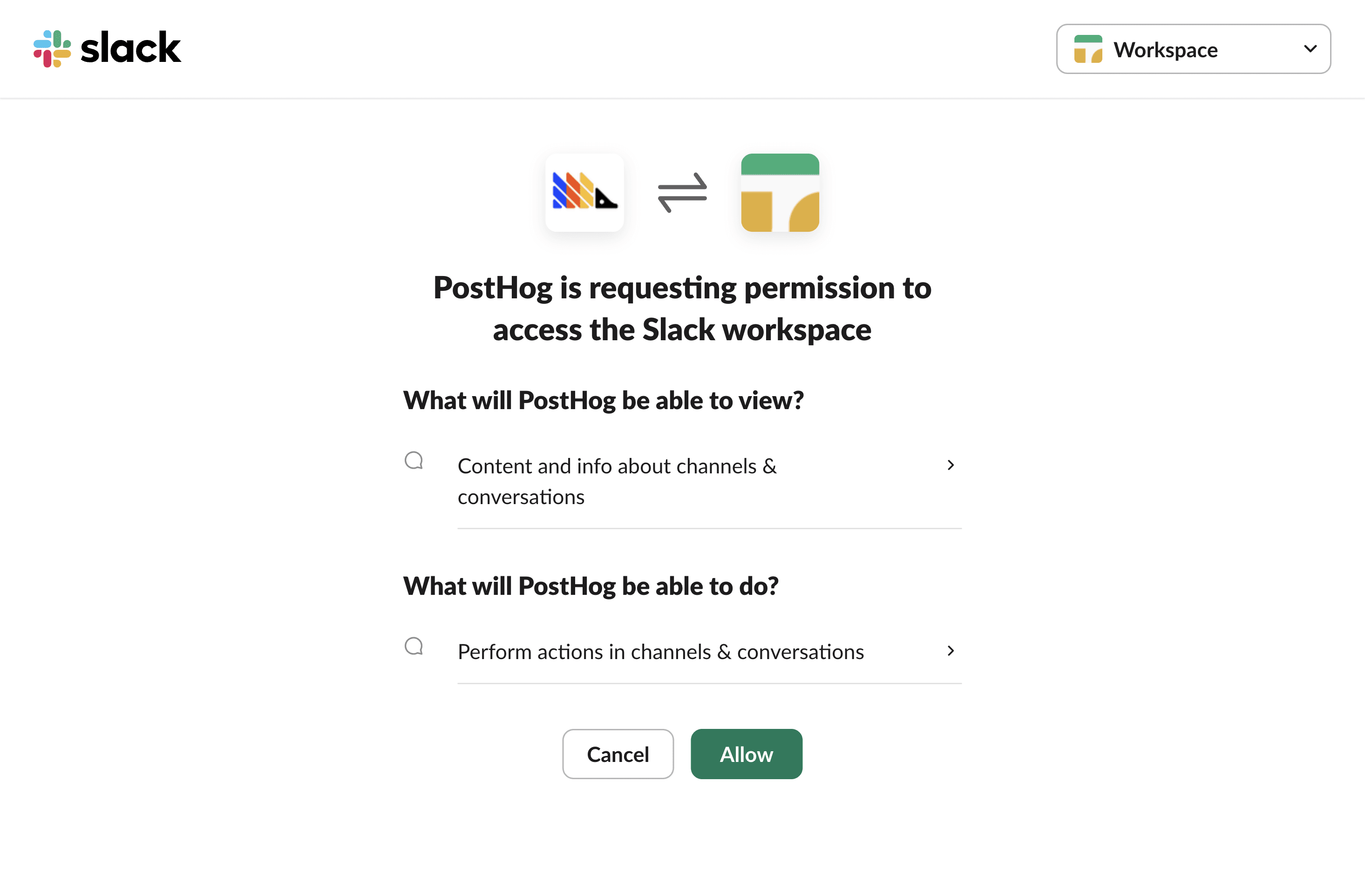
The PostHog Slack app will require some basic permissions which you can grant by clicking the Allow button.
Then, head to Slack and add PostHog to specific Slack channels. To do this:
- In the Slack channel header, click the top right menu and click Open channel details
- Navigate to the Integrations tab
- Click the Add an app button
- Under In your workspace, click PostHog
You can also try tagging the
@PostHogbot in the channel to add it to the channel.Twilio enables you to send SMS messages to your users. To configure the channel, you need to provide the following details:
Field Example More info Account SID AC5e66a2da9f32addea17ffe6d58891bfTwilio docs Auth Token 4C2d86b28811*****111111111111111Twilio docs Once configured, you'll be able to use the channel in a workflow to send SMS messages to your users.
Push lets you send native mobile push notifications to users who have your app installed and have registered a device token through the PostHog mobile SDK. Connect the provider(s) your app uses: Firebase Cloud Messaging (FCM) for Android (and iOS via Firebase), and/or Apple Push Notification service (APNs) for iOS.
Push notifications are in open betaPush is in open beta. It's available in every project, so you don't need to request access. Each send counts toward your workflows destinations usage and quota, the same as a webhook or other destination step. To send feedback, reach out in-app.
Device tokens come from the mobile SDKPush delivery requires your app to register each user's device token with PostHog through the mobile SDK (iOS, Android), which is also where you implement identity verification if you enable it below. Connecting a channel here sets up the credentials PostHog sends with. It doesn't collect tokens on its own.
Firebase Cloud Messaging (FCM)
Paste the contents of your Firebase service account key JSON. Generate one in the Firebase console under Project settings > Service accounts > Generate new private key.
Apple Push Notification service (APNs)
Provide the following, from your Apple Developer account under Certificates, Identifiers & Profiles > Keys:
Field Description Signing key (.p8) Your APNs auth key. Paste the contents or upload the .p8file.Key ID The ID of the signing key. Apple team ID Your Apple developer team ID. Bundle ID Your app's bundle identifier (the APNs topic), e.g. com.example.app.Environment ProductionorSandbox. Match how your app build registers with APNs.Identity verification
A device token says where to deliver a notification, not who the device belongs to. Identity verification lets your backend sign a short-lived token for the logged-in user that your app sends when registering a device, so a client can't register a device against someone else's user. Pick a mode when connecting the channel:
Mode Behavior Disabled (default) Any client with your project API key can register a device for any user. Optional Tokens are verified and recorded, but devices can still register without one. Use this to confirm your app sends valid tokens before you require them. Required Devices without a valid token can't register or unregister. Switch to this only once your app sends tokens, otherwise registration stops working. When you enable Optional or Required, paste your backend's EC (P-256) public key into the field below the mode. Your backend signs each token with the matching private key (ES256), and PostHog verifies it with the public key you paste here, so the private key never leaves your control. Leave the field blank to verify against your project's Feature flags secure API key instead. Either way, you implement the signing in the mobile SDK (iOS, Android).
Once configured, add a Push step in the workflow builder, set the notification title and body (with variables like
{{ person.name }}), and optionally set platform-specific overrides. - 2
Create a template
RecommendedIf you plan to send email messages, you can create a template to reuse across your workflows. If you only plan to send Slack and SMS messages, you do not need to create a template.
Navigate to Workflows > Library tab > click New template.
- Give your template a name.
- Write your subject line and body content (HTML and text versions are supported).
- Use variables like
{{ person.name }}to personalize your message. See the library documentation for more information.
Save your template — you'll be able to select it later when you design a workflow.
You'll still be able to edit the message directly in the workflow builder.
- 3
Troubleshooting
CheckpointCommon issues you may encounterIssue Solution No address in the From dropdown? The step can only use a sender that exists in the project. Add one on the Channels tab, then select it in the step. Only project admins and higher can add a sender. Emails not sending? Check that your domain is verified and you've added the DNS records correctly. Spam folder issues? Ensure SPF/DKIM are valid, and consider setting up DMARC. Variables not populating? Confirm the property exists on the person profile (e.g. person.name).Push not arriving? Confirm the device registered a token via the mobile SDK, the channel's provider credentials are valid, and (for APNs) the environment (Production/Sandbox) matches your app build.