





Chapter 06
Watching replays yourself
Everything on this page is about spending less time per replay. The Session Replay player has a bunch of hotkeys that let you fly through replays without ever leaving the keyboard (a great flex during planning meetings).
Just know that you can also get a robot to watch replays for you, so you never have to learn any of this. If that sounds more like you, learn more on the next section.
Anatomy of a replay
When you head to Session Replay in PostHog, you'll be greeted with a player Fig. 1 with all your recordings. You'll spend a lot of time here, so let's go on a tour.
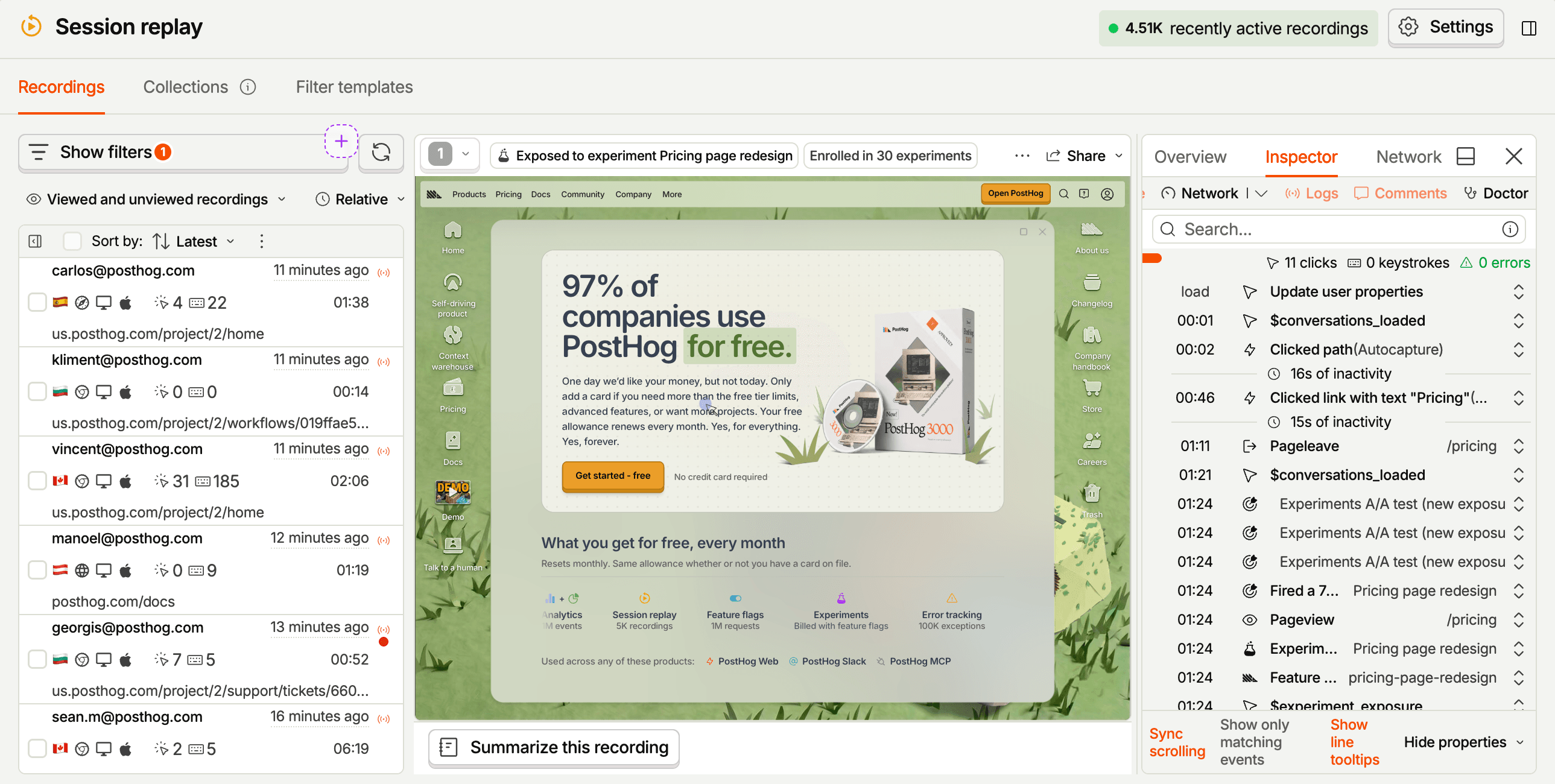
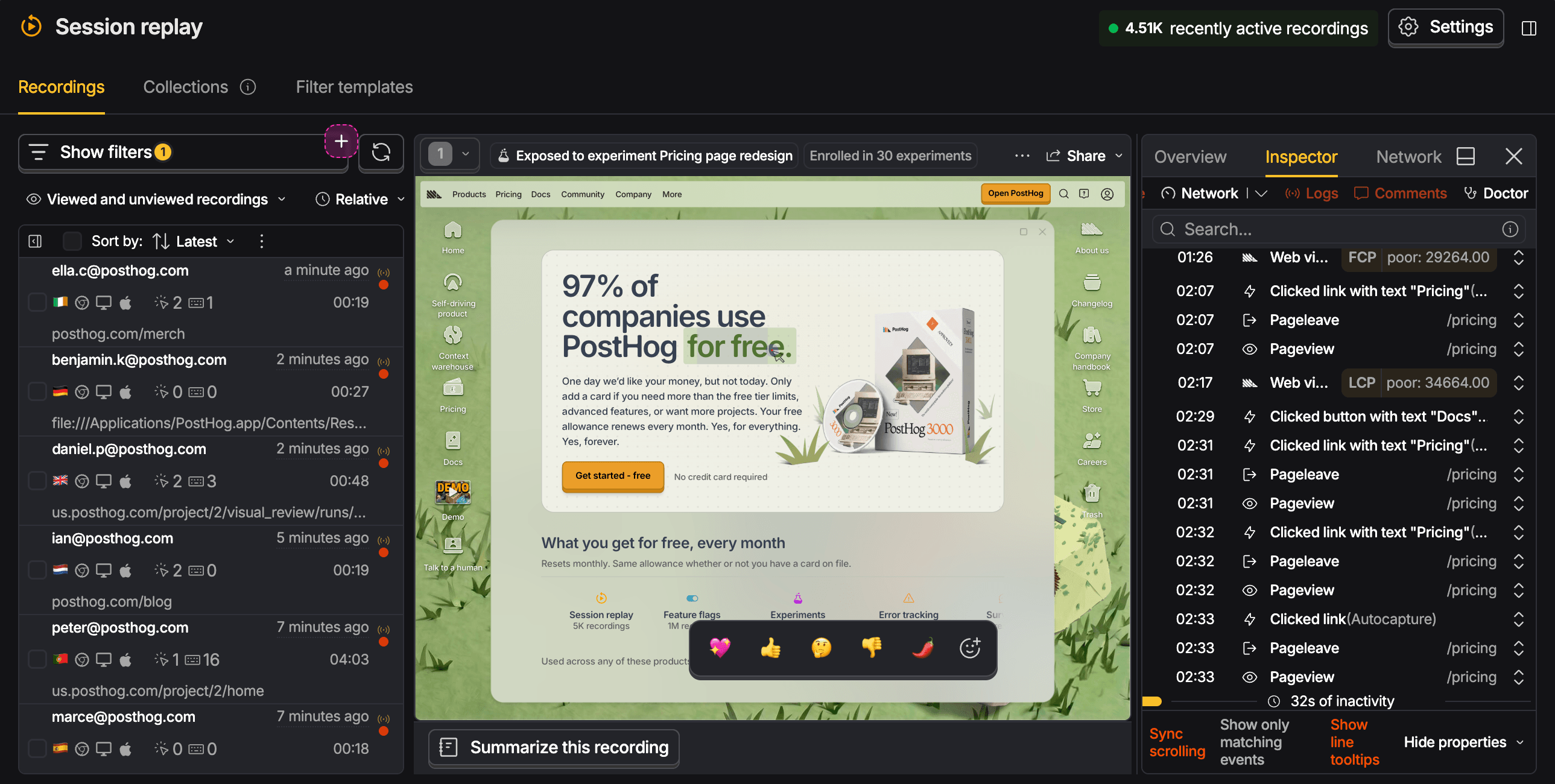
Select a session on the left and it plays back in the middle, with everything PostHog knows about it on the right. That context is what makes PostHog's Session Replay powerful.
Session context
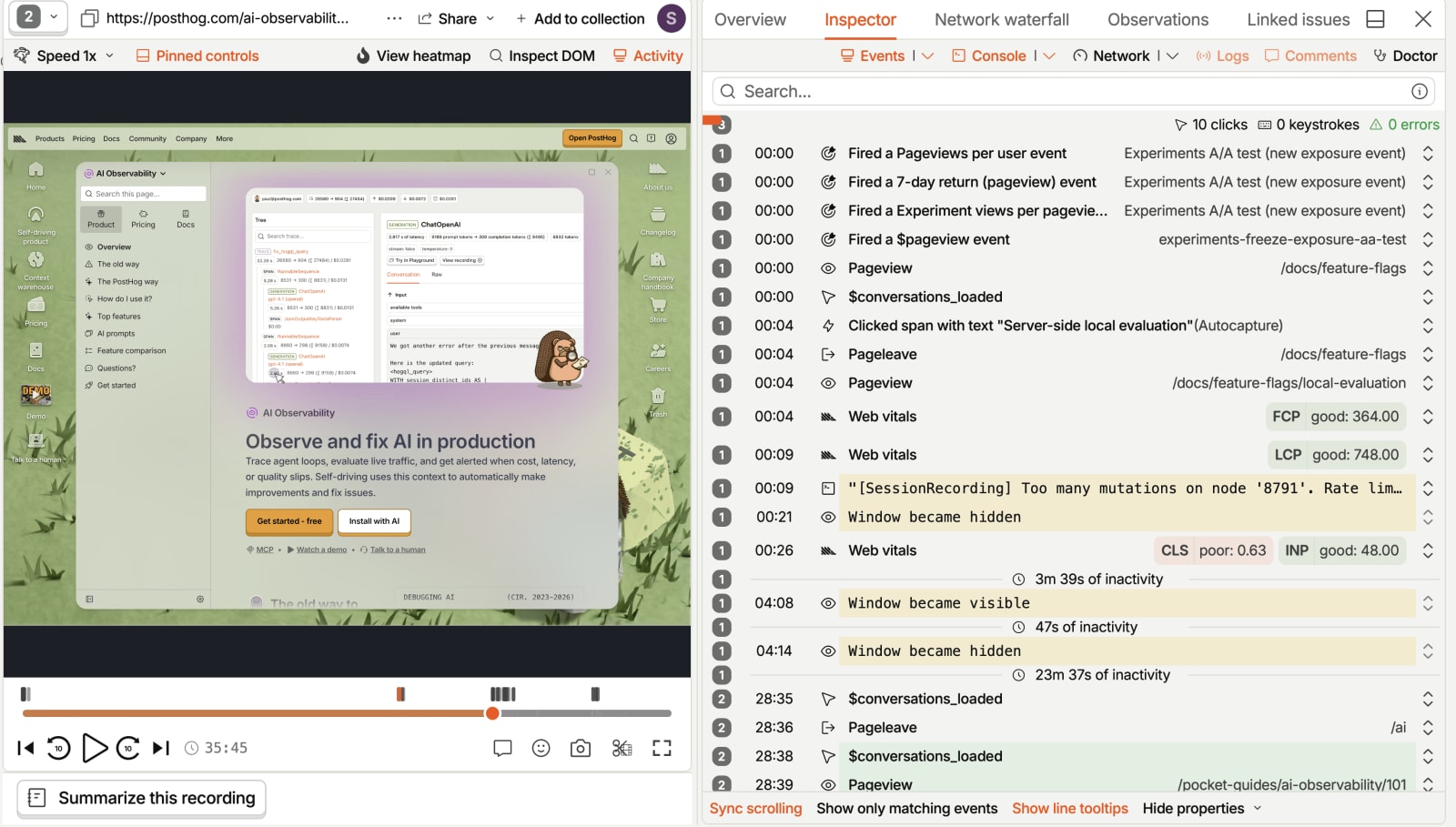
The right-hand inspector lets you watch replays in context of your PostHog data. They add context so you can answer the who, what, when, where, and how of each replay. You can follow from replay to persons, events, logs, errors, and more.
- Overview – who this is. The person and their properties, the screen they were on, which experiment variants they got, and who else on your team has already watched this replay.
- Inspector – events and errors captured during the session on a synced timeline. Your events, console logs, network requests, and comments, filterable down to one kind at a time.
- Network waterfall – what the page was waiting on. Every request laid out by time, so a slow screen in the replay has something to blame.
- Observations – what Replay Vision found in this session without you watching it.
- Linked issues – create or find related issues in your issue tracking tool.
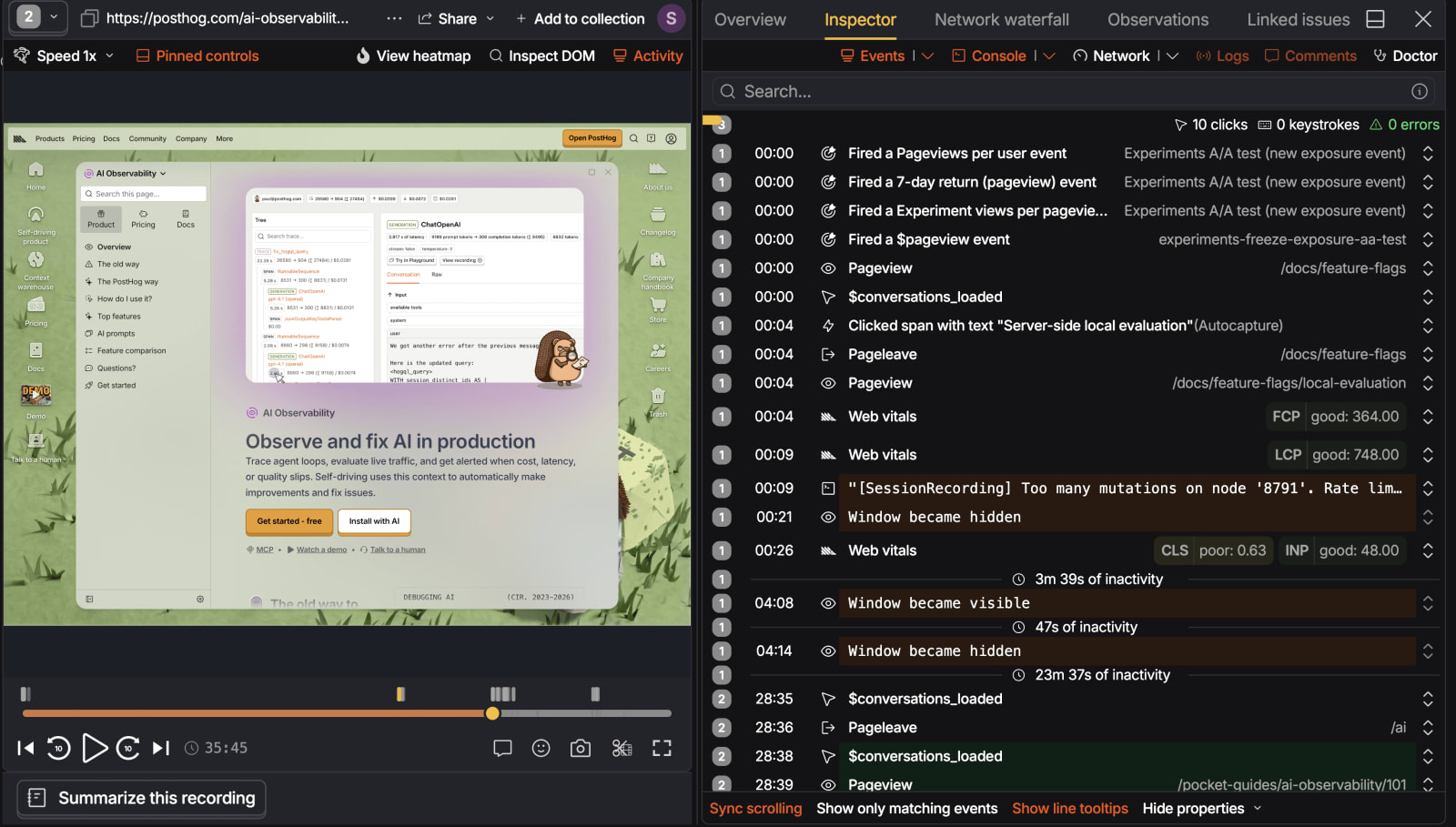
You'll find them all on the right of the player Fig. 2.
Playback controls
- Change the playback speed. Most sessions are watchable at 2x or faster.
- Skip inactivity jumps the parts where nobody did anything. It's in the ... menu.
- Play, pause, and seek as normal. Hold
altto move the seek buttons to 1 millisecond steps. - Controls sit in one of two layouts: floating, the default, which overlays the recording and appears on hover, or pinned Fig. 3, which sits below and stays visible. Your choice persists across sessions.
- Take a screenshot, clip a GIF around the current moment, or export a whole session as MP4.
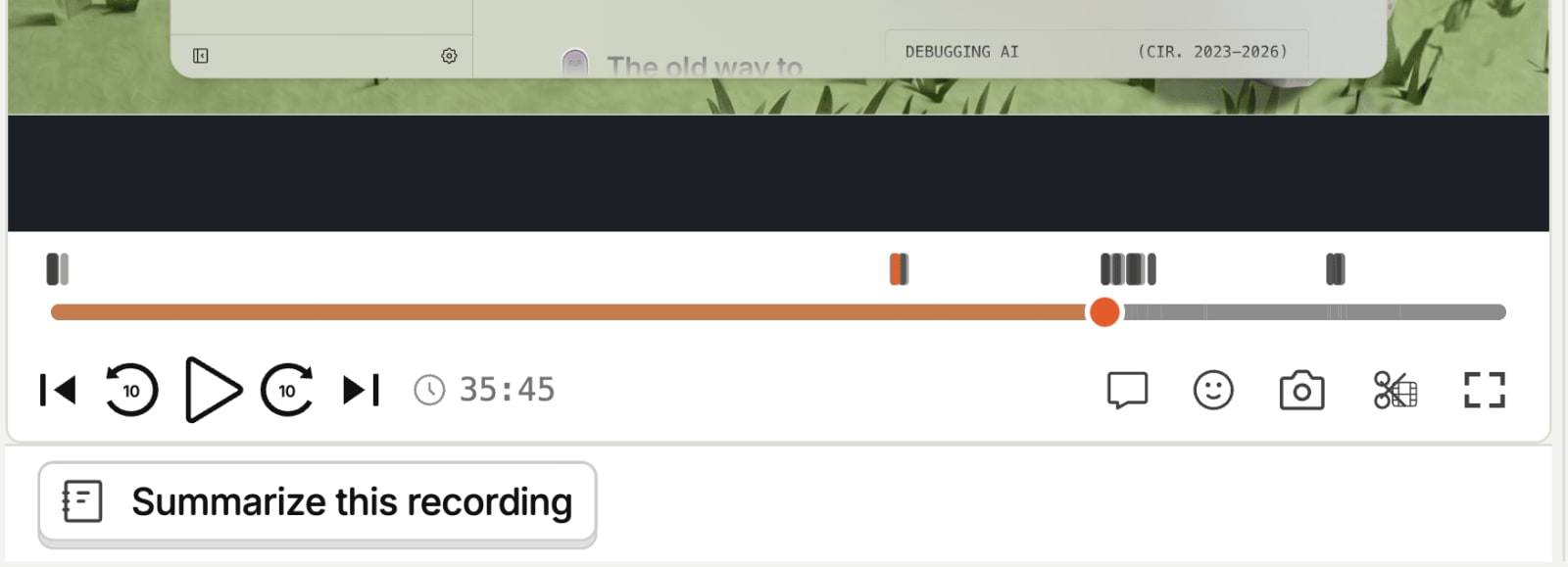

Most of the player is reachable from the keyboard:
| Key | Does |
|---|---|
c | Comment at the current timestamp |
e | Emoji reaction |
s | Screenshot |
x | Clip a short GIF around the current moment |
n | Next recording in the list |
t | Cinema mode |
f | Fullscreen |
Watching as a team
Press c to comment at the current timestamp, so the note lands on the moment rather than on the session. Press e for an emoji reaction when the moment doesn't need words.
A comment can also be added as a task, which turns "someone should look at this" into something that gets tracked.
Watching on a TV
Kiosk mode plays recordings back-to-back in fullscreen with nobody driving. It's built for the big screens.
Before it starts you can filter by visited page, date range, minimum active duration, and feature flag value. Test accounts are always excluded.
The setup screen is skippable. The filters are all query parameters, so a configured kiosk is a bookmark. Fresh recordings are fetched every ten, so a screen left running all day doesn't loop the same sessions.
Passing it on
Sessions are useful context for the whole team. Create issue on the player opens a ticket in Linear, GitHub, GitLab, or Jira without leaving the recording.
Connect the third-party integration once in project settings and pick the projects or repositories you want issues to land in.
Two things make this better than pasting a link into the ticket yourself:
- The issue already carries a link back to the replay. Whoever picks it up sees what happened rather than your description of what happened.
- The link works in both directions. Once an issue is attached, it shows up in the replay's sidebar, so the next person to open that session knows it's already been reported.