Property access control
Contents
Use property access control to hide sensitive event and person properties from members who shouldn't see them. Restricted properties don't appear in filters and are masked in SQL.
This is a separate feature from resource access control and warehouse access control. It requires the Enterprise plan.
How it works
Each event or person property has a default access level, plus optional member and role overrides. Access levels are checked in this order:
- A rule for that member
- A rule for one of that member's roles
- The property's default
Organization admins always have full access.
Levels:
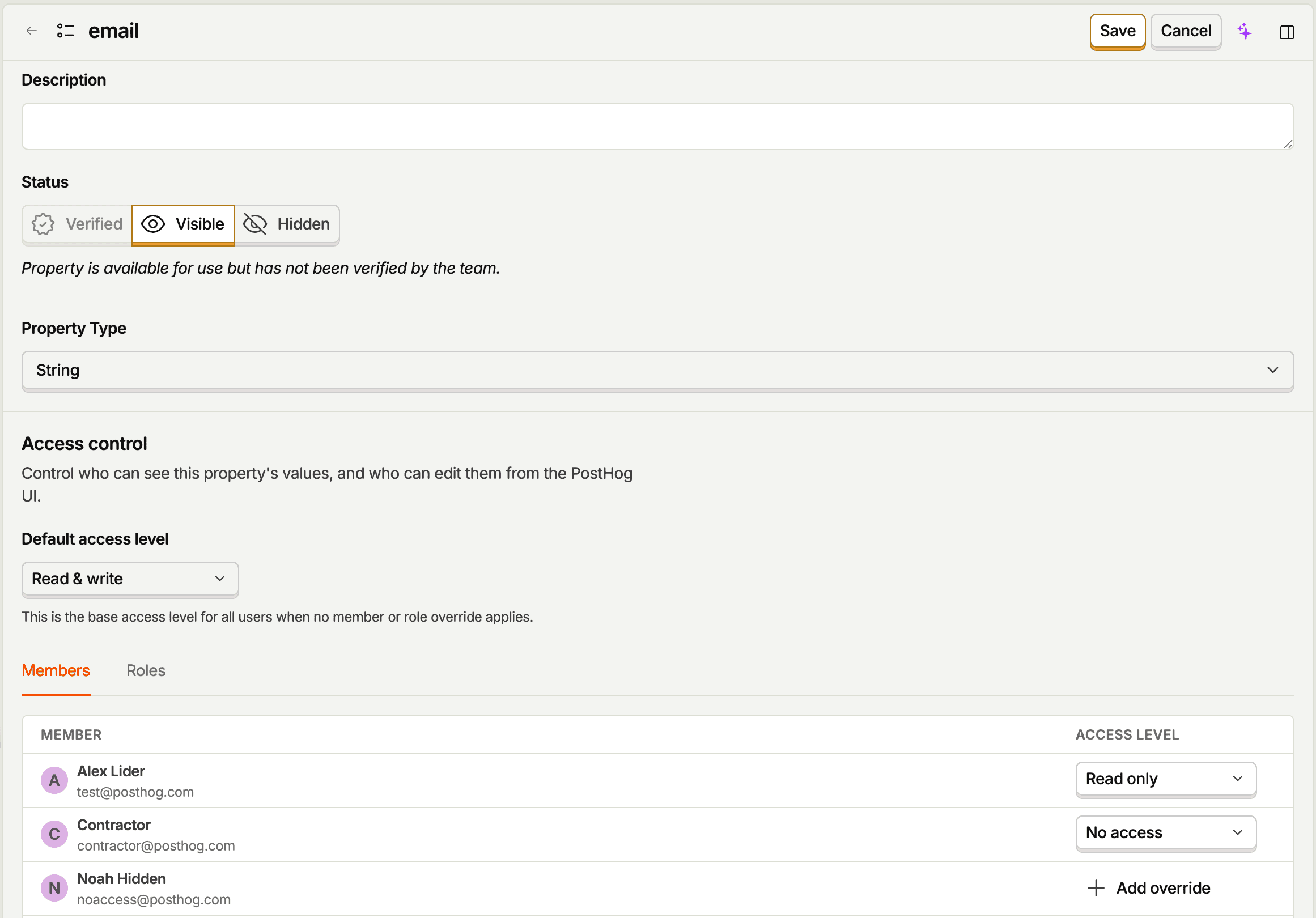
- Read & write – Can query the property, edit person property values on a person's page, and update its definition (description, visibility, tags).
- Read only – Can query the property but can't edit person property values.
- No access – Can't view, query, or filter by the property. Explicit SQL reads return
NULL, and whole-property objects omit the key.
Note: Group and session properties aren't supported yet.
Set access for a property
- Go to Property definitions
- Open the property and click Edit
- Set permissions under Access control
Only project admins and organization admins can change these rules.
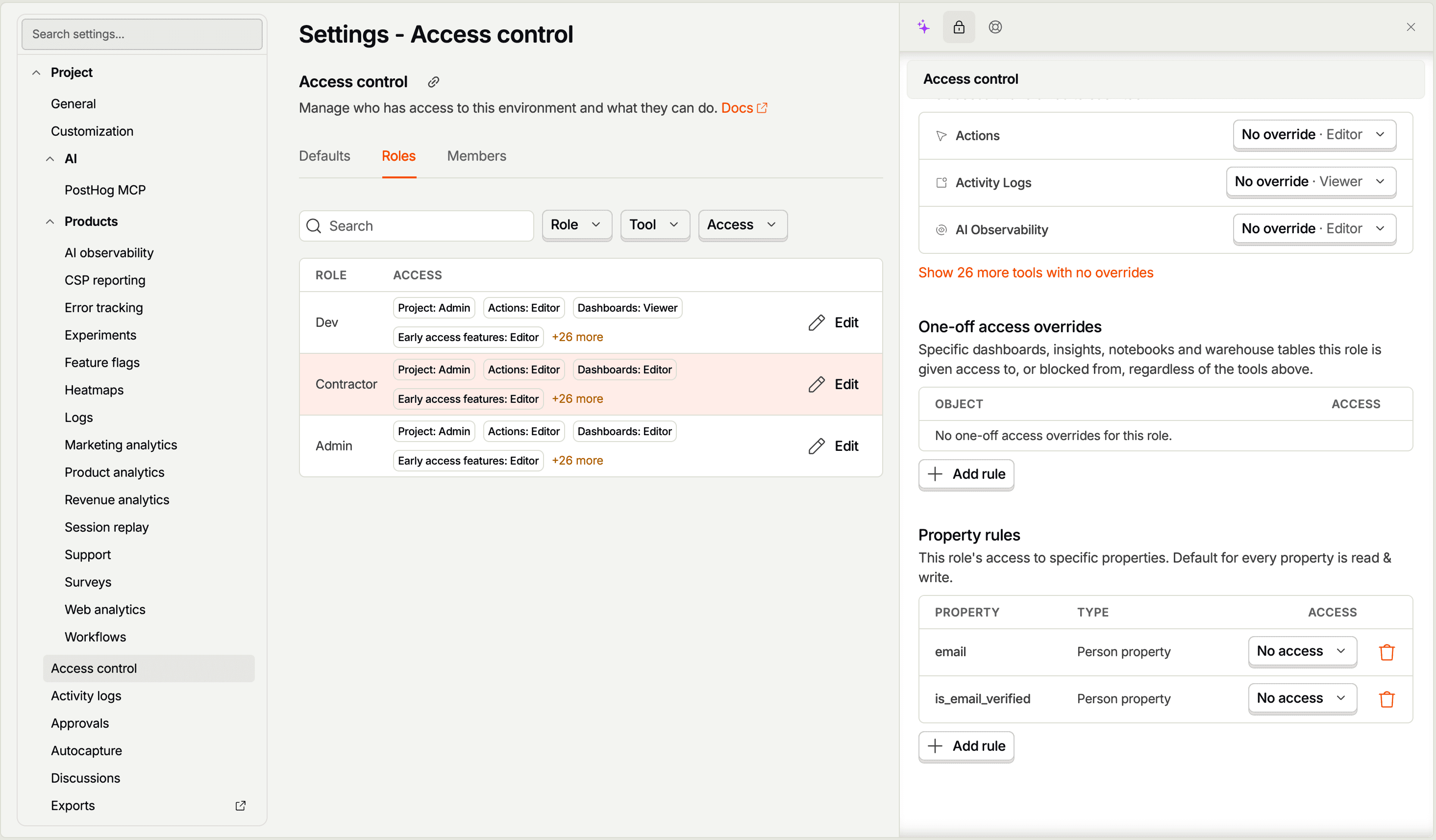
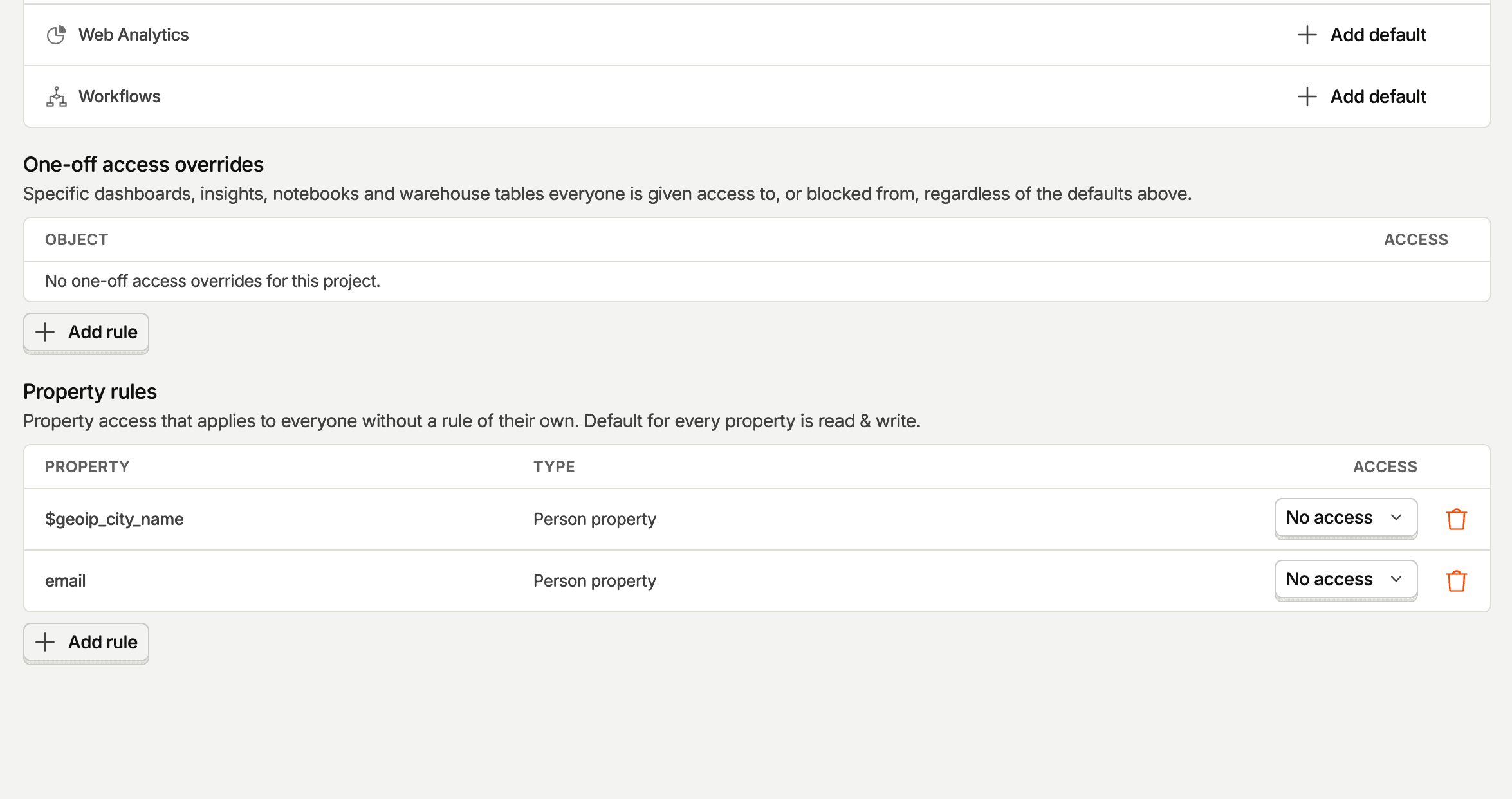
You can also review and configure all existing property rules in the project's access control settings.
Prevent a role from exporting your user base
Use case: You want to prevent members of a specific role from querying and exporting email addresses.
Setup:
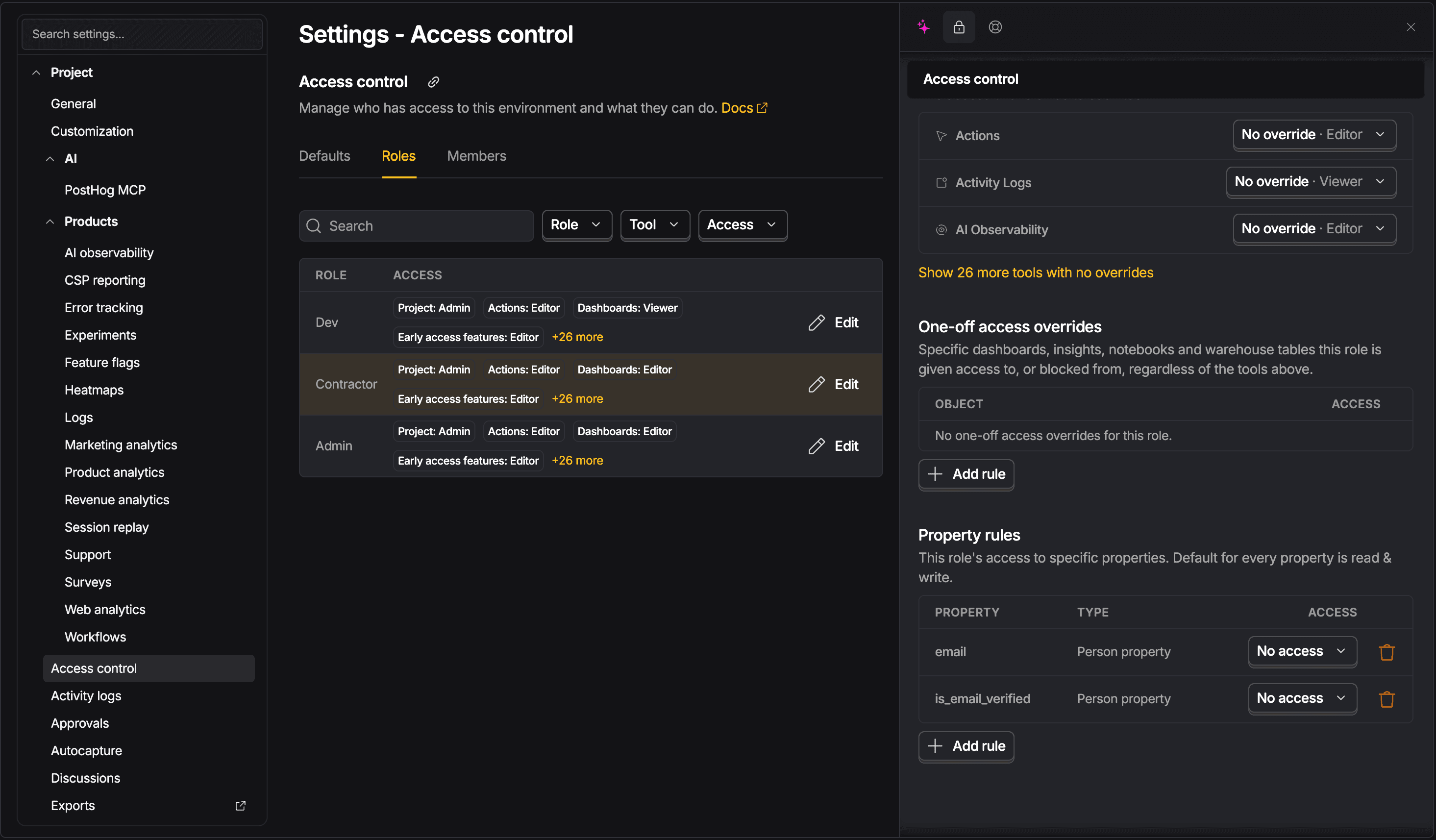
- Open the project's access control settings
- Open the Roles tab and select the role
- Under Property rules, click Add rule
- Select the person property that contains email addresses and set it to No access
- Members with that role can't query the property or use it in filters