







Approvals
Contents
Approvals add a review step before high-impact changes take effect. Use them to prevent accidental rollouts, enforce change management processes, or meet compliance requirements that mandate human review of critical changes.
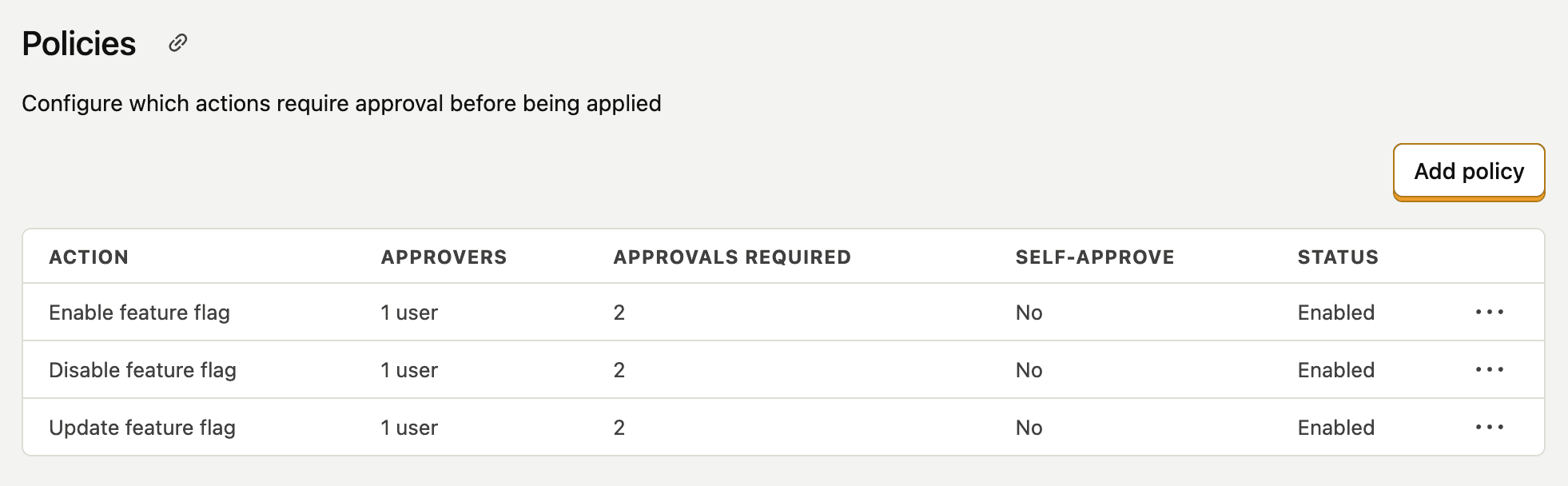
How approvals work
When approvals are enabled, supported actions create a change request instead of taking effect immediately. The change request captures what the user wants to do and waits for approval from designated reviewers.
Once enough approvers approve the request and reach the required quorum, PostHog automatically applies the change. If reviewers reject the request, the change is not applied and the requester is notified.
Approval workflow
- User attempts a gated action – For example, enabling a feature flag or changing its release conditions
- Change request created – PostHog captures the intended change and notifies approvers via email and in-app notification
- Reviewers evaluate – Approvers can approve or reject the request
- Change applied or rejected – When quorum is reached, the change is automatically applied. If the request is rejected, the requester is notified and the change is discarded


Supported actions
Approvals currently support gating the following actions:
| Resource | Gateable actions |
|---|---|
| Feature flags | Enable, disable, change rollout percentage, change release conditions |
More resource types and actions are coming soon. If you need approval gates for other actions, let us know.
Release condition changes
An Update feature flag policy requires approval when someone changes a flag's rollout percentage or its release conditions. These count as release condition changes:
- Adding, removing, or editing a property filter in a condition set
- Adding, removing, or reordering condition sets
- Setting or changing a condition set's variant override
- Changing Match by, for example from users to a group type or to devices
- Turning Stop evaluation at first matching condition set on or off
Renaming or describing a condition set doesn't need approval. Saving a flag without changing its conditions doesn't create a change request.
Release condition changes need approval only on flags that no other product manages. A flag that an experiment, survey, product tour, or early access feature created needs approval for rollout percentage changes only, because those products update its conditions themselves.
Approval policies
Approval policies define when actions require approval and who can approve them. Policies can be configured at the project level.


Policy components
Each approval policy includes:
| Component | Description |
|---|---|
| Action | Which action triggers this policy (e.g., "Enable feature flag") |
| Conditions | Rules that determine when approval is required (available on certain policy types only) |
| Approvers | Users or roles authorized to approve requests |
| Quorum | Number of approvals needed before the change is applied |
| Self-approve | Whether the requester is allowed to self-approve the change request |
Note: In order for a self-approver to be able to approve a change request, they still need to be part of the approvers set of users/roles.
Conditions
Conditions let you require approval only when certain criteria are met. If no conditions are set, all matching actions require approval.
Note: Conditions on an Update feature flag policy apply to the rollout percentage. A policy with a rollout percentage condition doesn't require approval for release condition changes. To require approval for those too, leave the conditions empty.
| Condition type | Description | Example |
|---|---|---|
| Any change | Requires approval for any modification to the specified field | Any change to rollout percentage |
| Before/after | Requires approval when the new value meets a threshold | New rollout percentage > 50% |
| Change amount | Requires approval when the change magnitude exceeds a threshold | Rollout percentage increases by more than 10% |
Conditions support these operators: >, <, >=, <=, ==, !=
Note: The
change_amountcondition only compares values that exist in both the before and after states. If you add a new release condition group to a feature flag,change_amountwon't trigger because there's no previous value to compare against. Useany_changeorbefore_afterif you want to gate newly added groups.
Approvers
You can designate approvers in two ways:
- Specific users – Select individual team members who can approve requests
- Roles – Grant approval rights to everyone with a specific role
When both users and roles are specified, anyone in either group can approve.
Self-approval
By default, the person who created a change request cannot approve it themselves. You can enable self-approval in the policy settings if your workflow allows it.
Change requests
A change request captures everything needed to apply a change: what resource is being modified, what the change is, and who requested it.
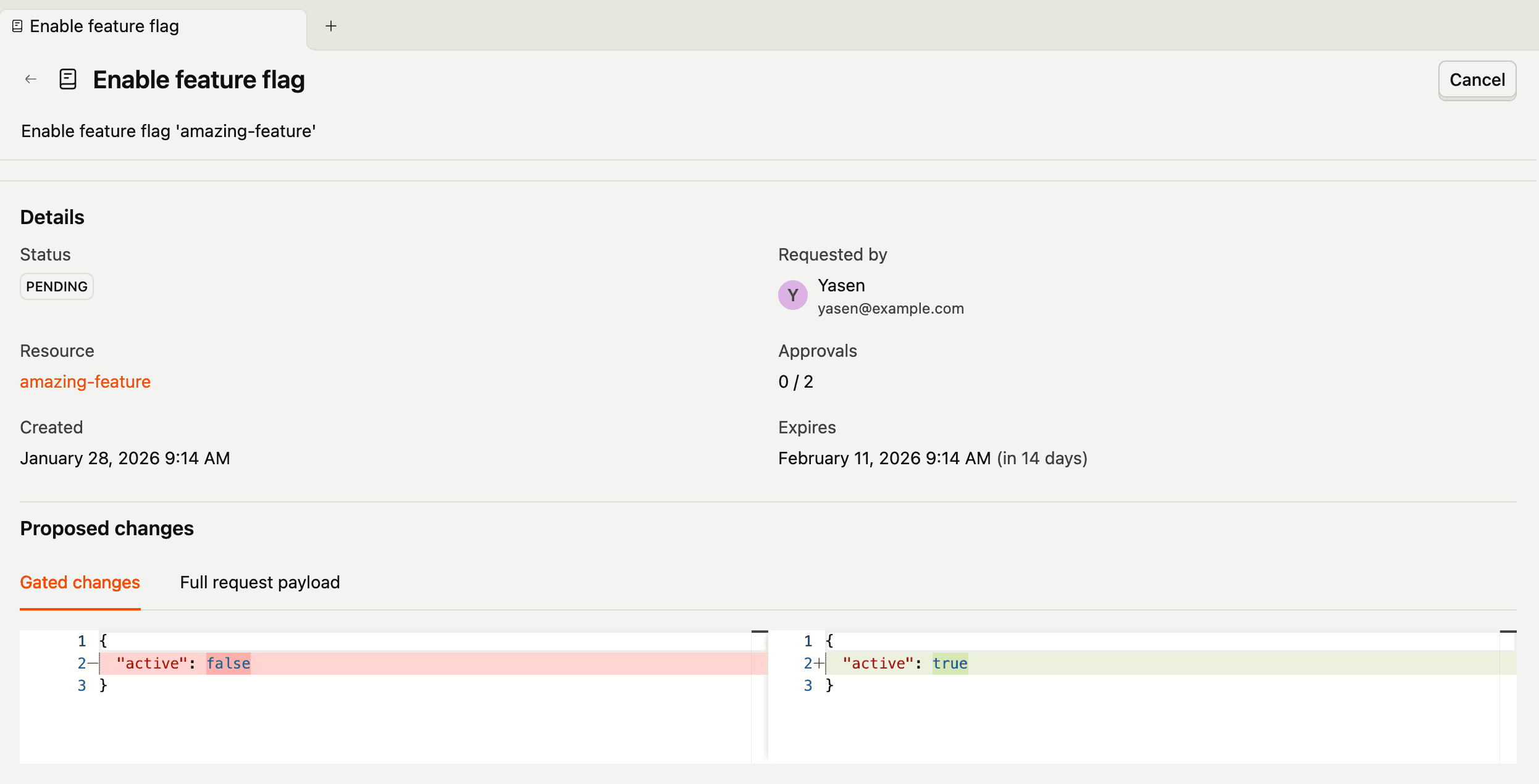
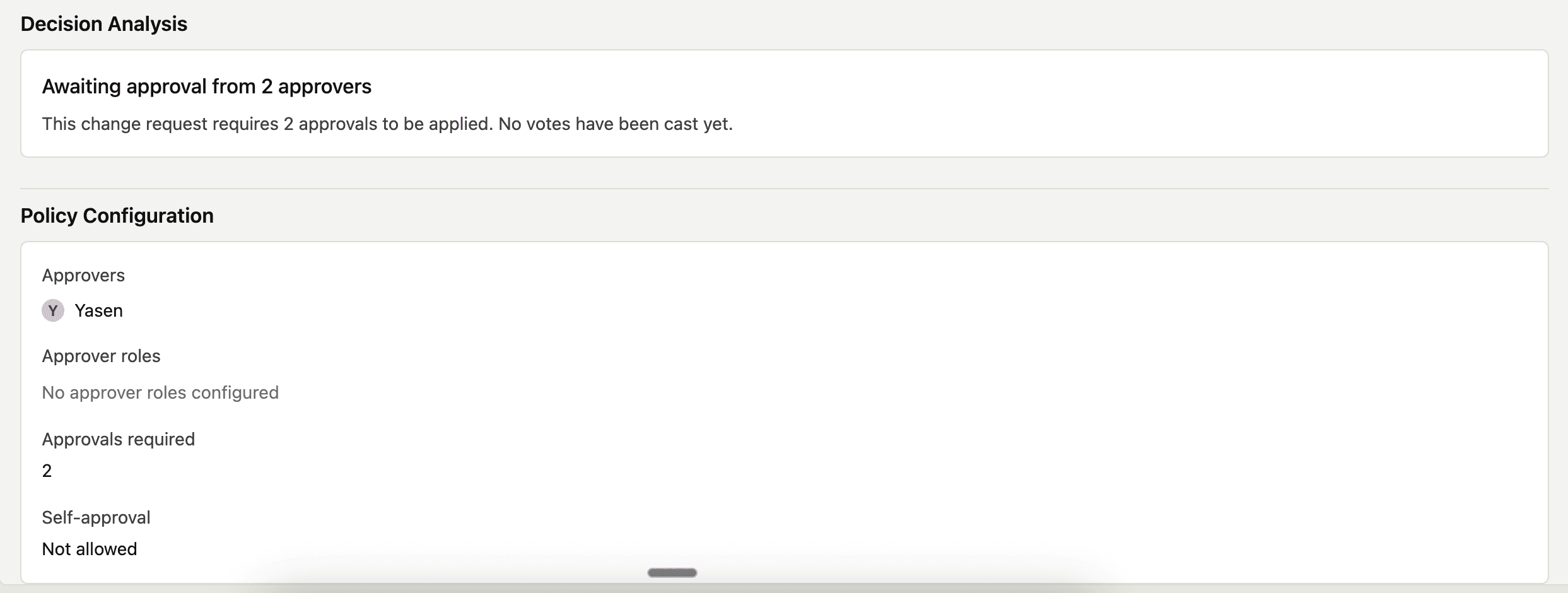

Change request states
| State | Description |
|---|---|
| Pending | Awaiting approval or rejection |
| Approved | Quorum reached, change is being applied |
| Applied | Change was successfully applied |
| Rejected | Request was rejected by a reviewer |
| Expired | Request was not actioned before the expiration period |
| Failed | Change could not be applied (e.g., resource was modified externally) |
Viewing change requests
You can view change requests in several places:
- Resource detail page – When viewing a feature flag or other resource, pending change requests are shown in a banner at the top of the page
- Feature Flags list page – A banner at the top of the list shows how many change requests are awaiting your action, with a link to the change requests page
- Experiment detail page – If an experiment's linked feature flag has a pending change request, a banner appears on the experiment page
- Settings – Go to Settings → Project → Approvals to see all change requests for the project
Acting on change requests
To approve a request:
- Go to the change request via the banner on the resource or Settings → Project → Approvals
- Review the proposed changes
- Click Approve
To reject a request:
- Go to the change request via the banner on the resource or Settings → Project → Approvals
- Review the proposed changes
- Click Reject and provide a reason
A reason is required when rejecting to help the requester understand why.
To cancel a request: Only the original requester can cancel a pending change request. Cancellation is blocked if the request has one or more approvals, unless the request is stale. Stale requests can always be canceled since they can never be applied.
Validation and staleness
Change requests are continuously validated to ensure they can still be applied. If the underlying resource changes after a request is created, the request may become stale.
Feature flag version tracking
Feature flags have an internal version number that increments whenever the flag is modified. When you create a change request for a feature flag, the version you loaded is recorded as part of the request.
If someone changed the flag after you opened it, a change request from your save is stale from the start. This stops an approved request from undoing their change.
If anyone modifies the feature flag while a change request is pending—whether through bypass permissions, the API, or another approved change request—the flag's version increments. This makes the pending change request inapplicable: the approval workflow can still complete (approvers can still approve), but PostHog cannot apply the requested change because it was created against an older version of the flag with different properties.
When this happens:
- The change request shows a warning indicating it is stale
- The approval flow can complete, but the change will fail to apply
- The requester must create a new change request based on the current state of the feature flag
This version tracking prevents race conditions where concurrent changes could lead to unexpected flag states. It ensures that approved changes are applied exactly as reviewed, or not at all.
Tip: Coordinate with your team before modifying resources that have pending change requests. Check for pending requests in the resource's detail page or the approvals settings before making direct changes.
Managing approvals with MCP
If you use the PostHog MCP server with an AI coding assistant like Claude Code, Cursor, or VS Code Copilot, you can list, review, approve, and reject change requests directly from your editor.
Viewing pending requests
Ask your agent to show change requests awaiting your action:
- "What change requests are waiting for my approval?"
- "Show me pending approval requests"
The agent checks whether each request needs your decision by looking at three fields: state is pending, can_approve is true, and user_decision is null (meaning you're an eligible approver who hasn't voted yet).
Approving or rejecting a request
To review and act on a specific request:
- "Show me the details of change request #42"
- "Approve change request #42"
- "Reject change request #15 because the rollout percentage is too aggressive"
Both approve and reject require you to type confirm in the chat before the action is executed. This two-step confirmation prevents accidental votes. Rejections also require a reason, which is recorded and shown to the requester.
If the approval vote reaches the policy's required quorum, the underlying change is applied immediately.
Note: The MCP approval tools require the approvals entitlement and
approvals:writescope. See the MCP tools reference for the full list of change-request tools.
Common use cases
Requiring approval for production feature flag changes
Scenario: You want to ensure all feature flag changes in production are reviewed before taking effect.
Setup:
- Go to Settings → Project → Approvals
- Click New policy
- Select the actions: Enable feature flag, Disable feature flag, and Update feature flag
- Leave conditions empty to require approval for all changes
- Add approvers: select your engineering leads or a "Feature Flag Reviewers" role
- Set quorum to 1 or higher if you want multiple reviewers
- Save the policy
Now all feature flag changes will create change requests that must be approved.
Gating large rollout increases
Scenario: You want to allow small rollout changes without approval, but require review for large increases.
Setup:
- Go to Settings → Project → Approvals
- Click New policy
- Select Update feature flag
- Add a condition: Change amount > 20 for
rollout_percentage - Add approvers
- Save the policy
Small rollout adjustments (20% or less) proceed immediately. Larger increases require approval. Release condition changes don't require approval under this policy, because its condition only covers the rollout percentage.
Requiring approval for targeting changes
Scenario: You target a flag at specific customers, for example with a group key filter, and you want a review before anyone changes who gets it.
Setup:
- Go to Settings → Project → Approvals
- Click New policy
- Select Update feature flag
- Leave conditions empty
- Add approvers
- Save the policy
Edits to the flag's release conditions, such as adding a customer to the group key filter, now create change requests. Rollout percentage changes also need approval under this policy.
Dual approval for compliance
Scenario: Your compliance requirements mandate that two people review any feature flag change.
Setup: Create an approval policy for feature flags actions:
- Go to Settings > Project > Approvals
- Click New policy
- Select the actions: Enable feature flag, Disable feature flag, and Update feature flag
- Leave conditions empty to require approval for all changes
- Add approvers: select the team members who should review changes
- Set quorum to 2
- Disable Allow self-approval
- Save the policy
Every change requires two different people to approve before it takes effect.
Notifications
Approvals integrate with PostHog's notification system to keep everyone informed:
- Approvers receive notifications when a new change request needs their review
- Requesters receive notifications when their request is approved, applied, rejected, or expires
Notifications are delivered via email and in-app. In-app notifications appear in the notification popover and link directly to the approval detail page.