







Customer journeys
Contents
Customer Analytics is currently in beta and free to use. We're actively developing this feature and would love your feedback.
Customer journeys let you visualize how users move through key conversion steps in your product. They combine funnels and paths into interactive flow graphs, so you can see both where users convert and what they do between steps.
What is a customer journey?
A customer journey is a funnel-based flow graph. Each journey defines a series of conversion steps (like Pageview → Sign up → Payment), and PostHog renders them as an interactive visualization showing:
- Conversion rates between each step
- Drop-off points where users leave the funnel
- Paths users take between, before, and after funnel steps
This makes it easy to spot friction, discover unexpected user behavior, and find opportunities to improve conversion.
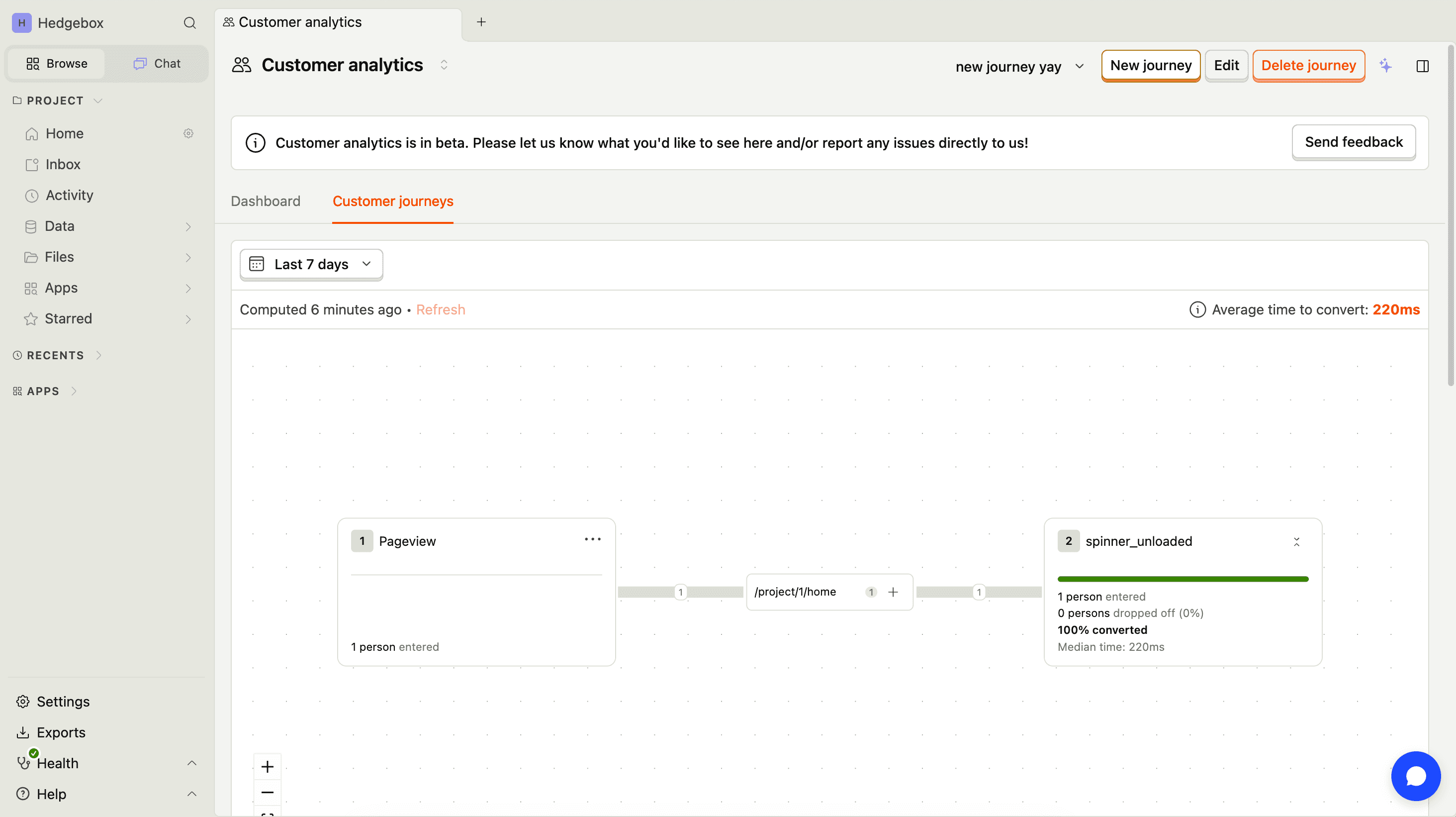
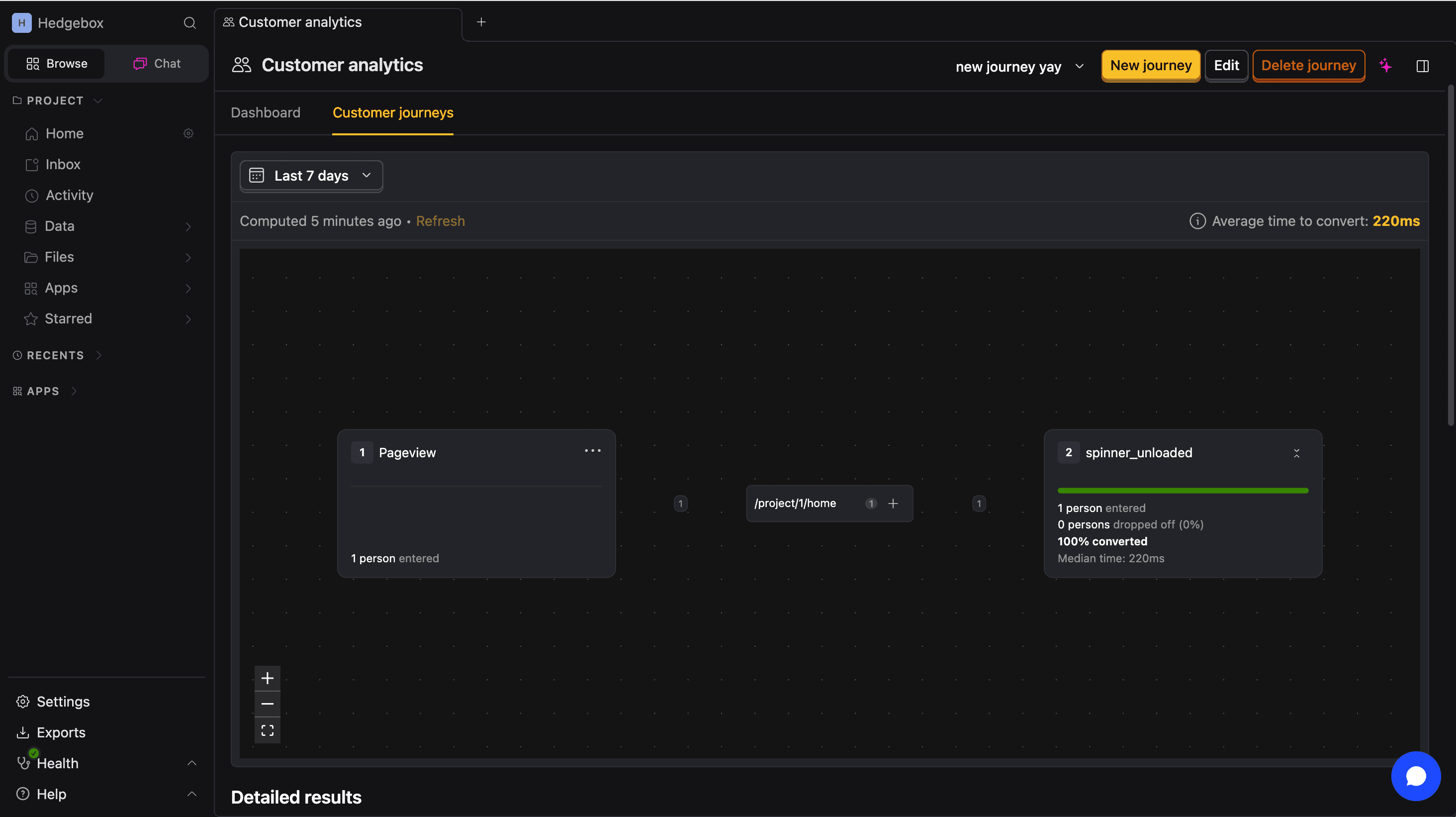
You can also see where individual persons or groups are within your journeys directly from their customer profiles.
View your journeys
Navigate to Customer analytics and select Customer journeys. Select a saved journey from the journey selector in the header. The flow graph displays your funnel steps with conversion rates and drop-off indicators.
View journeys for individual customers
Customer profiles include a Customer journey node by default. This lets you see where a specific customer is within your defined journeys directly from their profile.
To view a customer's journey:
- Go to Persons or Groups and open a person or group to view their profile.
- Find the Customer journey section in the profile.
- Select a journey from the dropdown picker.
The journey node displays the funnel steps with visual indicators showing which steps the customer has completed, which are incomplete, and which are optional. This helps you understand where each customer is in their conversion journey.


Explore paths
Click on any funnel step in the flow graph to explore what users do around that step. You can view:
- Paths between steps – See which events users trigger between two consecutive funnel steps.
- Paths before a step – Discover what users do before reaching a specific step.
- Paths after drop-off – Understand what users do after dropping out of the funnel.
Path nodes appear as intermediate nodes in the flow graph, giving you a detailed picture of user behavior between conversion steps.


Add path events as steps
When exploring paths, you may discover events that are important to your conversion flow. You can add any path event as a new funnel step:
- Click on a path node in the flow graph.
- Choose to add it as a required or optional step.
This lets you iteratively refine your journey as you learn more about how users actually navigate your product.
Edit a customer journey
To edit an existing journey:
- Open the journey you want to modify.
- Click Edit to open the journey builder.
- Add, remove, or reorder funnel steps.
- Save your changes.
Delete a customer journey
To delete a journey you no longer need:
- Open the journey.
- Click the more options menu (⋯).
- Select Delete journey and confirm.
Note: Deleting a journey is permanent and cannot be undone.