Instructor AI Observability installation


Let AI instrument your LLM calls for you
Skip the manual setup — run this in your project and the wizard installs the SDK and wires up AI Observability for you.

Contents
- 1
Install dependencies
RequiredFull working examplesSee the complete Node.js and Python examples on GitHub. If you use the PostHog SDK wrapper instead of OpenTelemetry: see the Node.js wrapper and Python wrapper examples instead.
Install the OpenTelemetry SDK, the OpenAI instrumentation, and Instructor.
- 2
Set up OpenTelemetry tracing
RequiredConfigure OpenTelemetry to auto-instrument OpenAI SDK calls and export traces to PostHog. PostHog converts
gen_ai.*spans into$ai_generationevents automatically. - 3
Extract structured data
RequiredUse Instructor to extract structured data from LLM responses. PostHog automatically captures an
$ai_generationevent for each call made through the OpenAI SDK that Instructor wraps.Note: To capture LLM events anonymously, omit the
posthog.distinct_idresource attribute and don't set a distinct ID in the PostHog context. See our docs on anonymous vs identified events to learn more.You can expect captured
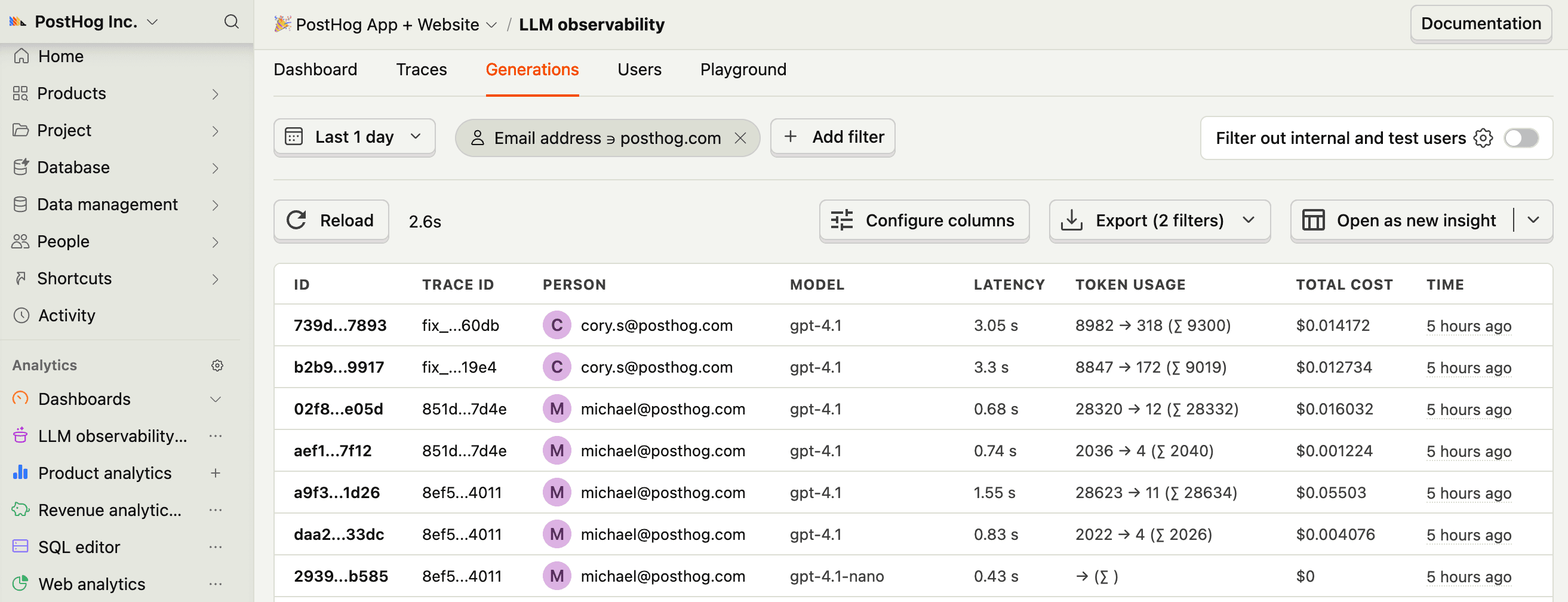
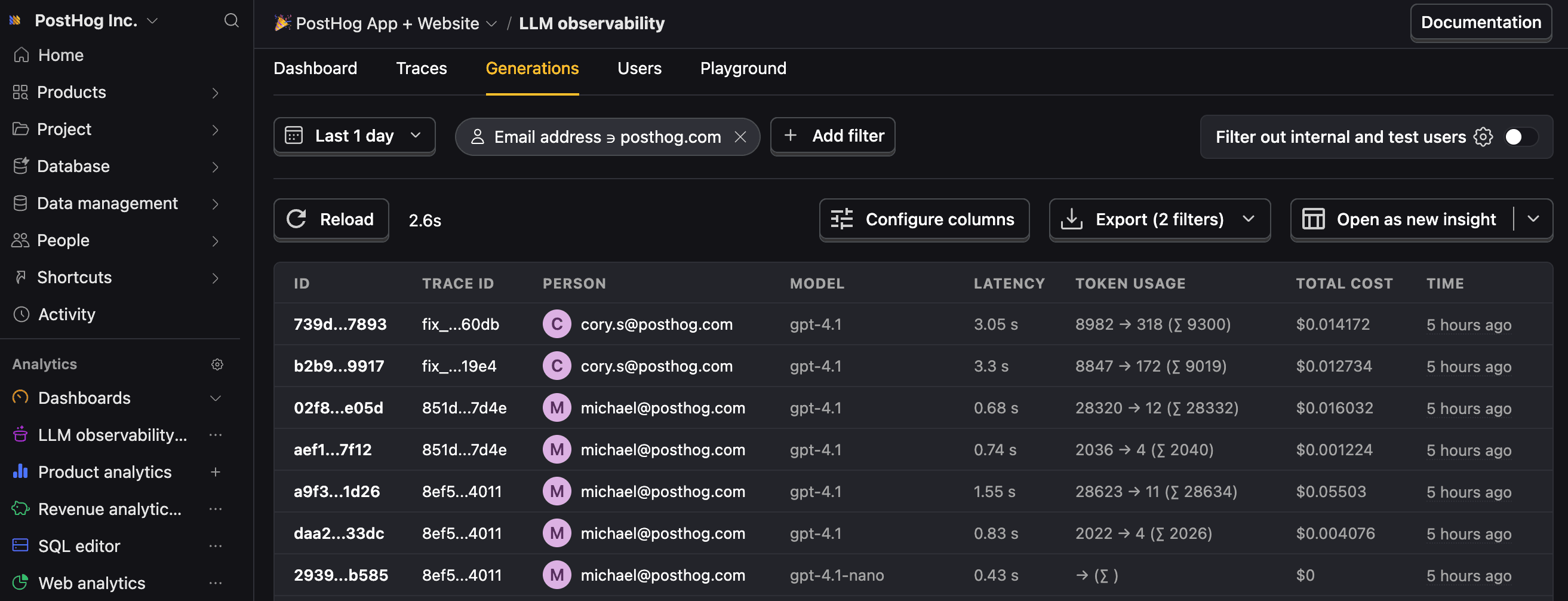
$ai_generationevents to have the following properties:Property Description $ai_modelThe specific model, like gpt-5-miniorclaude-4-sonnet$ai_latencyThe latency of the LLM call in seconds $ai_time_to_first_tokenTime to first token in seconds (streaming only) $ai_toolsTools and functions available to the LLM $ai_inputList of messages sent to the LLM $ai_input_tokensThe number of tokens in the input (often found in response.usage) $ai_output_choicesList of response choices from the LLM $ai_output_tokensThe number of tokens in the output (often found in response.usage)$ai_total_cost_usdThe total cost in USD (input + output) [...] See full list of properties - 4
Users and sessions
RecommendedA server usually handles requests for many users, so a resource attribute can't say who each trace belongs to. Wrap each request in a PostHog context instead. The PostHog span processor adds the context's distinct ID and properties to every AI span started inside it. Other span processors and exporters on the same provider don't see them.
Set
$ai_session_idif your product has multi-turn conversations, so the Sessions tab can group their traces. Workloads that finish in a single trace, like batch jobs or one-shot generation, don't need it.On Node, install
posthog-nodeand pass the client as theclientoption of yourPostHogSpanProcessor. Without it, the processor doesn't read the context.A distinct ID set this way takes priority over a
posthog.distinct_idresource attribute, so you can keep the resource attribute as the fallback for work outside a request. If your instrumentation already sets thegen_ai.conversation.idattribute, PostHog uses it as the session ID, and an explicit$ai_session_idtakes priority over it. - 5
Next steps
RecommendedNow that you're capturing AI conversations, continue with the resources below to learn what else AI Observability enables within the PostHog platform.
Resource Description Basics Learn the basics of how LLM calls become events in PostHog. Generations Read about the $ai_generationevent and its properties.Traces Explore the trace hierarchy and how to use it to debug LLM calls. Spans Review spans and their role in representing individual operations. Anaylze LLM performance Learn how to create dashboards to analyze LLM performance.