





Set up the PostHog Slack app
Contents
To use @PostHog in Slack, a project admin connects your Slack workspace to each PostHog project. To ship code, connect GitHub too. Each teammate connects a personal GitHub account so pull requests are opened as them. A project-level GitHub App installation covers teammates who haven't connected one yet.
- 1
Connect Slack to your project
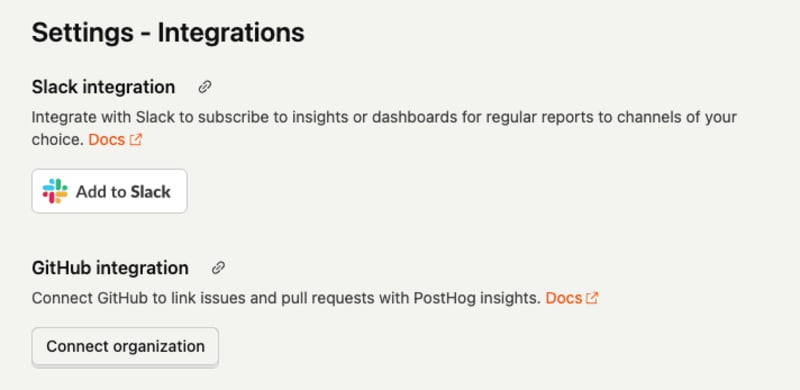
RequiredHead to the Slack integration page in PostHog and click Add to Slack. Approve the requested scopes – you'll need to be a project admin to install.
To talk to the bot in a channel, @-mention it – Slack will prompt you to invite it – or invite it explicitly with
/invite @PostHog. When it joins a channel, the bot posts a short greeting with example prompts by default. Slack workspace admins can use the App Home tab or/posthog welcome channel|private|offto post it publicly, show it only to the person who added the app, or turn it off. When new teammates join your Slack workspace, they get a welcome DM from the bot introducing itself and what it can do. You can also skip channels entirely and DM the bot directly.The first time the bot sees a mention, it matches your Slack email to your PostHog account, so make sure you're signed in to the same org on both sides.
Slack email doesn't match your PostHog email?Link the accounts instead. When email matching fails, the bot replies in the thread, and sends you a Link my PostHog account button that only you can see – click it and sign in with Slack to connect the two. You can also link (or unlink) anytime from the App Home tab under Linked accounts, or from Settings → Personal integrations in PostHog. A linked account always wins over email matching.
Slack Connect channels require one-time approvalIn externally-shared (Slack Connect) channels, the bot asks for one-time approval before answering. The first time someone mentions
@PostHogin a shared channel, the bot replies with a message that only the person who mentioned it can see, with Allow PostHog in this channel and Not here buttons. Only a member of your PostHog organization can approve, so a member needs to send that first mention. The bot then posts the outcome in the thread. After approval, mentions in the channel work normally without further prompts.This prevents the bot from accidentally surfacing data to external members of the channel. Links are never unfurled in these channels, even after approval.
Reconnect if you installed before 2026-05-04The bot picked up new OAuth scopes on 2026-05-04 (
app_mentions:read,users:read,users:read.email,chat:write,channels:history,groups:history,reactions:write). If your workspace was connected before that date, head back to Add to Slack and re-approve – otherwise the bot will fail with a missing-scope error on the next mention.Some features need extra scopes that older installs may not have: DMs (
assistant:write,im:history), attachments (files:read), canvases and file uploads (canvases:write,files:write), and the channel welcome (channels:read,groups:read). Reconnect the same way to pick them up. - 2
Connect your personal GitHub
RecommendedThe coding agent needs GitHub access to clone a repo, push a branch, and open a pull request. It gets that access in one of two ways:
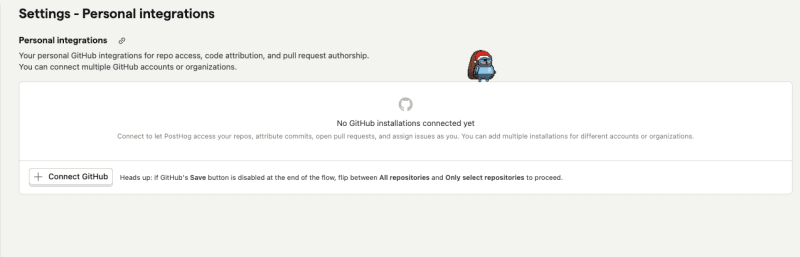
- Your personal GitHub connection. The agent commits and opens pull requests as you. Each teammate connects their own account at Settings → Personal integrations and clicks Connect GitHub. You can connect multiple accounts or organizations. The agent uses them for repo access, commit attribution, and pull request authorship.
- Your project's GitHub App installation. If you start a task without a usable personal connection, and a project admin has connected GitHub to the project, the task can still run. The agent uses the project's installation, so the commits and the pull request come from the PostHog bot, not from you. The Pull request opened message in the thread then says "Opened by the PostHog bot" and links to the page where you connect your GitHub.
If neither is connected, the agent can't do work that needs a repo, and it tells you in the thread how to connect GitHub. Questions about your product data don't need GitHub.
Anyone who can mention the bot can use the project installationAny teammate whose Slack account resolves to a member of your PostHog organization can start a coding task, even if they have no GitHub access of their own. When your project has a GitHub App installation, that task can push branches and open pull requests through it, with the installation's repository access. To limit what these runs can reach, choose which repositories the PostHog GitHub App can access in your GitHub organization settings.
 GitHub's Save button is disabled?
If GitHub's Save button is greyed out at the end of the install flow, toggle between All repositories and Only select repositories to wake it up – it's a quirk of the GitHub OAuth UI.
If you started a thread before you connected, connect your GitHub and then reply in the thread. Your next turn runs as you, so later commits and pull requests in that thread carry your name. A pull request the bot already opened stays under the bot. This only applies to the person who started the thread. A teammate who connects GitHub later doesn't change who a thread they joined runs as.
- 3
Pick a project
OptionalA single Slack workspace can be connected to more than one PostHog project. When that happens and you haven't set a default, the bot won't guess which project your mention belongs to. It asks you to pick one first, with a prompt only you can see:
This Slack workspace is connected to more than one PostHog project. Which one should I use?
Click a project (or choose one from the Choose a project dropdown when there are more than five). The bot runs your mention there and saves your choice as your personal default for future mentions. If the bot can't show the picker, for example in a DM, it lists the projects instead and asks you to pick one on the Home tab or with
/posthog project <id>.Your default applies across channels and threads in this workspace. The Home tab has a dropdown under Project routing. The commands do the same thing from wherever you are:
Command What it does /posthog projectShow which PostHog project your mentions route to in this workspace, and list the alternatives /posthog project <id>Set the PostHog project your mentions route to in this workspace /posthog project workspace <id>Set the workspace-wide default project (Slack admins/owners only) A slash command is visible only to you, so you can change your routing without posting a message everyone in the channel sees. It reads the same in a DM.
The bot resolves a target with this precedence: thread context (continuing an existing task) → your personal default → workspace-wide default (set by a Slack admin) → the only project you can access → the picker above. Personal defaults always win over the workspace fallback, so each teammate can route their own mentions independently.
When a mention opens a new thread and resolves to a project, the bot also reads the message for a project name. If you name a different project you can access, the thread moves there. A project named in a follow-up is ignored.
If your workspace is only connected to a single PostHog project, you can skip this step – the bot routes there automatically.
- 4
Next steps
RecommendedOnce both integrations are connected and (if needed) you've picked a project, you're ready to start a task. The full command reference covers everything
@PostHogaccepts.