





PostHog Slack app
Contents
The PostHog Slack app is in beta. Commands, scopes, and behavior are still moving – expect some rough edges and reach out in Discord if something looks off.
@PostHog brings PostHog into any Slack channel, thread, or DM. Mention the bot with a question about your product data and it answers in-thread using the PostHog MCP. You can also send the bot a direct message – no mention needed – for a private one-on-one conversation.
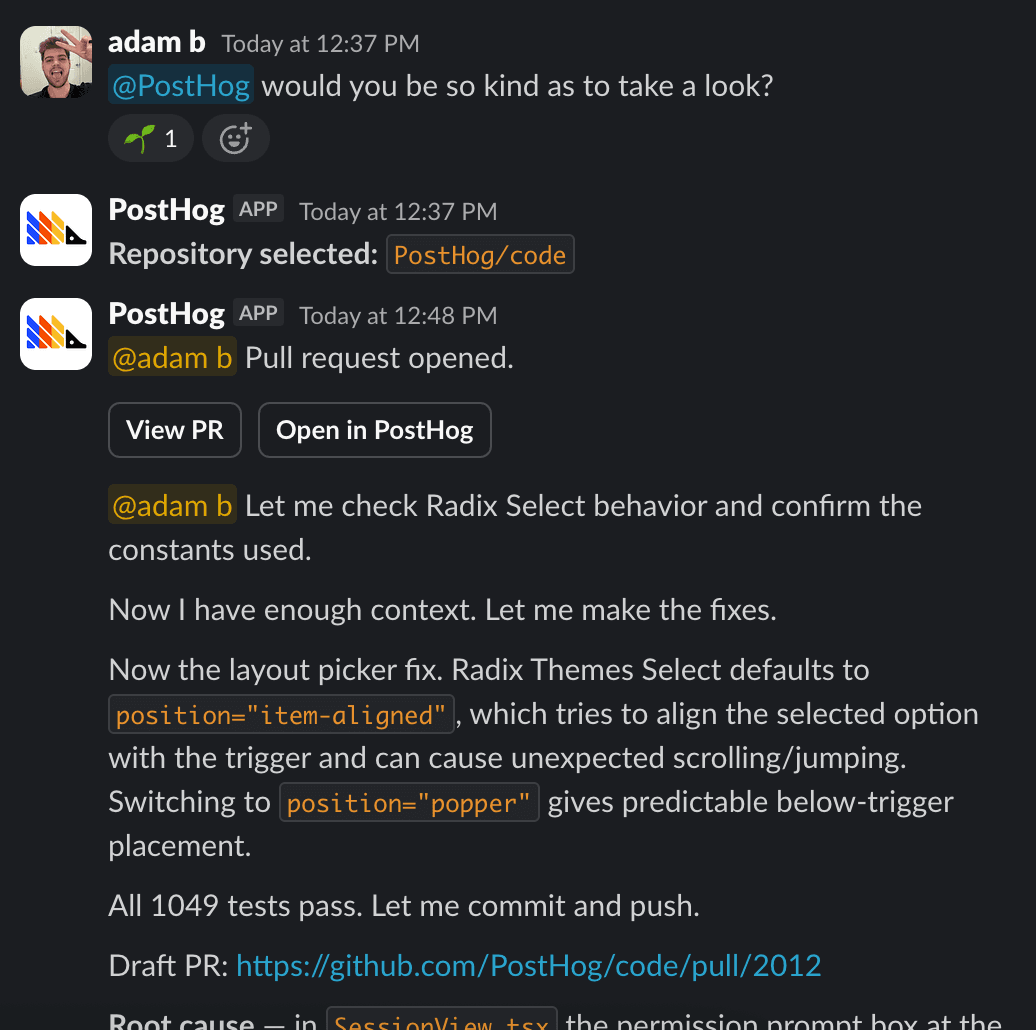
Mention @PostHog with a fix, an edit, or a feature idea and it plans the work in a sandboxed environment, edits files, runs your checks, and opens a draft PR. The PR links back to the Slack thread it came from, so reviewers can find the original context. It's the same agent that powers PostHog AI and PostHog Desktop, summoned to where your team already chats.
See task environment detection if your scripts or agent instructions need to detect a PostHog task in a cloud sandbox.
Before you can mention the bot you'll need to connect the integrations. You'll need to connect:
- A Slack workspace connection for each project
- A personal GitHub connection for each teammate who wants to ship PRs.
Ask about your product data
Ask the bot a question about your product data and it answers in the thread. It can query anything in your PostHog project, including insights, SQL, session replays, errors, and feature flags. You don't need a connected repo for this.
For trends, funnels, and other results that are easier to read as a chart, the agent adds a chart under its reply. Reply in the thread to ask a follow-up or change the breakdown.
Dig into a subscription or report
To ask about an insight or dashboard subscription delivered to Slack, reply in its thread and mention @PostHog. The agent reads the subscription message, so you don't need to say which insight or dashboard you mean:
Anyone in the channel can ask follow-ups in the same thread. This also works for other messages PostHog posts to Slack, such as Self-driving inbox notifications.
Start a task
Mention the bot with what you want done:
You can ask for things that mix code and product data because PostHog Desktop has your PostHog project wired up, so feature flags, experiments, events, and live metrics are all in the agent's context:
If you have a single repo connected, the task runs against it immediately. If you have several, the bot opens a repo picker in-thread. Pick one and the task starts. The picker times out after 15 minutes; after that, re-mention the bot to try again.
Once the agent finishes, it posts a final summary of its work to the thread.
Replies from the agent carry a footer. It links to the session in PostHog, names the model used and its reasoning effort, and offers a Configure link into the App Home tab. The footer also names the project the run belongs to, when your workspace connects more than one. There are also thumb icons to rate the answer.
Follow-ups in a thread
Reply in the thread to send a follow-up to the running agent. Anything you say while the run is active is forwarded as a new message in the same conversation, so you can steer mid-run ("actually, skip the test files") or answer a question the agent asked.
Once the agent finishes, you can reply to it by sending a new message in the thread with @PostHog to continue the existing conversation.
Anyone in the thread can send follow-ups. Each message is forwarded to the running agent as a new turn in the same conversation, so teammates can steer the run together, drop in extra context, or answer a question the agent asked.
Follow-ups are properly multiplayer: each turn runs under the identity of whoever sent it. The agent switches to the sender's own GitHub and PostHog integrations before the turn runs, so commits and PRs land under the name of the person who actually asked for them – not the person who started the thread.
If a teammate sends a follow-up without a personal GitHub connection, the agent can't fetch, push, or open PRs on their turn. It replies with a link to connect GitHub, and the rest of the conversation carries on as normal.
Reply without tagging the bot
Once a task is running in a thread, the bot can also pick up replies that don't mention @PostHog. Whether it does is up to whoever started the thread – set your preference in the App Home tab under Thread follow-ups:
| Option | What happens |
|---|---|
| Leave them alone (default) | Untagged replies are ignored – mention @PostHog to reach the agent |
| Ask them first | If the bot thinks a reply is meant for it, it asks first with a prompt only the replier can see |
| Pick them up automatically | If the bot thinks a reply is meant for it, it answers without asking |
The setting applies to every reply in threads you started, including your own. The bot is deliberately conservative about what counts as "meant for it" – teammates talking to each other are left alone.
Rate an answer
Every response the agent posts carries a thumbs up and a thumbs down. Click one to rate it. A thumbs down opens a short What went wrong? box where you can tell us what you expected instead.
Reacting with a 👍 or 👎 emoji on the agent response also counts as rating, but it won't open the What went wrong? box.
A rating is feedback for us, not an instruction for the agent. It changes nothing about the run in flight. The reply is left as it is, so the rest of the thread can't see how you voted. Anyone who can read the reply can rate it, and a later rating replaces an earlier one. The click itself is what records the rating, so closing the box without typing still counts.
Ratings from Slack sit beside the ones from PostHog AI in the app and from PostHog Desktop. A thumbs down reads the same wherever you leave it.
DM the bot
You don't need a channel to talk to the bot – open a DM with PostHog and message it directly. Everything that works in a channel mention works in a DM: data questions, coding tasks, follow-ups, and attachments. It's a good place for quick tasks (or embarrassing questions) you'd rather not spam a channel with.
A new DM opens as a Slack AI assistant panel, with a short greeting and a few suggested prompts to start from. You don't need to mention @PostHog in a DM – just type.
The bot introduces itself by DM: once to whoever installs it, and once to each new teammate who joins your Slack workspace.
Group DMs work too – start one with the bot and your teammates as members. What you can't do is mention the bot in an existing DM it isn't part of: it can't see or join those conversations.
Commands read the same in a DM as in a channel: /posthog project <id>. See the command reference.
Pick a model
Tasks run on Claude Opus 5 by default. To use a different model, just ask for it as part of your message:
Any model available in PostHog Desktop works, and you can request a reasoning effort the same way ("do this with max effort"). The bot reads the request out of your sentence, so shorthand is fine. "Sol", "codex sol", and "opus" all resolve to a model.
A model named as the subject of the work doesn't switch anything. "Add Fable to the model picker" is a task about Fable, not a request to run on it.
To change the model for everything you run, set your default in the App Home tab under AI model. You can also set it in PostHog Web under Settings → Environment → Task agents. They are the same setting: the Home tab edits your PostHog task agent default, which applies to Slack, the task composer, and PostHog Desktop alike. Project admins set a project-wide default in the same place.
The precedence is: model named in the message → your PostHog default → the project default → Claude Opus 5.
You can also switch models mid-run from a follow-up message, with one constraint: the runtime (Claude or Codex) is fixed once an agent starts, so moving to a model from the other family requires starting a new thread. For example, you can go from Opus to Fable mid-run, but not from a Claude model to a Codex one. Each reply's footer shows the model and reasoning effort actually used.
Pick a project
When your Slack workspace is connected to more than one PostHog project, the bot routes each mention to one of them. Name a project in the message that opens a thread and it answers from there:
Only the first message of a thread can pick a project. A task, its thread, and its run all belong to one project, so a follow-up can't move it – start a new thread instead.
Everything else is a default you set once: your personal project in the App Home tab under Project routing or with /posthog project <id>, and the workspace-wide fallback by a Slack admin. Pick a project covers the full precedence.
Reading the project out of a message is rolling out during the beta. Until it reaches your workspace, mentions run against your saved default.
Attachments, files, and canvases
Attach files to your message and the agent reads them: images (PNG, JPG, GIF, WebP), PDFs, and plain-text files like logs, markdown, CSV, JSON, and YAML. Up to five attachments per message, 10 MB each.
Paste a screenshot of a broken page, a design, or a chart, then tell the agent what to do with it:
Send a stack trace, a log file, or a CSV export the same way, in place of a wall of pasted text.
What the agent sends back
Most answers are text, but the agent can also send:
- Charts – a chart image under the reply, with a button to open it in PostHog.
- Canvases – a Slack canvas for longer documents, like reports or plans. Ask for changes in the thread and the agent updates the same canvas.
- Files – a file uploaded to the thread, such as an image (PNG or SVG), a spreadsheet (XLSX or CSV), a PDF, a Word document, an HTML page, or a ZIP archive.
Canvases and files need the canvases:write and files:write Slack scopes. Slack doesn't add new scopes to an existing install, so if you get text instead of a canvas or file, ask a project admin to reconnect the Slack app.
The App Home tab
Open the PostHog app's Home tab in Slack (or click Configure in the footer of any bot reply) to manage your setup in one place:
- Workspace activity – tasks, PRs opened and merged, merge rate, and most active teammates. Visible to Slack workspace admins and owners only.
- Project routing – your personal default project, plus the workspace-wide default (editable by Slack admins).
- AI model – which model and reasoning effort your mentions run on, and where that comes from. Editing it here edits your PostHog task agent default, so the change also applies in the task composer and PostHog Desktop.
- Thread follow-ups – how the bot treats untagged replies in threads you started.
- Linked accounts – your PostHog account link and personal GitHub connections.
- Tasks – the tasks you've started from Slack, filterable by repo and status, with links to the thread, web, and desktop.
Emoji cues
The bot reacts to your @PostHog message as it works through your request, so you can scan a busy channel and see what's still in flight without opening every thread:
| Emoji | What it means |
|---|---|
🔍 :mag: | Picking which repo to run the task against |
👀 :eyes: | Forwarding a follow-up to the running agent, or resuming a previous run |
🦔 :hedgehog: | The agent finished and posted its reply in the thread |
❌ :x: | Something went wrong |
Link unfurling
When you paste a PostHog insight or dashboard URL in a channel the bot is invited to, Slack shows a rich preview with the title, type, and description. Unfurling respects PostHog access permissions. Only teammates with at least viewer access on the item will see the preview. See Slack link unfurling for details.
Related
- Setup – connect Slack and personal GitHub
- Commands – full command reference and limitations
- Pricing – how Slack app usage bills
- PostHog Slack app overview – the product page
- PostHog Desktop – the desktop app for longer-running, multi-repo agent work
- Slack integration in PostHog – subscriptions, link unfurl, generic Slack setup
- Slack as a Data Pipeline destination – send event-driven messages