



Collecting user feedback
Contents
User feedback is currently in beta. We'd love to hear your feedback as we develop this feature:
To collect user feedback for LLM traces, PostHog provides a native integration with Surveys. The Surveys integration enables you to collect user feedback and thumbs up/down responses attached directly to a given trace.
How it works
- Start by creating a survey for a group of LLM traces.
- In your app, collect survey responses with an
$ai_trace_idproperty attached to the events. - View user feedback per-trace within AI Observability, or view all feedback within Surveys.
For the common thumbs up/down use-case, we provide a React hook useThumbSurvey to quickly attach a thumb survey and optional followup questions to your existing UI. In other cases, you can manually send survey-related events to attach them to your trace.
Creating a survey
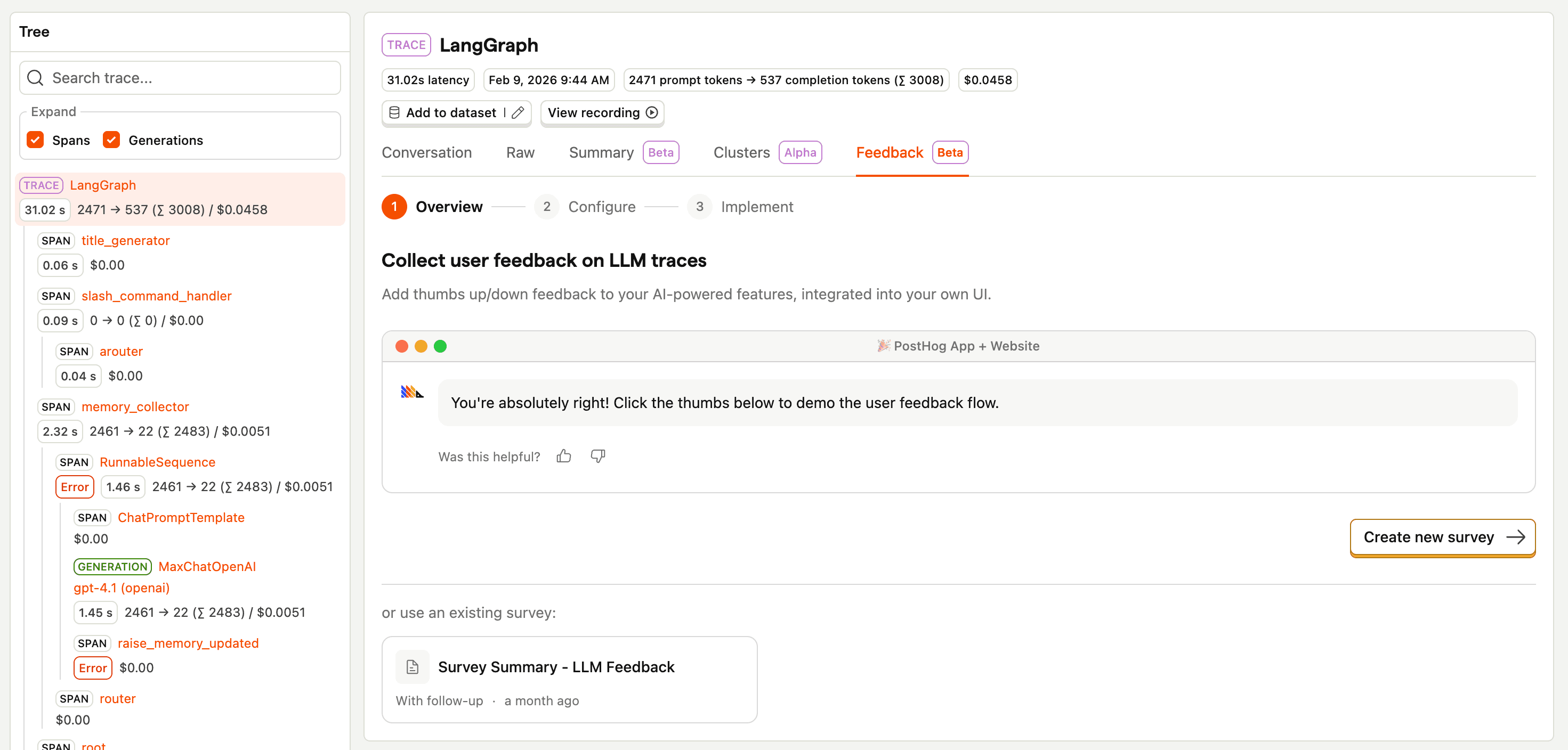
On any top-level trace (or pseudo-trace) event, navigate to the Feedback tab to create a survey.
The survey will begin with a thumbs up/down question. Toggle on Ask follow-up on thumbs down to ask a follow-up question when the user responds with "thumbs down".
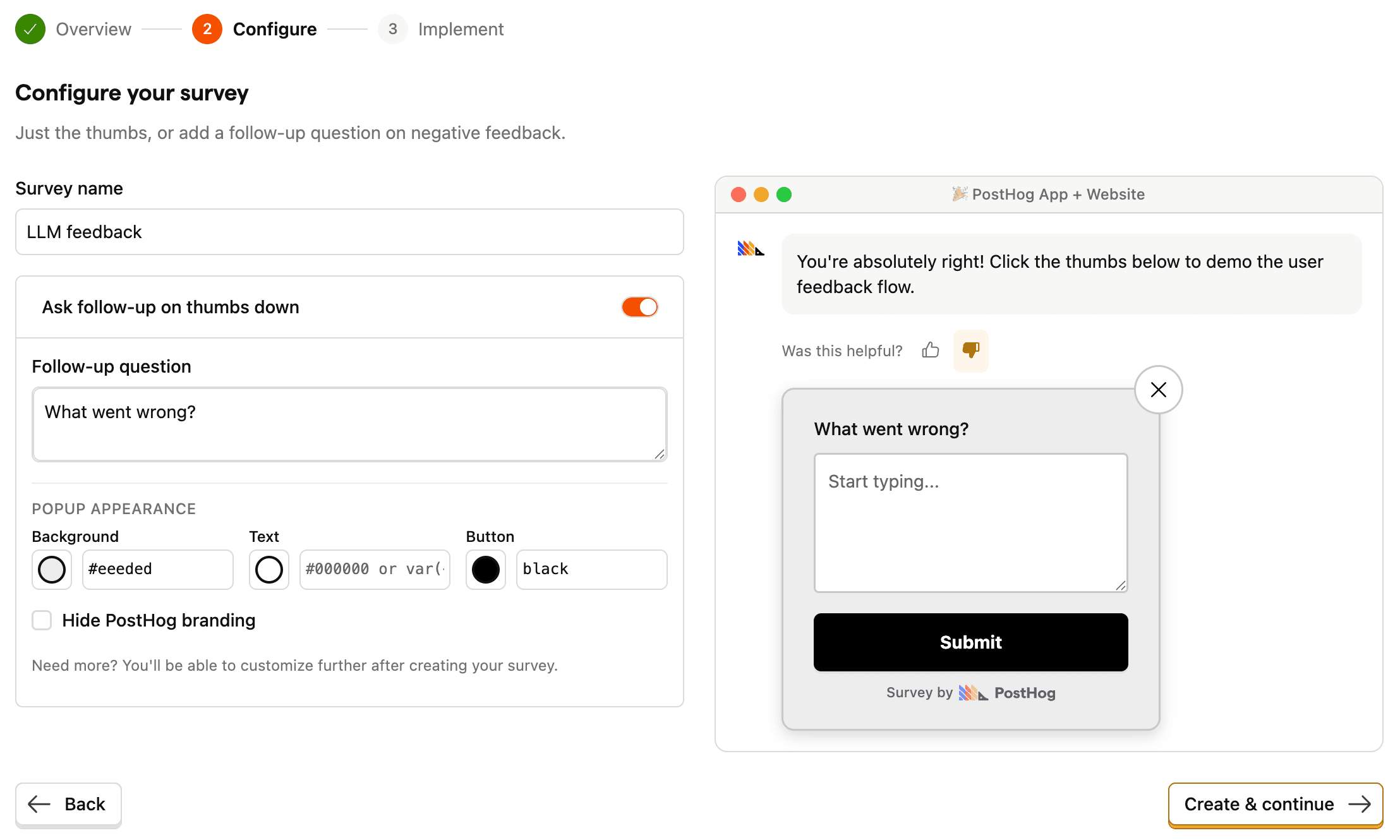
For more customization you can edit this survey post-creation, or create a new survey. However, complex surveys may not work with our useThumbSurvey hook and require manual event capture.
Click Create & continue to create your survey and view implementation instructions.
Integrating with your app
For the quickest setup in React apps, use the useThumbSurvey hook to wire up your survey.
If you need more flexibility, or are not building a React app, see manual feedback event capture.
Viewing survey responses
You can view survey responses per-trace within AI Observability, or per-survey within Surveys.
View all feedback in Surveys
Navigate to Surveys and open your LLM feedback survey. You'll see aggregated survey metrics at the top, such as overall thumbs up/down ratings:

You can also view all responses in a table, and quickly link to the related trace by clicking the AI Observability icon:

View all traces with feedback
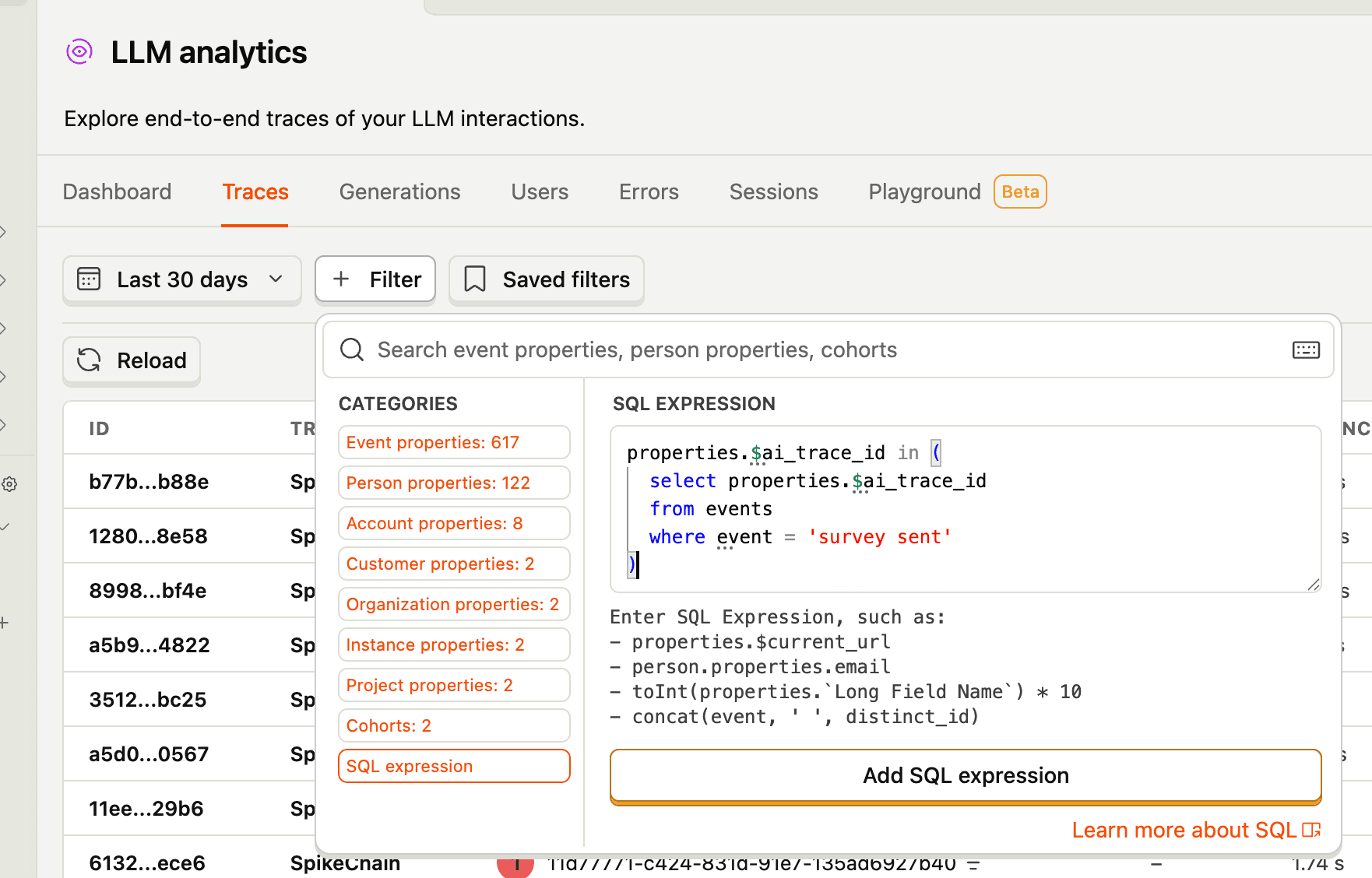
Use this SQL expression to filter your LLM traces down to only those with attached survey responses:
View individual trace feedback
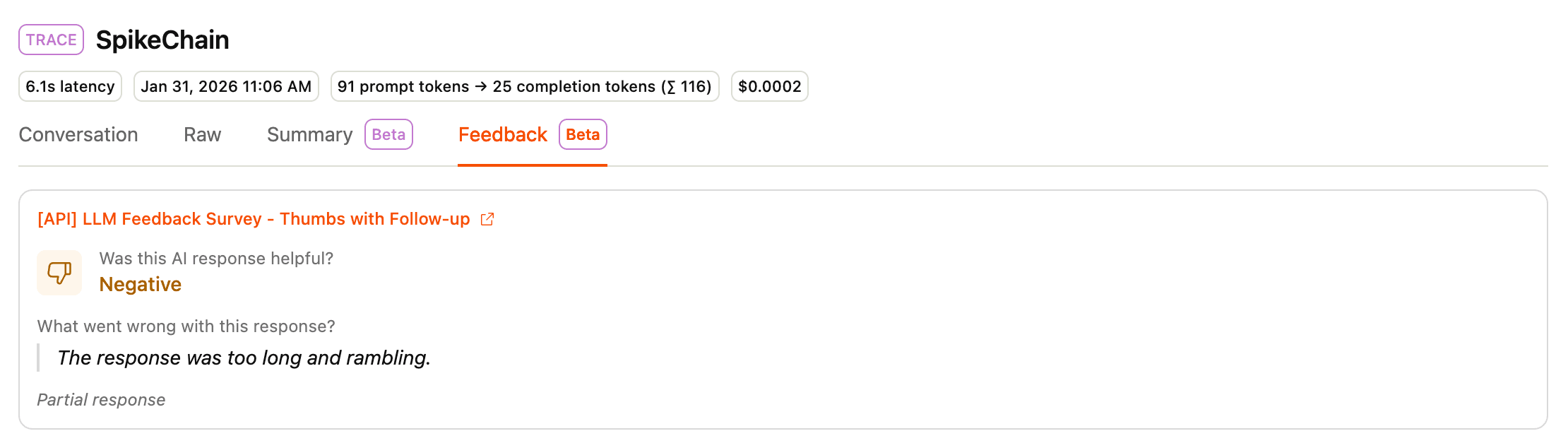
For an individual trace, navigate to the Feedback tab to see survey responses.
If there are no survey sent or survey shown events associated with the given trace, you'll see the option to create a new survey, or select an existing one to see implementation instructions.
Otherwise you'll see the survey response, or a message indicating a survey was shown but no response was sent.
Best practices
Organizing feedback
We recommend creating one survey per logical "group" of traces.
For example, consider a product that offers users two AI generations:
- Chatbot to help query the docs
- Agent to help build custom dashboards
In this case, we'd recommend creating two separate surveys: one for the docs chatbot, and another for the dashboard agent.
This would enable you to quickly view aggregate feedback for all docs chat traces or custom dashboard generation traces via the Surveys UI.
If you use a single survey for all traces, it will be difficult to parse them per "group" or "user action" without adding custom event properties and building your own dashboards.