








Playground
Contents
The playground lets you test and experiment with LLM prompts directly inside PostHog. Try different models, compare outputs side-by-side, tune parameters, and save your work to prompt management or evaluations — all without writing code.
Why use the playground?
- Iterate on prompts fast — Test system prompts and message sequences without deploying code or switching tools
- Compare models side-by-side — Run the same prompt across multiple models at once and compare output quality, latency, and token usage
- Tune parameters — Adjust temperature, top-p, max tokens, reasoning effort, and thinking to see how they affect outputs
- Test tool calling — Define function tools in JSON and see how models respond with tool calls
- Replay from traces — Open any generation from traces in the playground to reproduce and iterate on real production interactions
- Save to prompts or evaluations — Turn playground experiments into managed prompts or evaluations when you're happy with the result
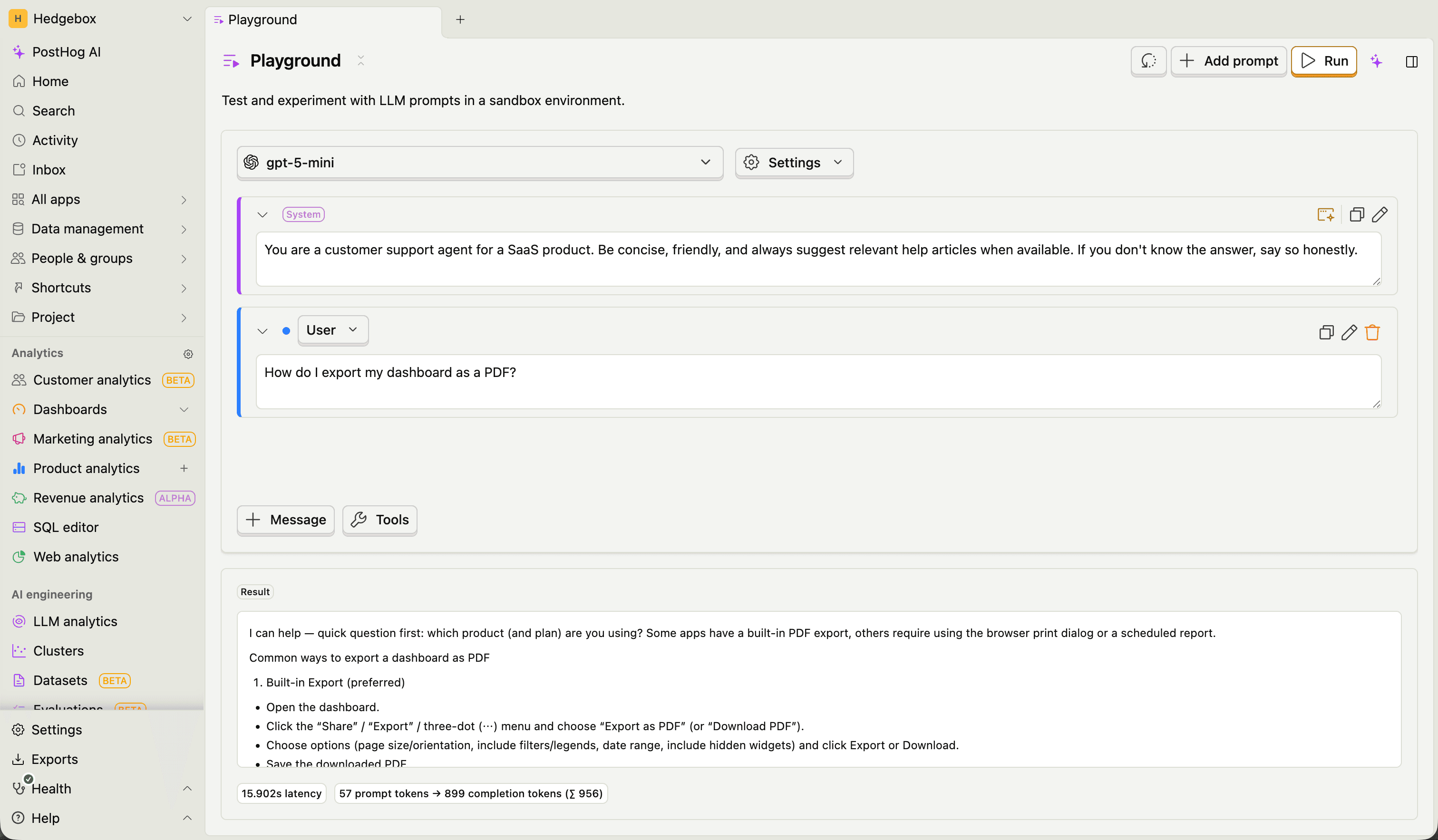
Getting started
- Navigate to AI Observability > Playground
- Choose a model from the model picker
- Write a system prompt and add messages
- Click Run
The playground works out of the box with PostHog-provided trial models — no setup required. To use your own API keys for higher rate limits and access to more models, add them in Settings > AI Observability.
Click the reset button to clear the playground back to its default state at any time.
Choosing a model
Use the model picker at the top of each prompt to select a model. The available models depend on your setup:
- Trial models — A curated set of models provided by PostHog at no cost. These have rate limits to prevent abuse and require a valid payment method on file.
- Bring your own key (BYOK) — When you add your own API keys (OpenAI, Azure OpenAI, Anthropic, Google, OpenRouter, Fireworks, Together AI, etc.), the playground lists all models available through those providers with no PostHog rate limits.
Writing prompts
Each prompt has three parts:
System prompt
The system prompt sets the overall behavior and instructions for the model. Click the system prompt area to expand and edit it. The default is "You are a helpful AI assistant."
Messages
Add user and assistant messages to build a conversation. Each message has a role (user or assistant) and content. Click Message to append new messages and use the role toggle to switch between roles.
Tools
Click the Tools button (wrench icon) to define function tools in JSON format. Tools follow the OpenAI tool calling format — an array of objects with type: "function" and a function definition containing name, description, and parameters. The editor includes an example template you can use as a starting point.
When you run a prompt with tools defined, any tool calls the model makes are displayed in the result alongside the text response.
Configuring model parameters
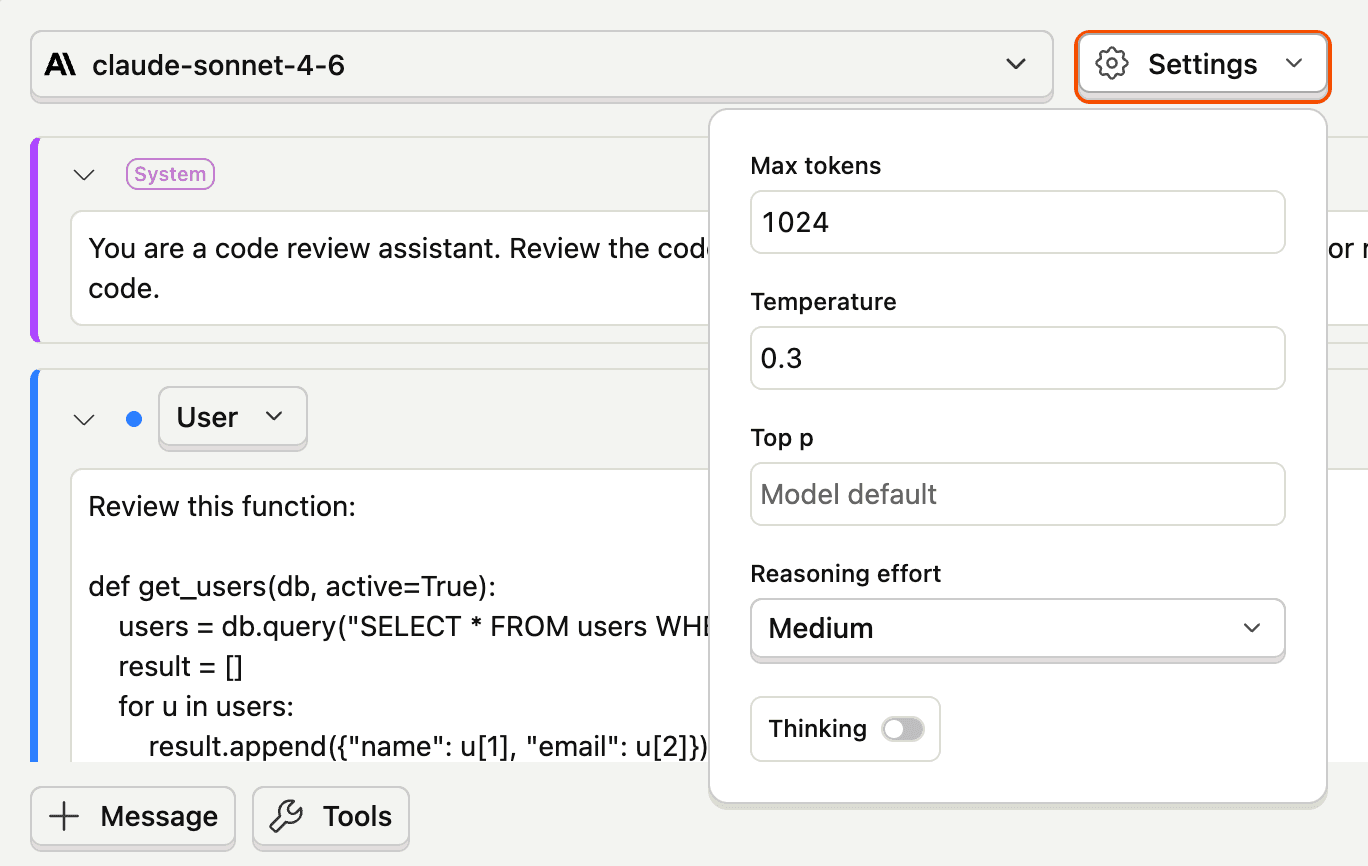
Click Settings (gear icon) next to the model picker to adjust generation parameters:
| Parameter | Description | Range |
|---|---|---|
| Max tokens | Maximum number of tokens in the response | 1–16,384 |
| Temperature | Controls randomness — lower values are more deterministic | 0–2 |
| Top p | Nucleus sampling threshold | 0–1 |
| Reasoning effort | How much the model reasons before responding (for supported models) | None, Minimal, Low, Medium, High |
| Thinking | Enable the thinking/reasoning stream (model must support extended thinking) | On/Off |
Running prompts
Click Run to send your prompt to the model. The response streams in real-time into a result card below the prompt, showing the model's markdown-formatted response, any tool calls, token usage (prompt, completion, cache read/write), latency, and time to first token. Click Stop to abort mid-stream.
Comparing prompts
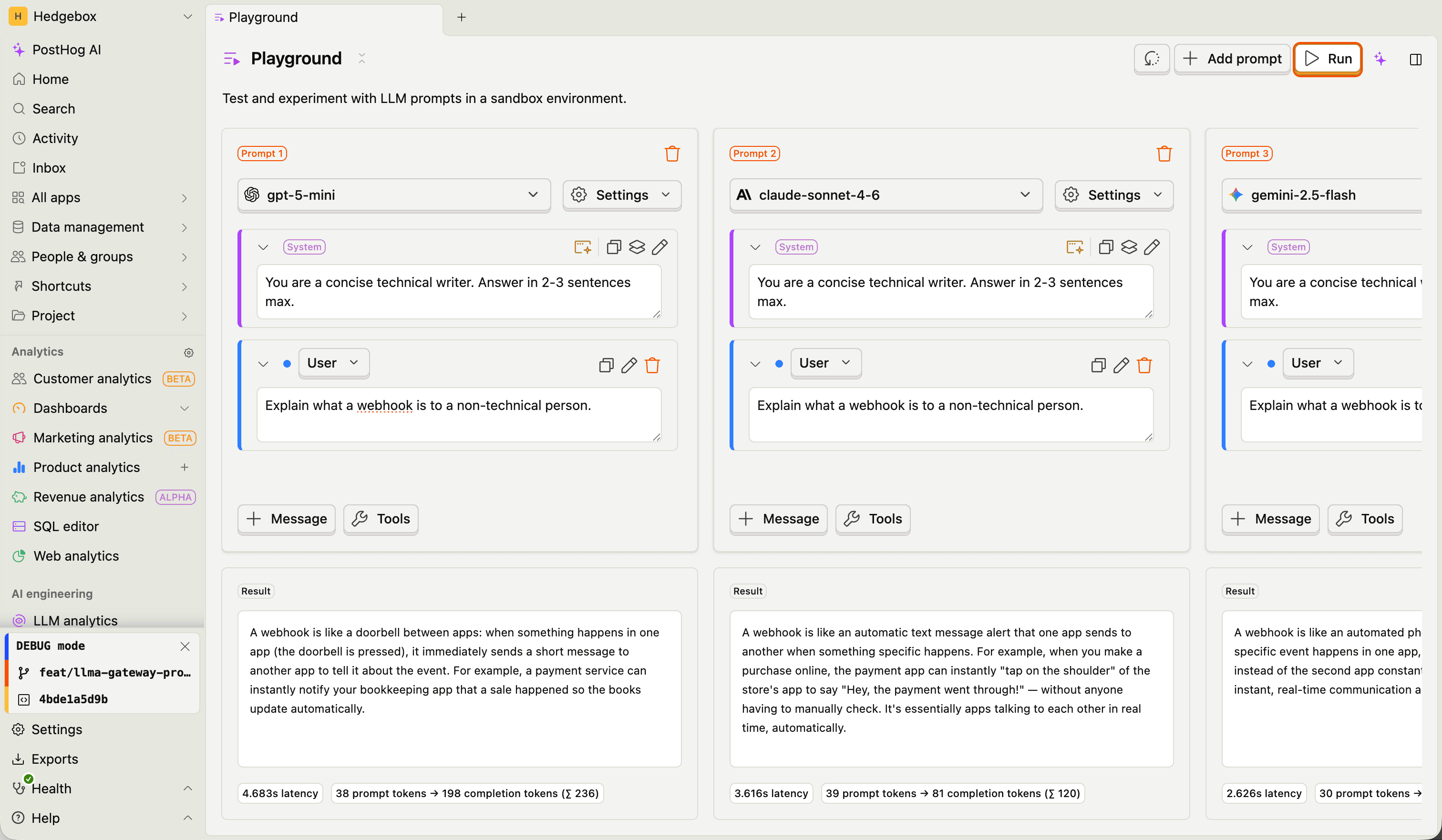
Click Add prompt to create additional prompt columns. Each prompt gets its own model, system prompt, messages, tools, and parameters. When you click Run, all prompts execute in parallel so you can compare results side-by-side.
This is useful for:
- Comparing the same prompt across different models (e.g. GPT-5 vs Claude Sonnet vs Gemini)
- Testing different system prompt variants on the same model
- Evaluating how parameter changes (temperature, reasoning effort) affect output quality
Saving and loading
Click the save menu (prompt management icon next to the system prompt) to save or load prompts:
- Save as new prompt — Creates a new managed prompt from the current system prompt
- Save as new evaluation — Creates a new evaluation with the prompt and model configuration
- Load prompt / Load evaluation — Load an existing prompt or evaluation into the playground
You can also open the playground directly from the traces, prompt management, or evaluations pages. When you do, the playground pre-populates the model, system prompt, and messages, and links back to the source so you can save changes directly — publishing a new prompt version or updating the evaluation configuration.
Rate limits
When using trial models, the playground enforces rate limits. If you hit a limit, a banner shows how long until your next request.
Add your own API keys to remove PostHog rate limits. BYOK models are subject only to the provider's own rate limits.