





Metabase account analysis playbook
Contents
Summary
Metabase dashboards mirror a customer’s PostHog usage so we can diagnose billing, implementation quality, and quick-win optimizations. For audio and video learners, check out these:
While checking the account in Vitally, you can access a dedicated Metabase dashboard for this account directly from the sidebar:
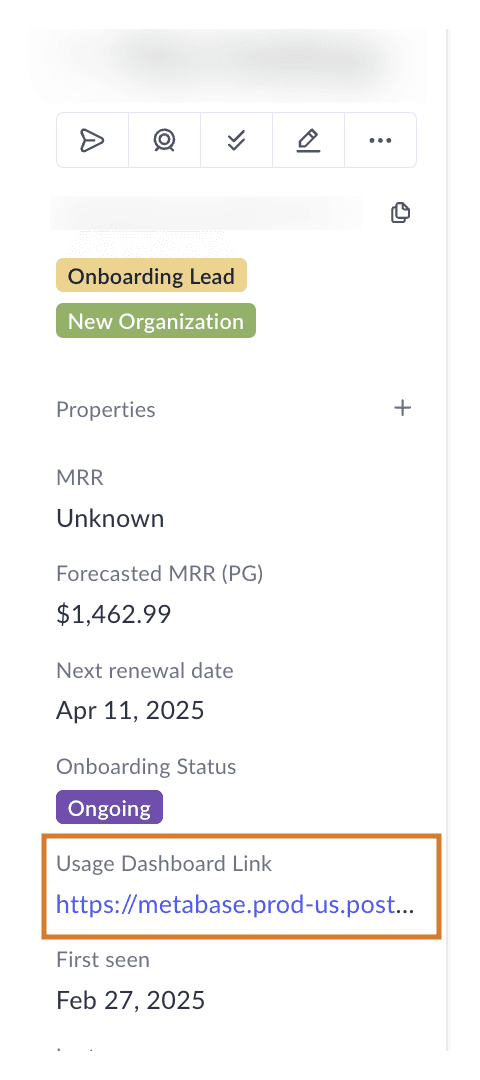
(Note that you may need to configure your properties first to see that by clicking on the "+" button next to properties)
There are two Metabase instances, US and EU, that correspond with the PostHog instance that the customer is on. There might be some visual differences, but accessible data should be roughly the same:
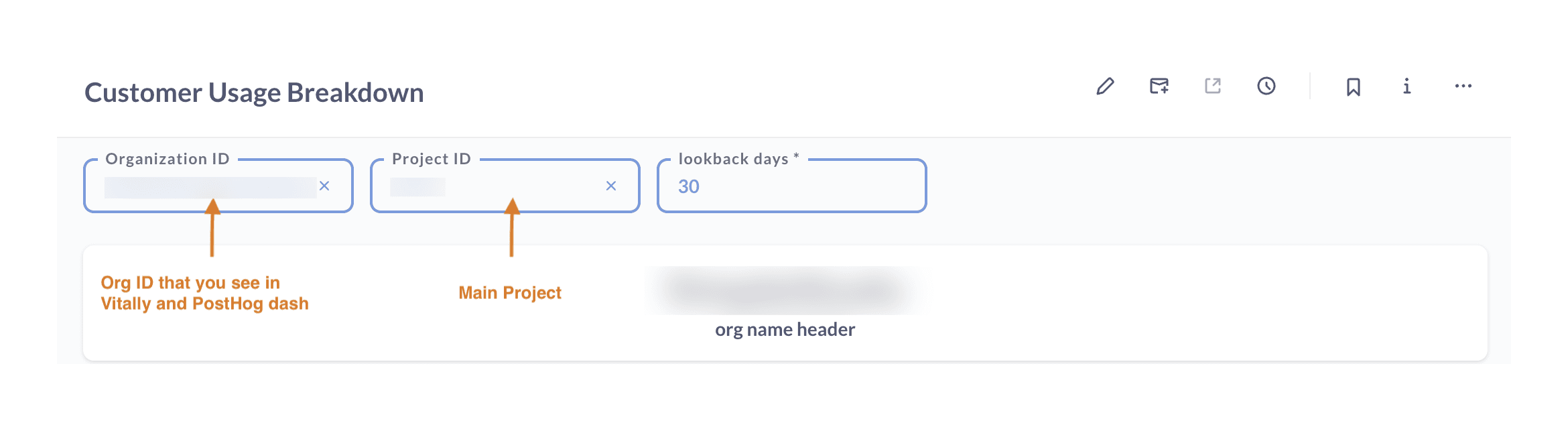
What to pay attention to
1. Billing history
Here you can see an overview of the billing: past bills that went through, bills that were covered with the usage of credits, refunds, and future forecast:

Looking at credits can be especially relevant for Startup or YC Plan customers (that usually use credits or might run out of credits and also display a forecasted MRR). If we ever issued one-off credits (e.g. for spikes), their usage will also be similarly displayed here.
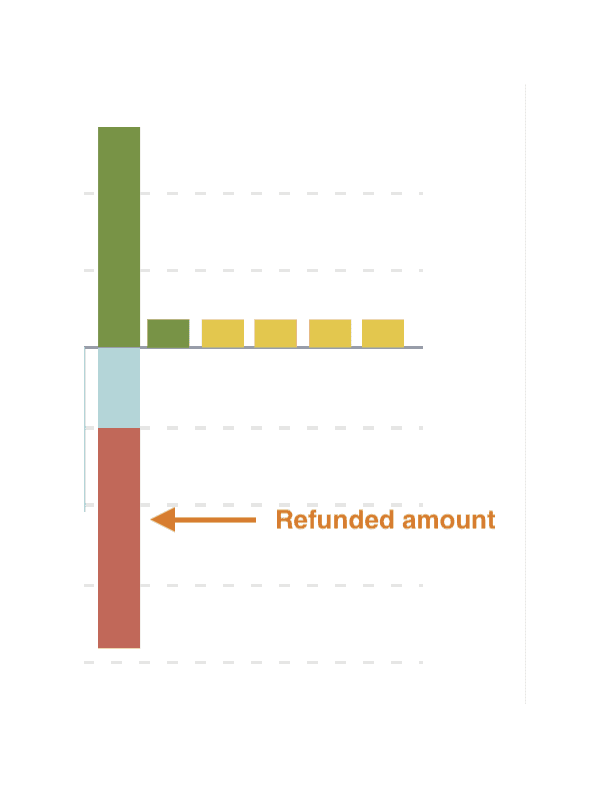
Refunds are also visible with a red bar:
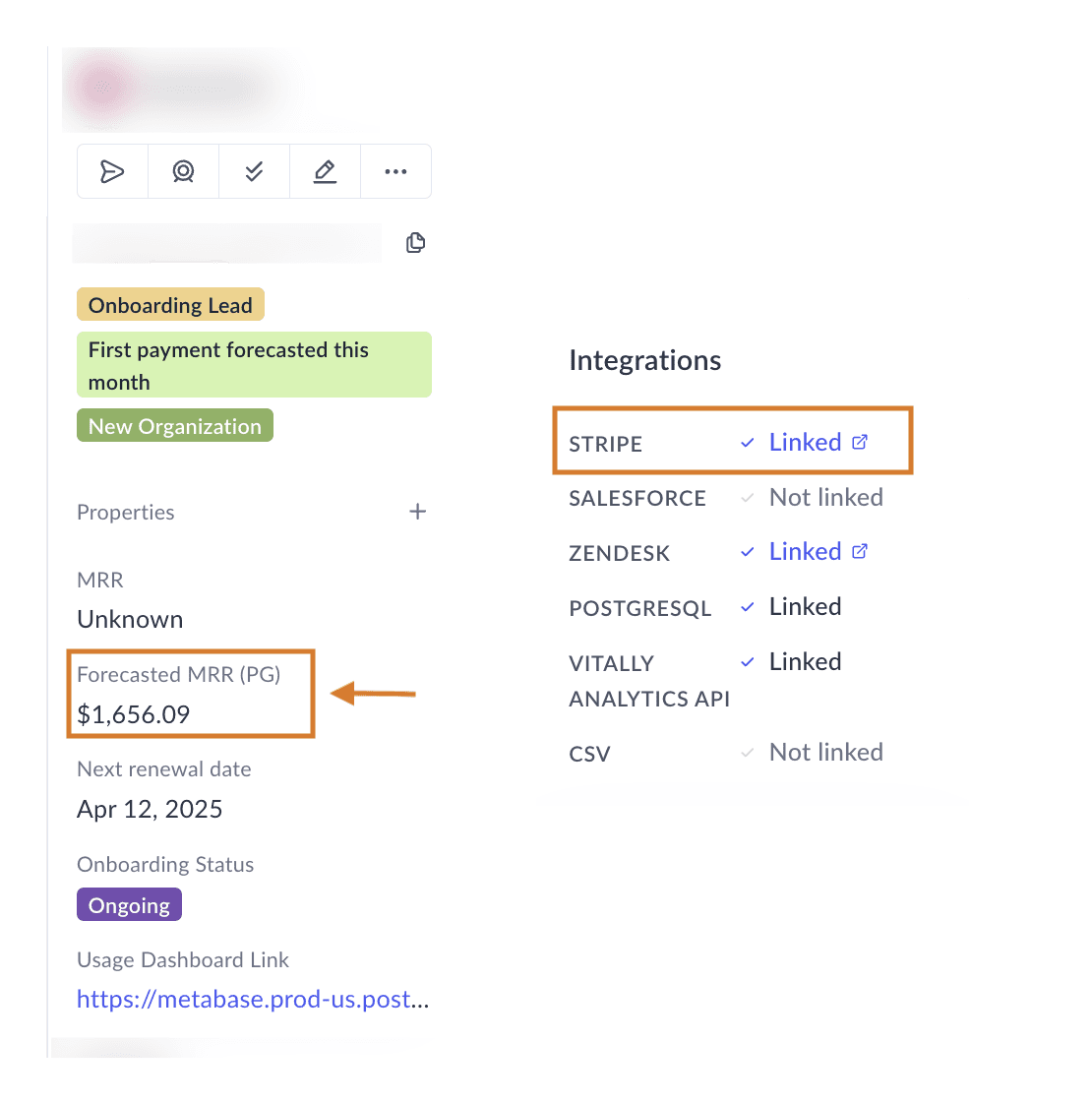
The forecast corresponds with the forecasted MRR that you can see in Vitally’s sidebar, while if you’re interested in how much has been incurred so far, it’s something you can check directly in Stripe’s invoice:
2. Forecasted bill breakdown by product (all projects)
This is where you can quickly see what constitutes the majority of the bill and what can be a lever to reduce customers' spending. It's the best place to start the conversation around the value they take from PostHog.
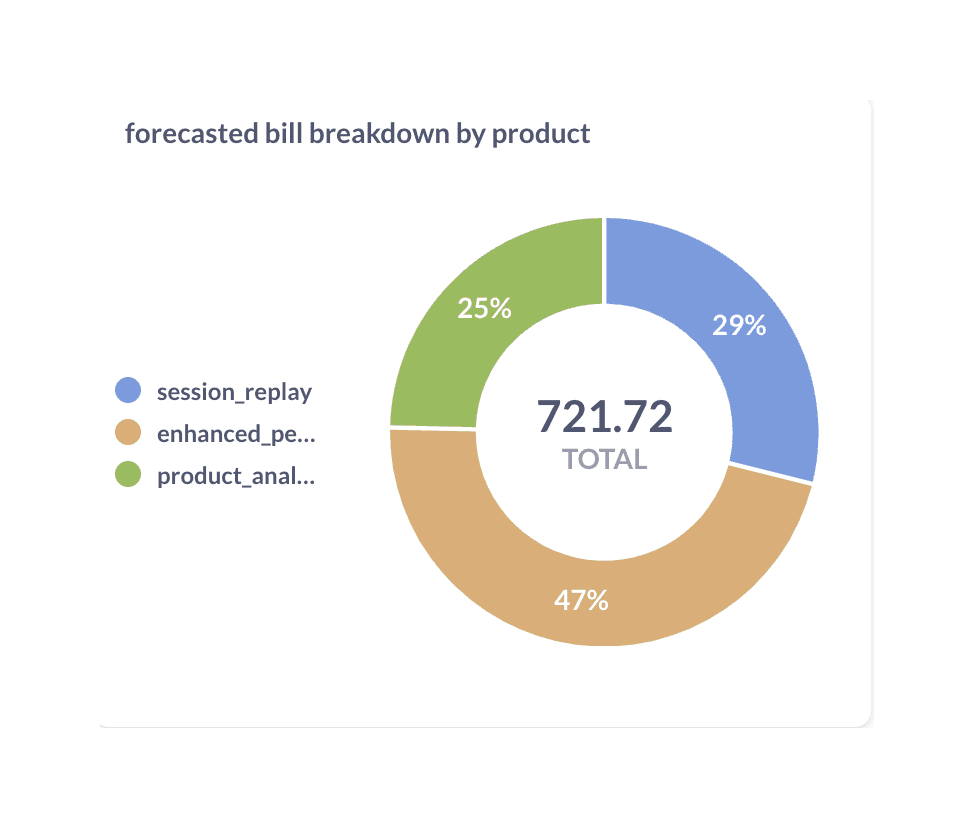
Check the highest % to see if we can share some recommendations on how to reduce the spend, see if it’s not caused by improper implementation, and pay attention to whether the user is not billed for the add-ons that they don’t use in practice (e.g., Groups, data pipeline).
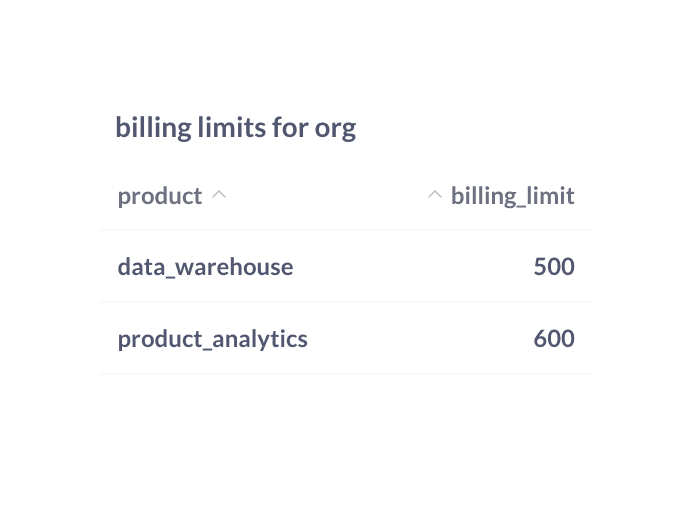
3. Billing limits
The default limit for the data warehouse is $500, and $150 for PostHog AI, so that’s something you may see quite often. Seeing other billing limits added might be an indication that someone could benefit from a more long-term solution and a cost-cutting strategy, as once the limit is hit, the data is not ingested anymore and is lost forever. Billing limits are just a temporary patch, but not a solid solution.
4. Projects for the organization
This is where you can see whether any Session Replay controls have been implemented (minimum duration, sampling, feature flags). Any URL/event triggers won't be visible here.
If controls are missing but usage is high, recommend applying them before scaling replay usage. Most users should at least have minimum session duration enabled as most < 2 second recordings are not valuable but still racks up usage and billing.
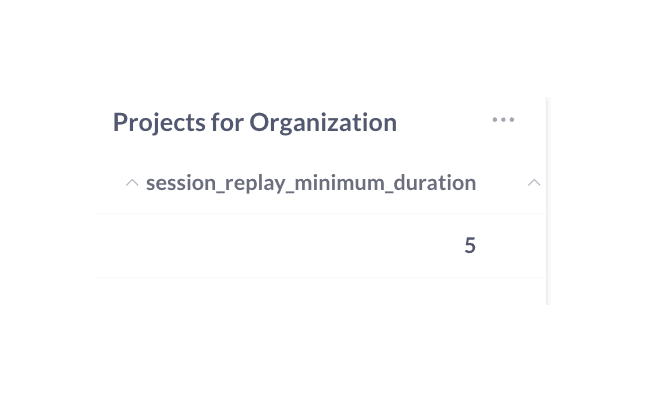
Session replay controls must be added for each project separately.
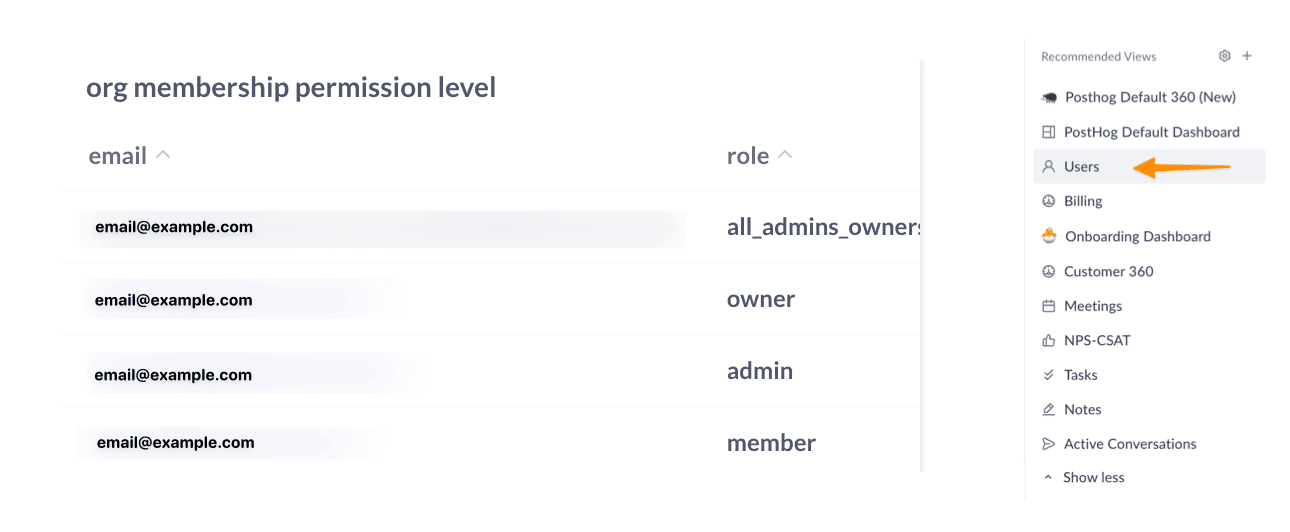
5. Org membership permission level
We use all_admins_owners to send our outreach emails on the onboarding team. You can copy all of them for your first email, and if the list gets too long, you can compare it with the list of active users in Vitally to see who might see your email. After a while, if you haven’t heard back, next time you can experiment with emailing recently active users from Vitally as well.
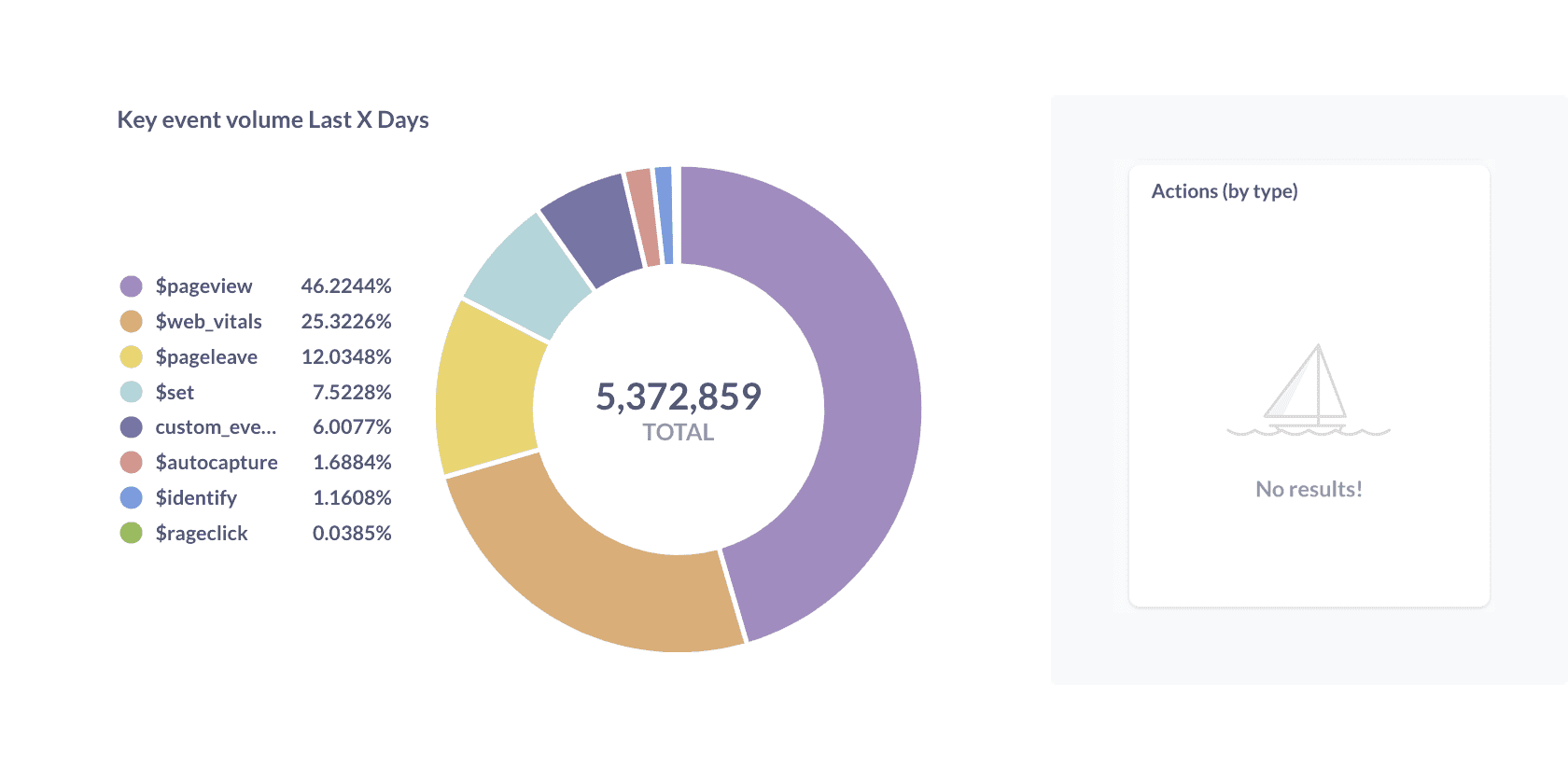
6. Key event volume (all projects)
The heart of our analysis. You can see the % of the most used event types. You can see whether they’re using Autocapture, custom events, or when they have an unusual spike in $pageleave events. If you see a high ratio of autocapture events, but 0 Actions in the “Actions (by type)” graph, you can assume that they may not take enough value from it.
7. Total event counts (all projects)
A supplementary chart to the “Key event volume”. Both should be reviewed together. The area chart shows the most used events, and potential unexpected spikes. Events marked by the $ sign are the default PostHog events.
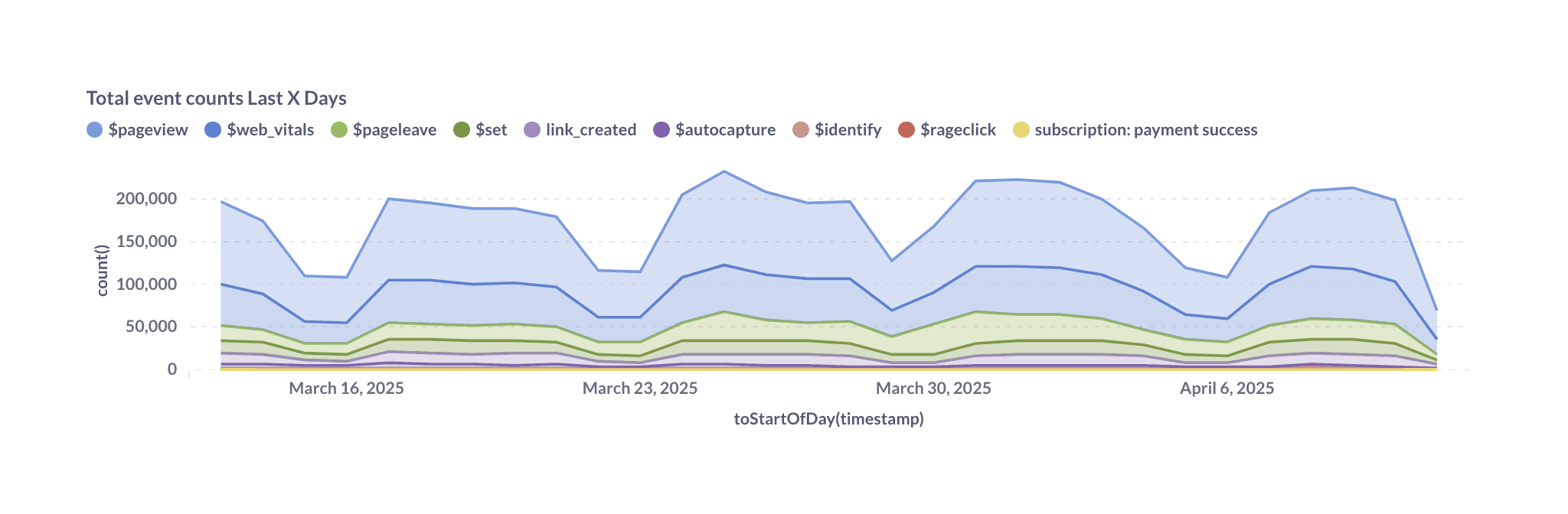
This graph corresponds with “Billable usage insight” insight within the “My PostHog billable usage” dashboard template. It’s a good idea to show it to users, so that they can keep an eye on their usage and decide if everything they see there is needed for their tracking.
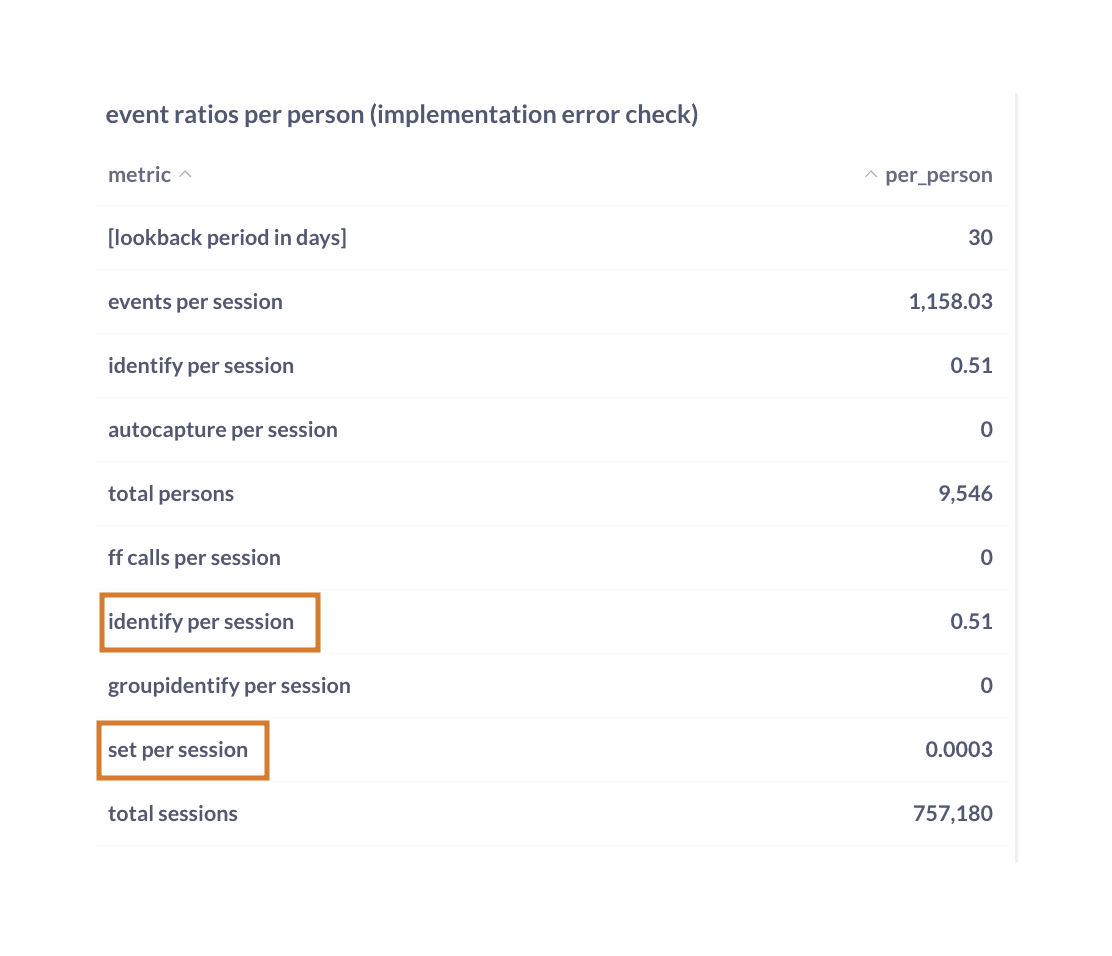
8. Event ratios per person or session (implementation error check)
If you see an unnatural spike in $set or $identify events in the two previous charts, here you can see whether their implementation is correct. Usually, 1-3 calls per session are alright, and things may get tricky if it’s more than 4. If they are using group analytics, pay attention to the groupidentify calls per session as well. Feature flag calls per session can also help indicate further troubleshooting may be needed if it's too high:
9. Hog Destinations
If they pay for data pipelines but have no active destinations, flag the mismatch and suggest enabling or removing the add-on. Newer accounts pay by usage (rather than the add-on), so keep an eye out for that as well.
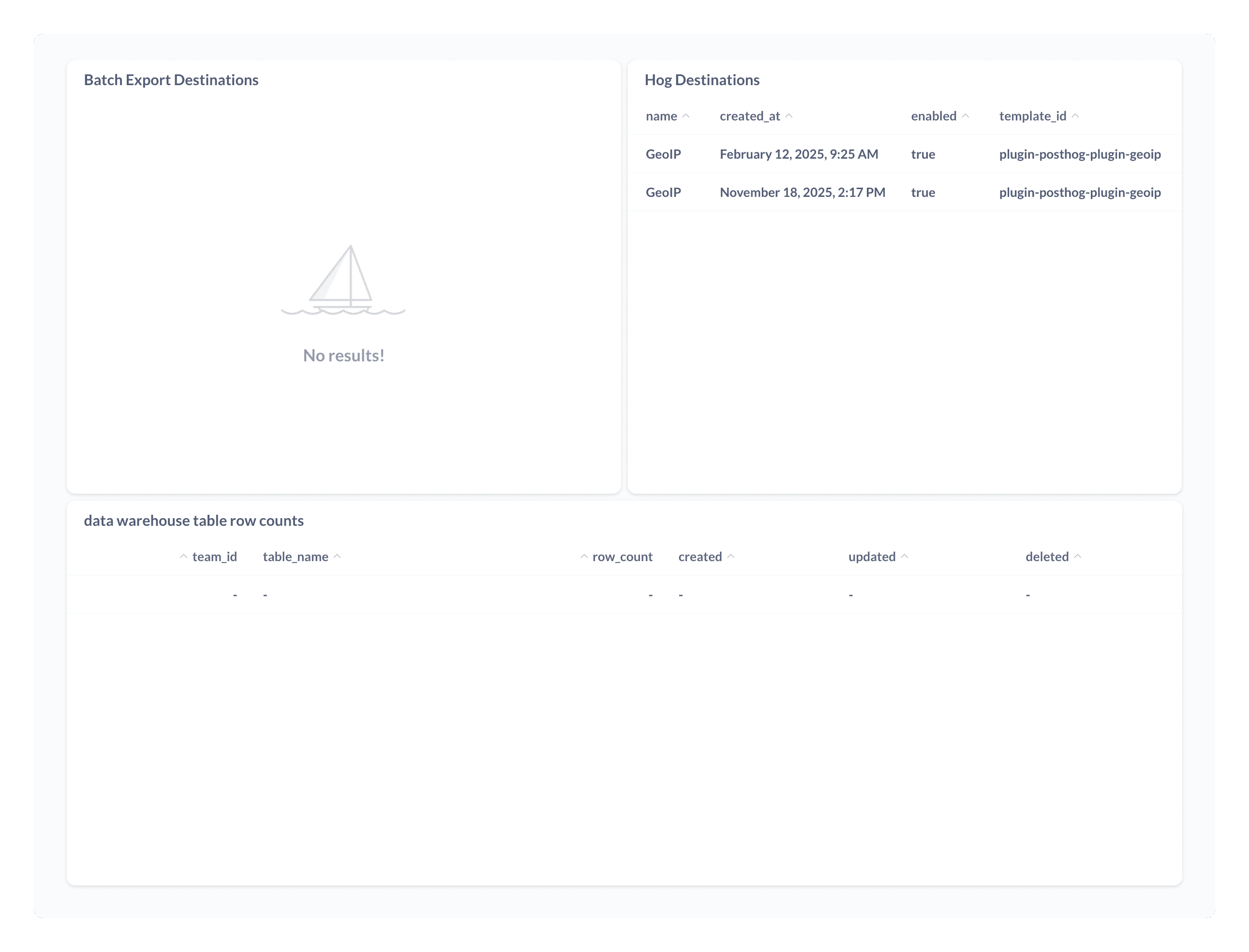
You should also check whether they are using batch exports or data warehouse syncs.
Billing Deep Dive dashboard
The link is already available in our Daily view in Vitally, but make sure you also have it handy in the Account’s sidebar as well. Go to Properties > PostgreSQL> Billing Deep Dive Dash, and click on a pin icon:
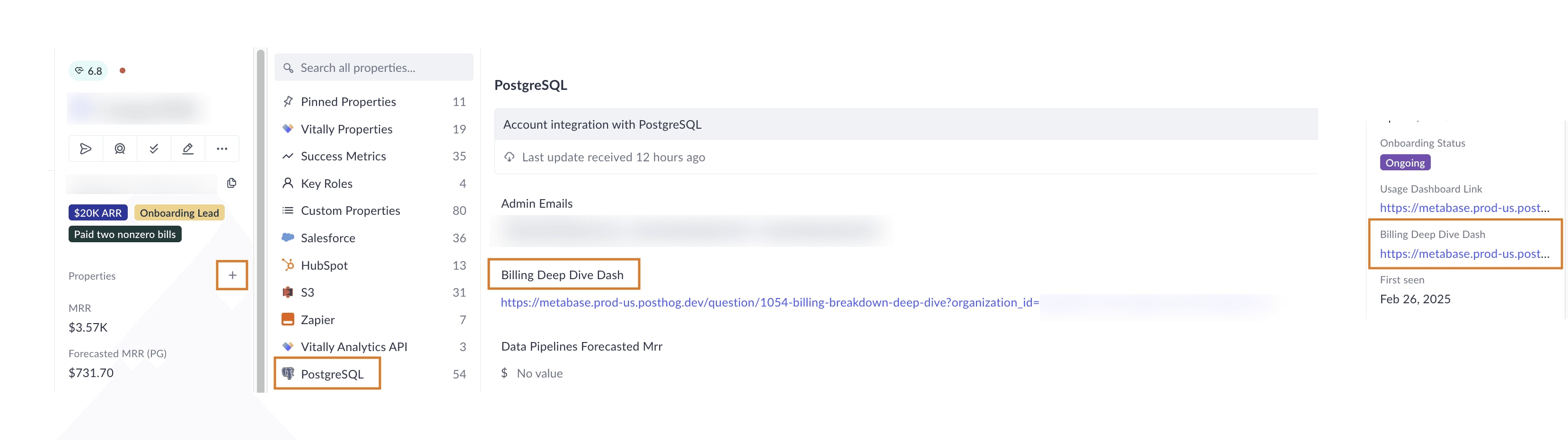
This dashboard is extremely helpful to dive deeper into the usage of Feature Flags and Session Replay, which is not that clear and easily accessible in the default Metabase dashboard. It gives you more insight into mobile vs. standard web reply, or decide vs. local evaluation requests for feature flags.
It’s really handy when you want to investigate a spike in usage (e.g., due to an error in the implementation) and for how long it lasted. Some users struggling with their config may ask you about it specifically.
Pick the appropriate feature from the Category dropdown, update the filter, and adjust the period.
Here, for example, you can see an error in the implementation of the Feature Flags local evaluation, how it compares to Feature Flags in the front-end, and when the problem has been resolved:
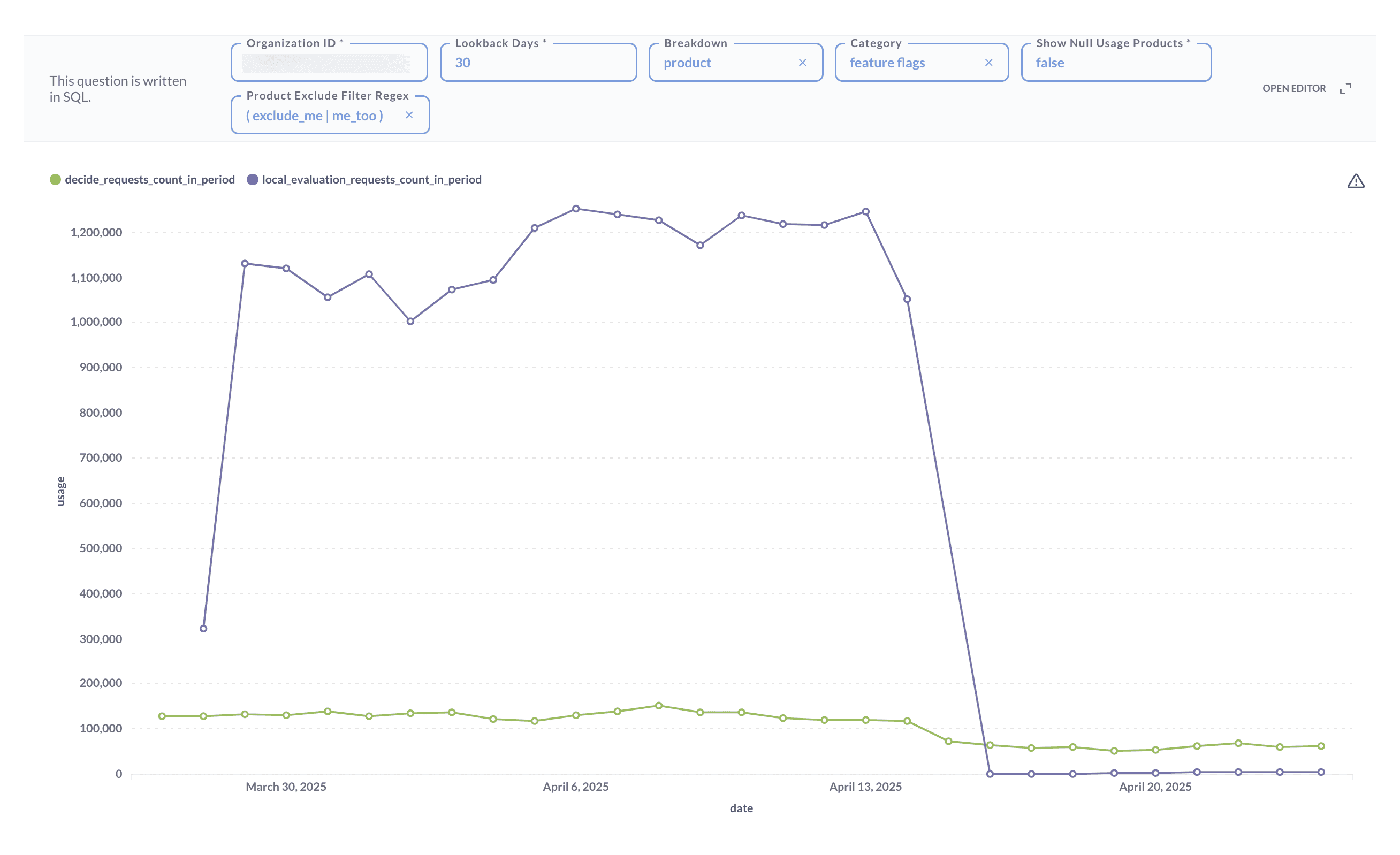
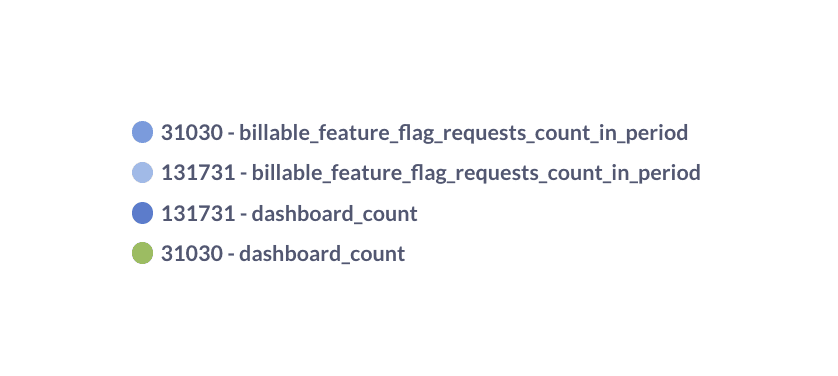
The breakdown by “product x team_id” helps understand the usage per project (by project ID). It's a very popular feature request that the Billing team is working on so that it can also be accessible within PostHog.
Operational billing actions
Re-authenticate the billing admin
Go to billing.posthog.com with your PostHog Gmail, then billing.posthog.com/admin should load again after login.
Adding credits
Watch this video: How to add credits (Loom)
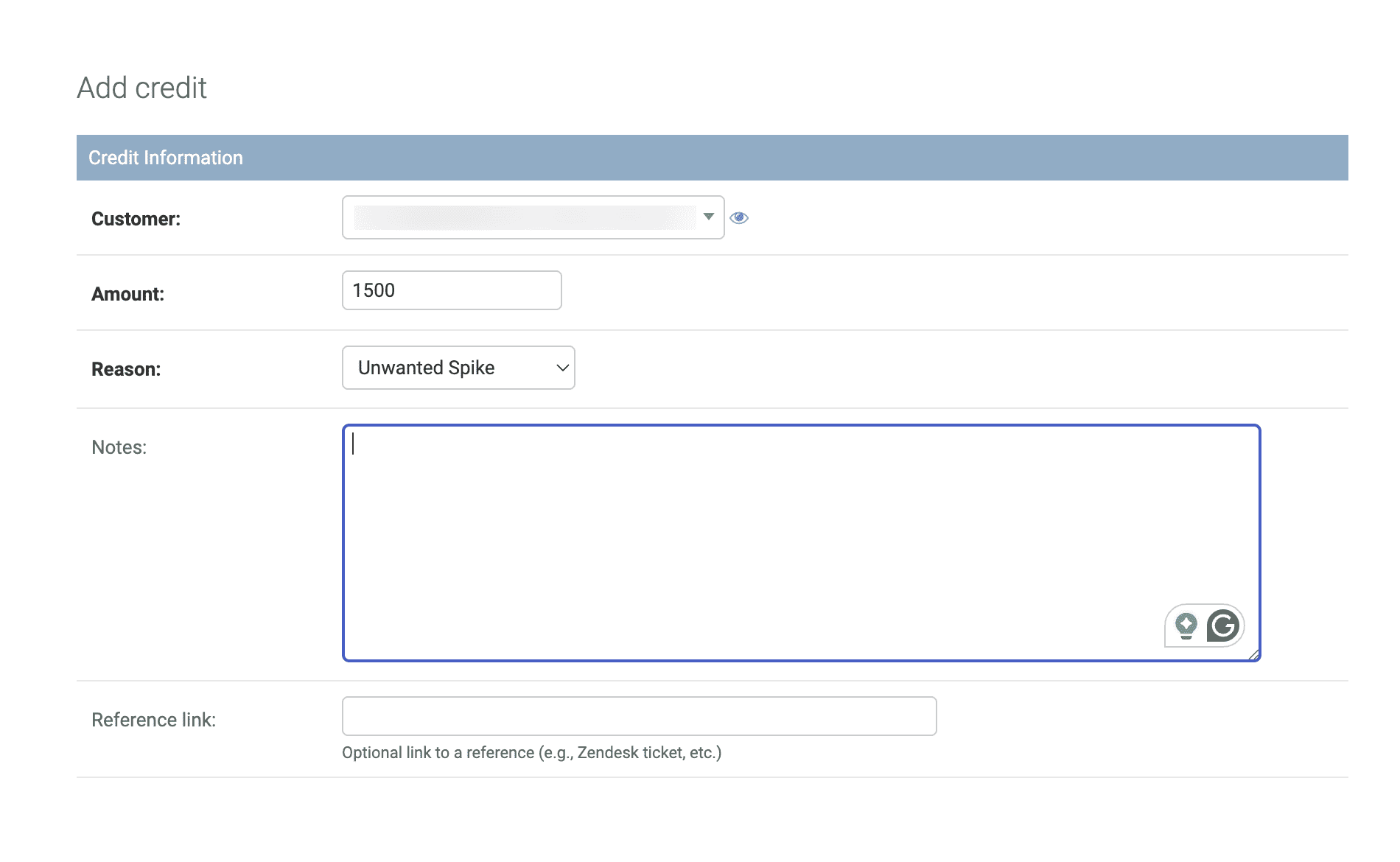
In the billing admin portal, click “Add” next to Credits, search by Organization ID, set amount and reason, and leave an internal note.
Credits now fund the Stripe balance; legacy “credits expire” fields may still appear. Notify Billing if credits do not stick.
After adding the credits, return to Stripe to ensure the changes were applied correctly.
Rectifying a failed invoice
Watch this video Issuing a credit note (Loom)
Sometimes, you may notice that a customer has deliberately not paid their invoice due to an unexpected spike in product usage or because the bill exceeded their planned budget. In some cases, they haven’t reached out to us for help before the bill was renewed.
In these situations, we're here to help them sort out their usage and billing. However, it's no longer possible to simply add credits—we now need to adjust the already-issued invoice directly in Stripe.
This can be done using credit notes, which allow you to either compensate the full amount or offer a pro-rated relief. Please ensure you have the appropriate Stripe permissions; otherwise, you may not be able to access this option:
- Access the invoice in Stripe.
- Look for the “Issue a credit note” option.
- Select a reason and add an internal note explaining the context.
- Check the items to credit. If you’re compensating the full amount, all items should be selected. If you're addressing a specific issue—such as an unexpected spike in usage—select only the relevant line items to discount that specific amount.
After saving the changes, you should see on the main invoice page that the invoice is marked as “Canceled”, and that the credit note has been sent to the user.
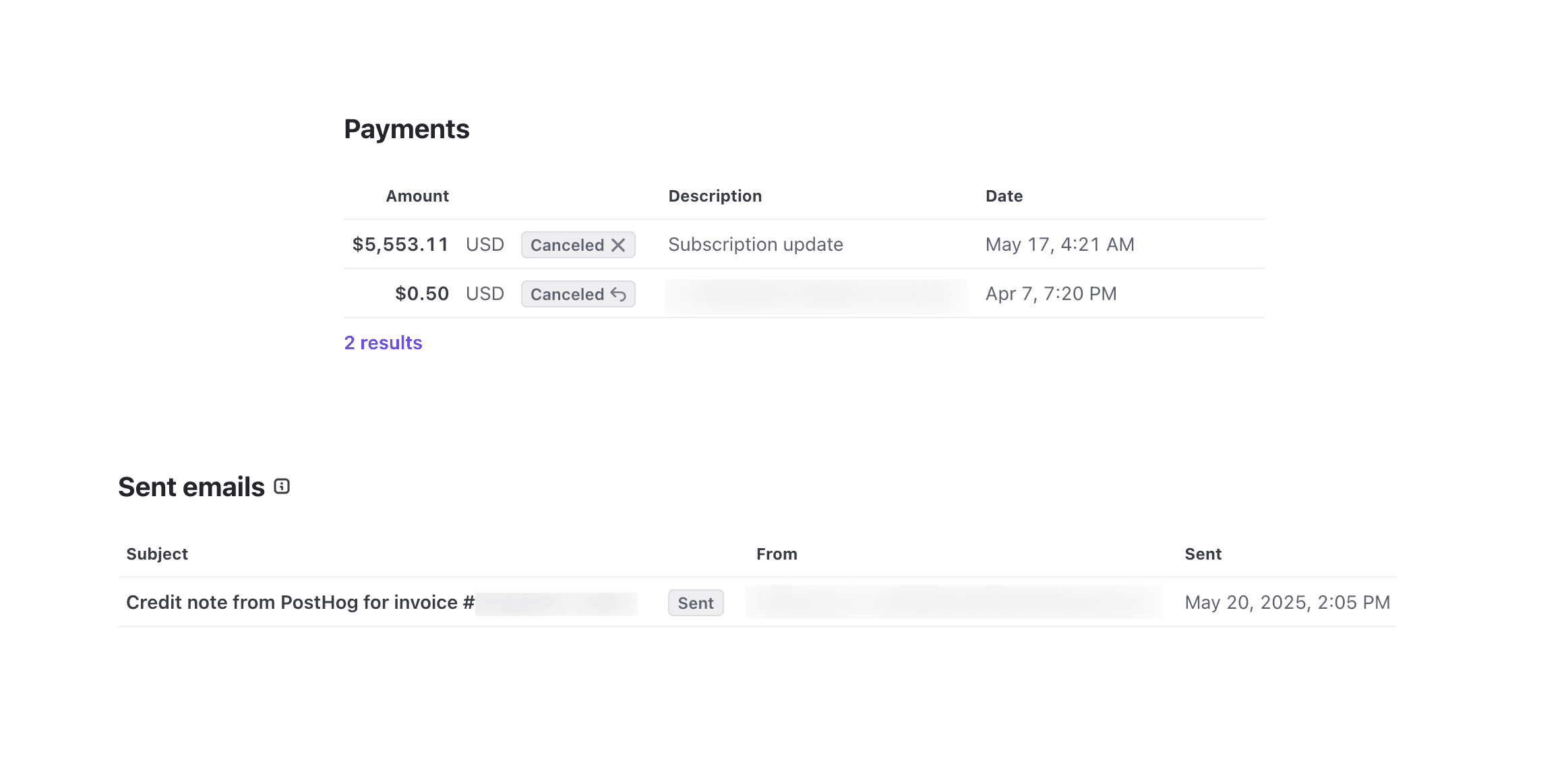
As a best practice, always engage with the user first to understand their specific situation. This allows them to confirm whether an unexpected event occurred on their end, rather than us proactively rectifying failed invoices. The reason for this is that the customer may churn, and in that case, the invoice might be considered uncollectible rather than refunded.
Lastly, always add a note in Stripe to explain why credits are being issued.