








AI wizard
Contents
Developers love the wizard: it's the fastest way to get a deep, correct integration of PostHog, with none of the hallucinations that come from naive agent-based attempts.
For users, it is a one-line CLI command which runs an AI agent that automatically instruments PostHog into their codebases.
The wizard's architecture
The wizard is a CLI tool that runs locally against developers' projects.
It wraps the Claude Agent SDK to perform the integration, reviewing project code and making edits as needed.
To direct the agent, the wizard uses the PostHog context mill repository as a context provider. The context mill provides the agent with skills packages for great integrations, which include workflow prompts, documentation, and example code to maximize correctness and completeness.
The context mill repo generates a zip file and manifest that determines the structure of the skills packages.
Developing the wizard
Use the wizard workbench for local, end-to-end development of the wizard. The workbench can run the full wizard stack in local development mode, with hot reload where supported.
The workbench is also responsible for CI and testing the wizard across a matrix of test applications.
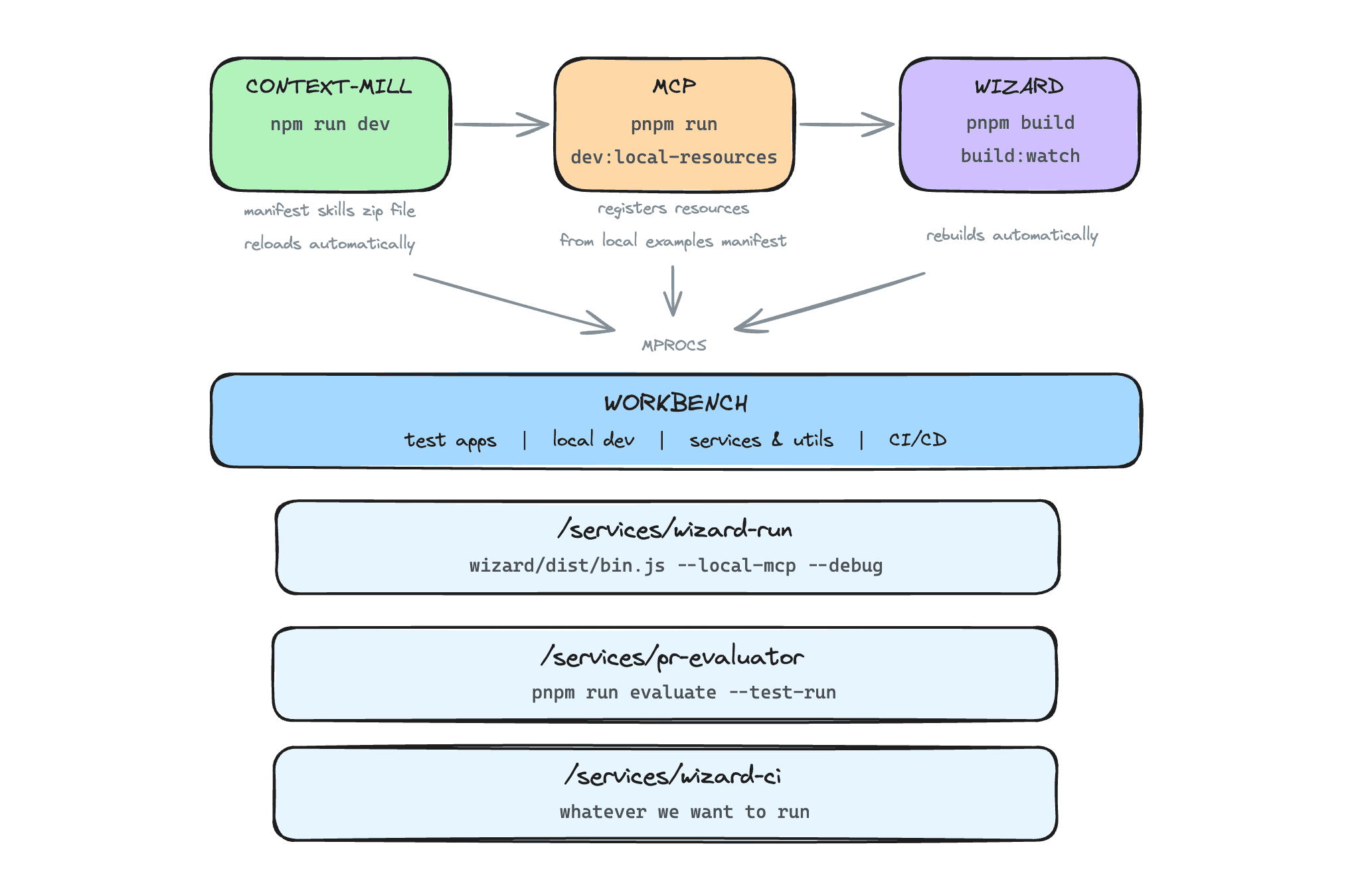
Setting up the workbench
Clone these repos:
- https://github.com/PostHog/wizard-workbench
- https://github.com/PostHog/context-mill
- https://github.com/PostHog/wizard
- https://github.com/PostHog/posthog (contains the MCP server)
Next, configure the workbench to run the wizard and its local dependencies. Read the README.md file in the wizard-workbench repository to get started and create a .env file with the paths to the dependent repos.
Open a terminal at the workbench root and run:
Using the MCP inspector
You'll want the link that looks like this from the mcp-inspector phrocs panel:
Access the link in your browser, set the transport type to Streamable HTTP, and set the URL to http://localhost:8787/mcp for local development. (Alternatively, you can also inspect the production MCP by setting the URL to https://mcp.posthog.com/mcp).
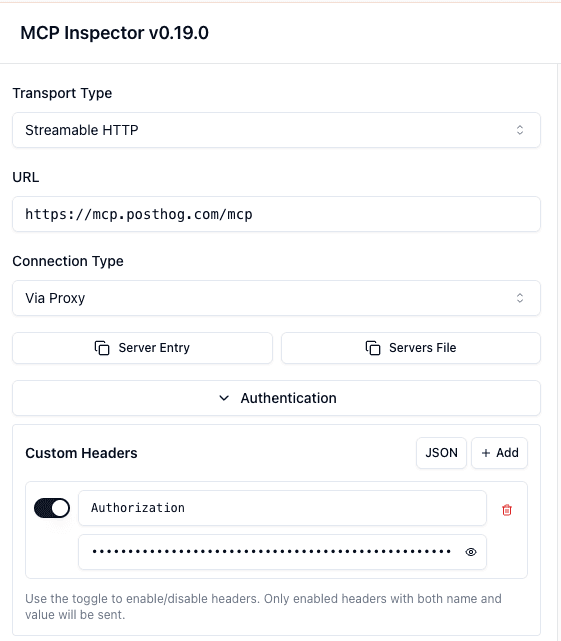
You'll need a PostHog API key to access the MCP server. Get one from the user API keys settings page. Open the Authentication tab and paste the key into the Bearer token field.
Hit connect and you'll see the MCP server's contents.
Handling wizard drama
First, identify cause of failure: run npx -y @posthog/wizard@latest. You can find target projects known to work in the wizard-workbench repository.
Review the logs at /tmp/posthog-wizard.log. This log can be quite verbose, so agent-driven analysis may be helpful to quickly pinpoint where things are going wrong. Include the below details to help the agent diagnose the issue.
Potential points of upstream failure:
- Without OAuth from PostHog, the wizard cannot access the AI gateway. This will prevent all wizard runs. But if OAuth is not possible, we've probably got bigger problems than just the wizard itself.
- If GitHub's release artifacts are not available, the wizard will be guessing blindly at how to integrate PostHog, producing incorrect and incomplete integrations.
- If wizard's agent harness cannot connect to the AI gateway, the wizard run will fail.
- If Anthropic's API is down, the wizard run will fail.
The wizard has the above upstream dependencies. It is also a bundle of client code, subject to various bugs and distribution mishaps. If upstream services are healthy but the wizard is still failing, it's likely a bug in the wizard itself.
Find a previous release version number and run npx @posthog/wizard@<version> against your example project. If the wizard runs successfully, you can compare the logs to the current release to see what changed. This will also confirm a safe rollback path.
To roll back, submit a PR that reverts the bad commits. The PR title must use a conventional commit prefix (e.g. revert: rollback to pre-X.Y.Z). Once merged, release-please will auto-create a release PR with the version bump. Merge that release PR, and the publish workflow will publish the reverted code to npm.
Remember to do a quick sanity check after release with npm @posthog/wizard@latest to see if your fix actually worked.
Declare an incident
If an upstream dependent PostHog service like OAuth or the AI gateway is down, an incident may already in progress. Check the #incidents channel for any related alerts. If not, declare an incident, describing the highest-level issue that's causing the wizard to fail.
If the wizard client code itself is failing, that's an incident as well.