







Support inbox
Contents
The PostHog web app is home base for a support engineer. It's the surface for your Support inbox, where you read and reply to customer tickets, and it gives you the full context of what each person was doing when they reached out.
Find and open tickets
Open your inbox from Support in PostHog. From there you can:
- Filter by status, priority, channel, SLA state, tags, or assignee
- Search by ticket number, customer name, email, or message content
- Save a filter combination as a view, to switch between common queries
A ticket's status tells you where it is in your workflow:
| Status | Meaning |
|---|---|
new | Just created, not yet viewed by your team |
open | Being actively worked on |
pending | Waiting for a customer response |
on_hold | Paused for an external reason |
resolved | Issue resolved, conversation closed |
What's in a ticket
Each ticket carries a set of properties you can filter, sort, and act on.
| Property | Description |
|---|---|
| Ticket number | Auto-incremented unique number, for example #1, #2, #3 |
| Status | new, open, pending, on_hold, or resolved |
| Priority | low, medium, or high. Unset by default |
| Channel | Where the ticket came from: widget, email, slack, teams, or github |
| Assignee | The user or role responsible for the ticket |
| Session ID | The PostHog session used to load events and exceptions |
| Distinct ID | The distinct_id used to link the ticket to a person |
Reply with full context
Open a ticket and the customer's story sits next to the conversation, so you resolve issues without asking anyone to reproduce them.
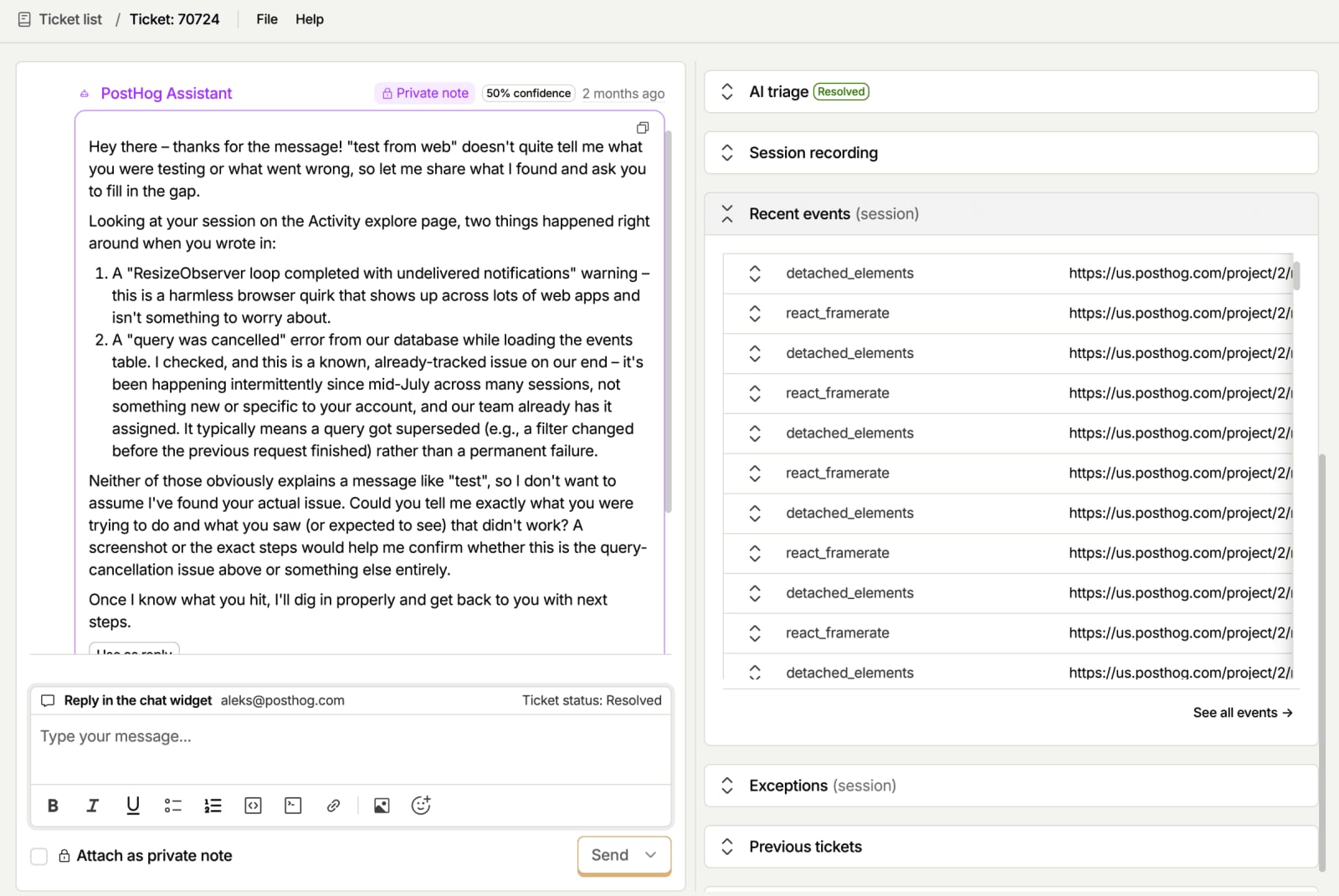
Each ticket detail page can show:
- Chat thread - The conversation with the customer. Replies you send reach them on the channel they used.
- Session recording - Watch the customer's session replay for widget tickets, if replay is enabled.
- Recent events - The events from when the ticket was created, for widget tickets.
- Exceptions - Any errors from their session, for widget tickets.
- Previous tickets - Past conversations with the same person.
- Activity log - A history of status, assignment, and priority changes on the ticket.
Messages
Every message on a ticket has an author type.
| Author type | Description |
|---|---|
| Customer | Sent by the end user through the widget, email, Slack, or GitHub |
| Support | Sent by your team from PostHog |
Replies you send show a delivery status so you know they landed. Widget messages show Sent when delivered and Read when the customer views them. Email replies show Sending, then Sent on success or Failed if delivery fails.
You can mark any message as a private note. Private notes are visible only to your team, hidden from the customer, and don't count toward the customer's unread messages. Use them for internal context or handoffs. Support tracks unread messages separately for the customer and your team, and counts reset when your team views a ticket or the customer marks messages as read.
Reply and update status
Use the Send button's dropdown to reply and update the ticket status in one step. Click the arrow next to Send to choose Send and set pending, Send and set on hold, or Send and set resolved.
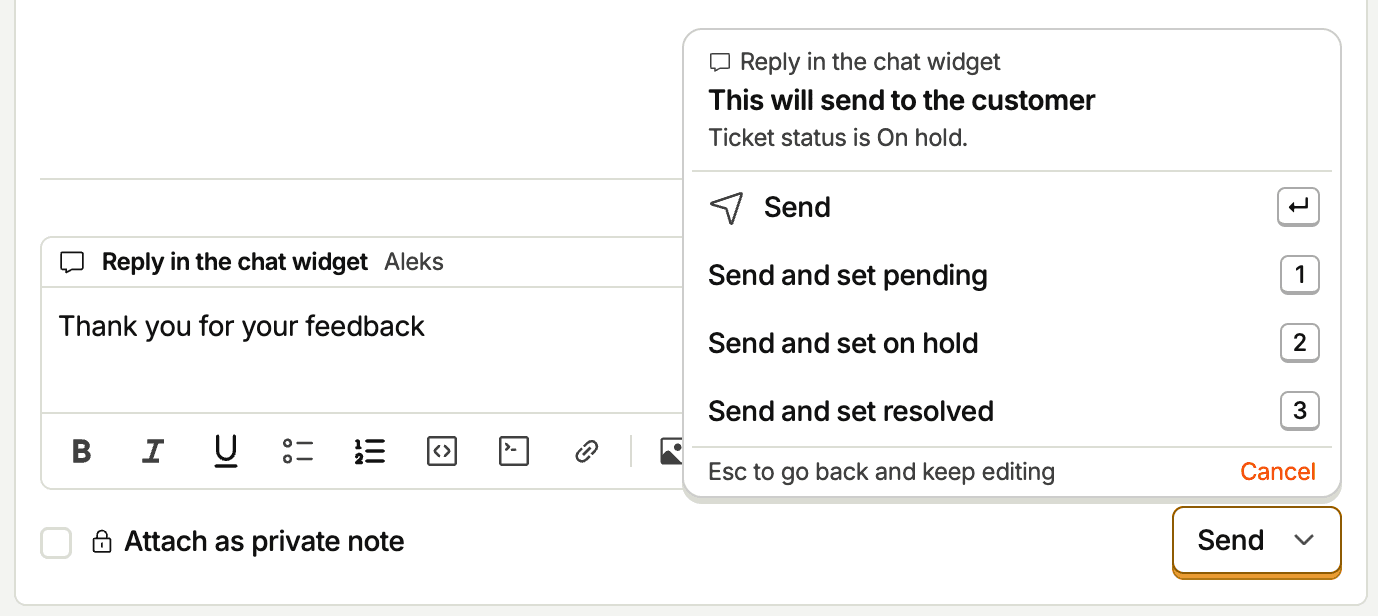
When you use one of these options:
- Your reply is sent first, then the ticket status is updated.
- If the ticket is unassigned or assigned to a role, it's reassigned to you automatically.
- If there are unsaved changes to priority, assignee, tags, or snooze, a confirmation dialog lists exactly what else will be saved along with your reply.
The confirmation dialog gives you two choices: Send and save commits all changes, while Cancel aborts everything – nothing is sent and nothing is saved.
Assign, tag, and snooze
Assign a ticket to a user or a role from the Assignee dropdown in the sidebar. You can also auto-assign with Workflows. Each ticket has one assignee. Add free-form tags to categorize and filter tickets, and snooze a ticket until a set time when you're waiting on something external.
Delete a ticket
Delete a ticket when it holds information that shouldn't stay in PostHog, such as sensitive details a customer shared by mistake. Open the ticket, click Delete ticket at the bottom of the sidebar, and confirm.
- The ticket and its messages disappear for your team and the customer right away.
- PostHog permanently deletes the ticket 14 days later, along with its messages, attachments, and analytics events.
- Messages already sent to Slack, Teams, email, or GitHub stay in those tools.
You can't delete a single message. To remove a message, delete the whole ticket.
If your organization uses access control, only ticket managers and organization admins can delete tickets. Otherwise, anyone who can edit tickets can delete them.
Track SLAs
An SLA deadline is derived state, not a status. You set it through workflow automation, and the ticket then reports as on track, at risk, or breached. You can filter and sort the inbox by SLA state.
Automate ticket handling
For the repetitive parts, let rules do the work. Workflows run on ticket events to set SLAs, auto-assign, tag, route, and change status automatically. For example, set a 4-hour SLA on widget tickets, auto-assign by customer domain, or reopen a ticket when the customer replies. It's rules you control, with no autonomous AI. See Automate ticket handling for the full set of triggers and actions.
Tips for efficient support
- Check session replay before asking a customer to describe what happened.
- Look at the exceptions panel to identify bugs quickly.
- Review previous tickets to avoid asking repeat questions.
- Use Send and set pending to reply and mark the ticket as waiting for a customer response in one step.
- Use saved views to switch between common filter combinations.
- Snooze tickets when you're waiting on something external, instead of leaving them open.