







Upload dSYMs for iOS
Contents
A minimum CLI version of 0.7.7 is required, but we recommend keeping up with the latest CLI version to ensure you have all of Error Tracking's features.
- 1
Download CLI
RequiredInstall
posthog-cli: - 2
Authenticate
RequiredTo authenticate the CLI, call the
logincommand. This opens your browser where you select your organization, project, and API scopes to grant:TerminalIf you are using the CLI in a CI/CD environment such as GitHub Actions, you can set environment variables to authenticate:
Environment Variable Description Source POSTHOG_CLI_HOSTThe PostHog host to connect to [default: https://us.posthog.com] Project settings POSTHOG_CLI_PROJECT_IDPostHog project ID Project settings POSTHOG_CLI_API_KEYPersonal API key with error tracking writeandorganization readscopesAPI key settings You can also use the
--hostoption instead of thePOSTHOG_CLI_HOSTenvironment variable to target a different PostHog instance or region. For EU users:Terminal - 3
Configure build settings
RequiredIn Xcode, configure your build settings to generate dSYMs:
- Open your project in Xcode
- Select your target
- Go to Build Settings
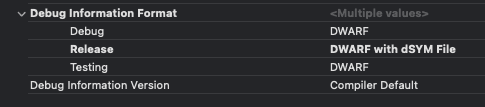
- Search for Debug Information Format
- Make sure Release configurations have DWARF with dSYM File

 Disable User Script Sandboxing
You must disable User Script Sandboxing for the upload script to work:
- In Build Settings, search for User Script Sandboxing(
ENABLE_USER_SCRIPT_SANDBOXING) - Set
ENABLE_USER_SCRIPT_SANDBOXINGto No
Why is this required?
When User Script Sandboxing is enabled, Xcode only allows run scripts to access files explicitly specified in the build phase's Input Files. The dSYM upload script needs to walk directories to locate and read dSYM bundles, and execute
posthog-cliwhich are currently not allowed with User Script Sandboxing enabled. - 4
Add build phase script
RequiredTo symbolicate crash reports, PostHog needs your project's debug symbol (dSYM) files. The following script automatically processes and uploads dSYMs whenever you build your app.
Add a Run Script build phase:
- In Xcode, select your main app target
- Go to Build Phases tab
- Click the + button and select New Run Script Phase
- Make sure it's set to run last (after "Copy Bundle Resources" or similar)
- Add the appropriate script for your package manager:
- In the Input Files section of the Run Script phase, add:
This makes Xcode wait for the app's dSYM contents before running the upload script.
- 5
Optional: Include source code context
OptionalBy default, only debug symbols are uploaded. To include source code snippets in your stack traces (for better debugging context), set the
POSTHOG_INCLUDE_SOURCEenvironment variable:- In the Run Script build phase, click the chevron to expand
- Set the environment Variable when calling the upload script:
Note: This increases upload size and build times. Only enable if you need source code context in PostHog's error tracking UI.
- 6
Optional: Skip conflicting uploads
OptionalIf PostHog already has a dSYM with the same UUID but different content, the upload fails with
content_hash_mismatchand stops your build. To skip these conflicting uploads and keep the existing symbols instead, set thePOSTHOG_SKIP_ON_CONFLICTenvironment variable when calling the upload script:Requires posthog-ios 3.64.7 or later and posthog-cli 0.7.12 or later.
- 7
Build and verify
RequiredBuild your app in Xcode. The dSYM upload script will automatically run and upload symbols to PostHog.
Check the build log output for confirmation.
- 8
Force a test crash
OptionalTo verify everything is working end-to-end, force a test crash and confirm it appears in PostHog.
- Add a crash trigger button to your app:
Build and run your app in Xcode,
- Make sure the debugger is not attached, since it will intercept the crash and prevent the report from being collected. You can:
- Detach the debugger (click the stop button in Xcode) and run the app directly from the device/simulator home screen
- Or uncheck "Debug executable" in the scheme settings before running
- Make sure the debugger is not attached, since it will intercept the crash and prevent the report from being collected. You can:
Reopen the app from your device or simulator's home screen (not from Xcode).
Tap the Test Crash button. The app will crash. The exception is collected but not yet sent to PostHog.
Reopen the app once more. This triggers the SDK to send the previously collected crash report to PostHog.
Check the error tracking dashboard for your test crash.
Remove the crash trigger button before shipping to production.
Troubleshooting
Script fails with "error: posthog-cli not found"
Install the CLI using one of these methods:
Script fails with permission errors
Ensure ENABLE_USER_SCRIPT_SANDBOXING is set to NO in your build settings.
dSYMs not being generated
Verify that DEBUG_INFORMATION_FORMAT is set to DWARF with dSYM File for the configuration you're building (Debug or Release).
Script fails with "content_hash_mismatch"
This happens when the upload script runs before Xcode finishes generating the dSYM files. Leave Based on dependency analysis enabled and add $(DWARF_DSYM_FOLDER_PATH)/$(DWARF_DSYM_FILE_NAME)/Contents/Resources/DWARF/$(EXECUTABLE_NAME) to the Input Files of the Run Script build phase. This makes Xcode wait for the app's dSYM contents before running the upload script.