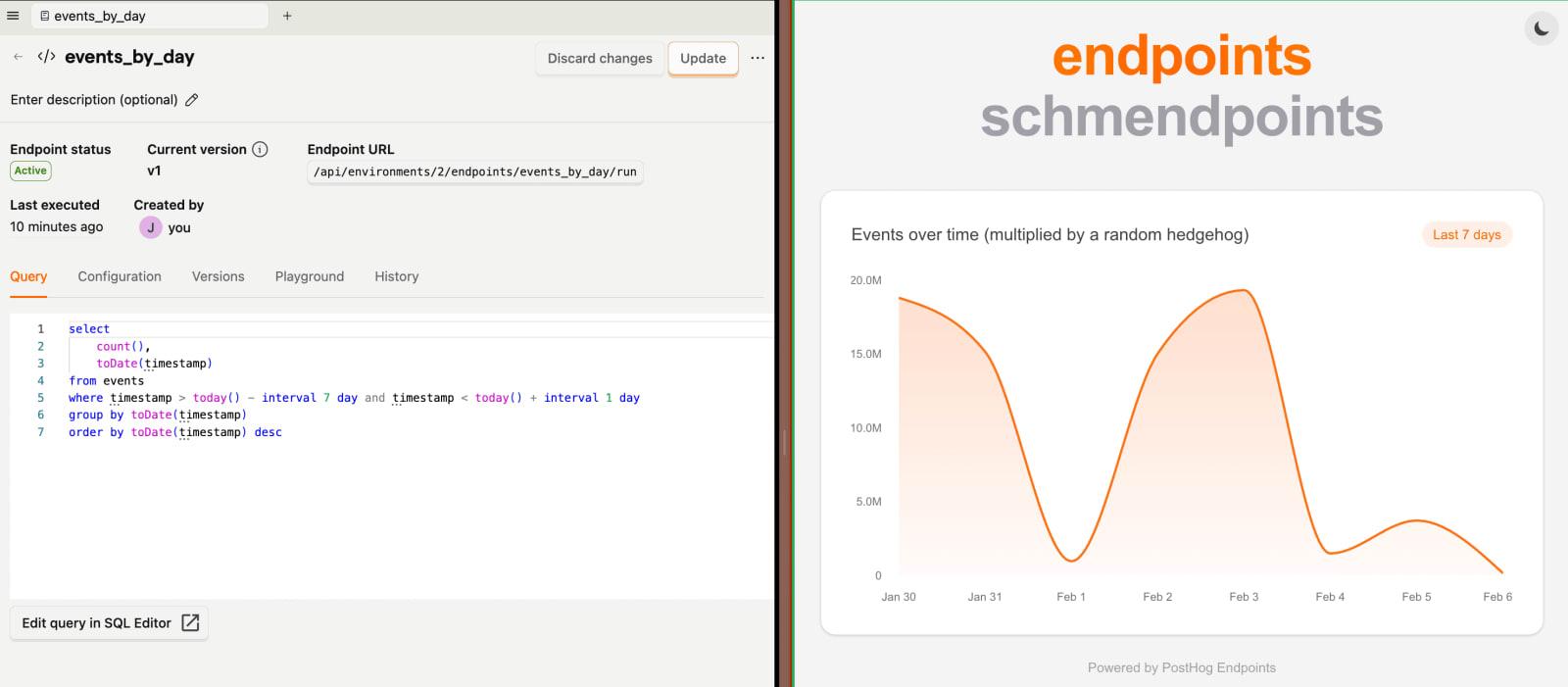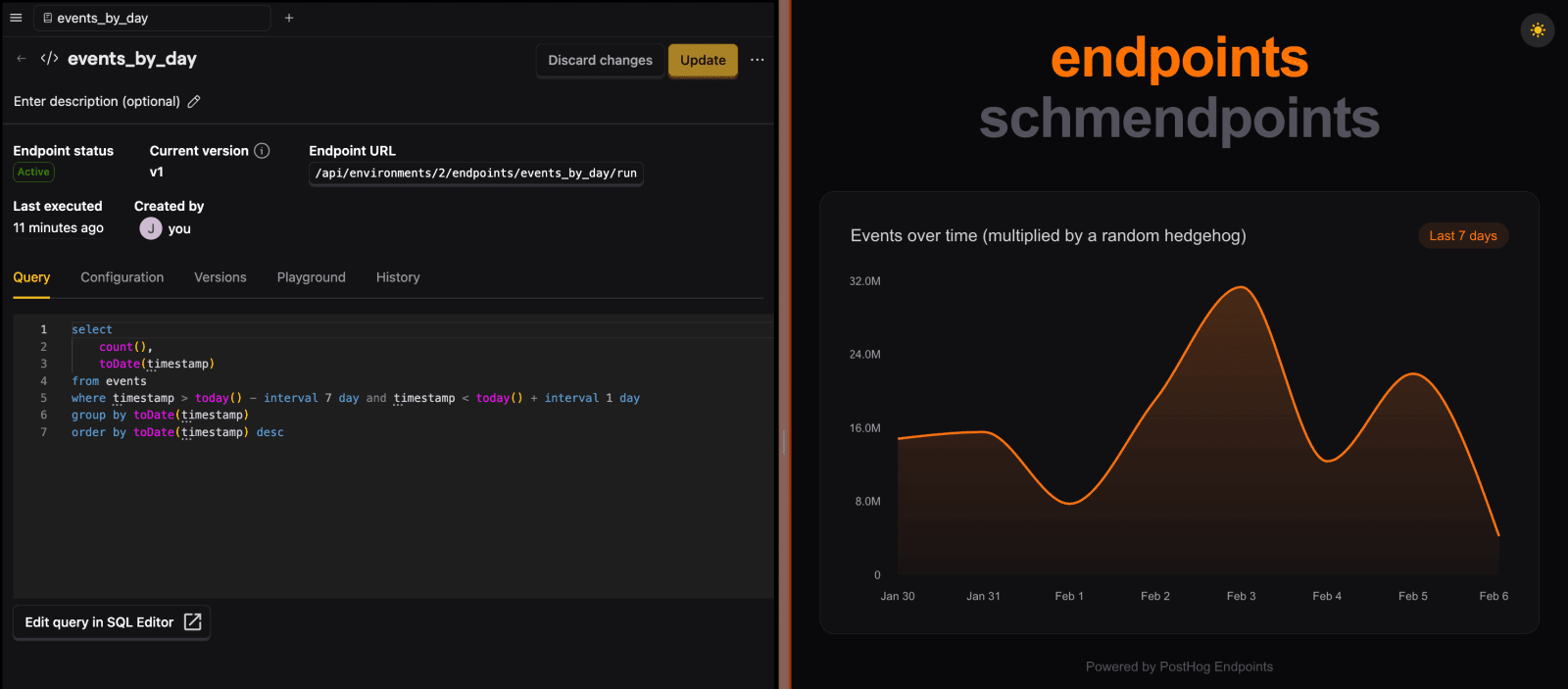





Getting started with endpoints

Create an insight or SQL query

Endpoints can be created from existing insights or SQL queries in PostHog. Start by creating the query that defines the data you want to expose. You can do this directly from the endpoints page by clicking new and choosing the type or directly from a SQL query or an insight.

Option 1: Create an insight

Create an insight in PostHog that shows the data you want to expose. This could be:

  • A trend showing daily active users
  • A funnel tracking user conversion
  • A retention analysis
  • Any other insight type
Create an insight in PostHog
Learn about insights

Option 2: Write a SQL query

Alternatively, you can create a SQL query in the SQL editor that returns the data you need.

Write a SQL query

Create an endpoint

Once you have your insight or SQL query, create an endpoint from it. This will give you a stable API endpoint you can call to retrieve the data.

Option 1: Create endpoint from insight

  1. Open your insight
  2. Click on the info & actions button (the three dots button in the top right)
  3. Click the Create endpoint action
    Creating an endpoint from an insight
  4. Give your endpoint a descriptive name (e.g., daily_active_users or account_users_activity) and optionally a description
  5. Create the endpoint

Option 2: Create endpoint from a SQL query

  1. If you've written a SQL query, you can click on the Endpoint tab:
    Creating an endpoint from a SQL query
  2. Give your endpoint a descriptive name (e.g., daily_active_users or account_users_activity) and optionally a description
  3. Create the endpoint

Endpoint names

Choose descriptive names for your endpoints. They'll appear in the URL:

  • Recommended: daily_active_users, account_users_activity, signup_funnel
  • Avoid: endpoint1, test, query

Endpoint names should be URL-friendly (lowercase, underscores instead of spaces).

View endpoint examples

Call your endpoint

Now you can call your endpoint from your application. You'll need:

  1. Your personal API key: The key needs to have the endpoint:read scope assigned. Create one in your user settings.
  2. Your endpoint URL: You can find it in the endpoints overview page.
endpoints product page
curl \
-H "Authorization: Bearer $POSTHOG_PERSONAL_API_KEY" \
<ph_app_host>/api/environments/{project_id}/endpoints/{endpoint_name}/run
Calling your Endpoint

Replace the ph_app_host, project_id and endpoint_name placeholders and set your POSTHOG_PERSONAL_API_KEY environment variable.

View API reference

Use in your application

Endpoints are perfect for embedding analytics in your own application. You can:

  • Show analytics to your customers: Display dashboards with PostHog data in your app
  • Build custom reports: Create reports tailored to your customers' needs
  • Power internal tools: Use endpoints to power internal dashboards and tools

Best practices

  • Materialization: If you're not seeing the performance you're looking for, try optimizing your SQL query and materializing it
  • Handle errors gracefully: Always check response status codes and handle errors appropriately
  • Respect rate limits: While endpoints will have higher limits than standard API endpoints, be mindful of your usage
  • Use meaningful names: Choose endpoint names that clearly describe what data they return

That's it! You're ready to start using endpoints.

Explore more resources

Community questions

Was this page useful?

Questions about this page? or post a community question.