





Create an insight-based endpoint with variables
Contents
This guide walks through creating an endpoint from an insight that has a breakdown, then querying it using the variables field to filter results at execution time. We'll create an endpoint that shows daily active users by OS, filterable by a specific OS.
Step 1: Create an insight with a breakdown
Open Product analytics and create a Trends insight that breaks down by a property. For example:
- Create a Trends insight for the $pageview event.
- Add a breakdown by OS (the
$osproperty).
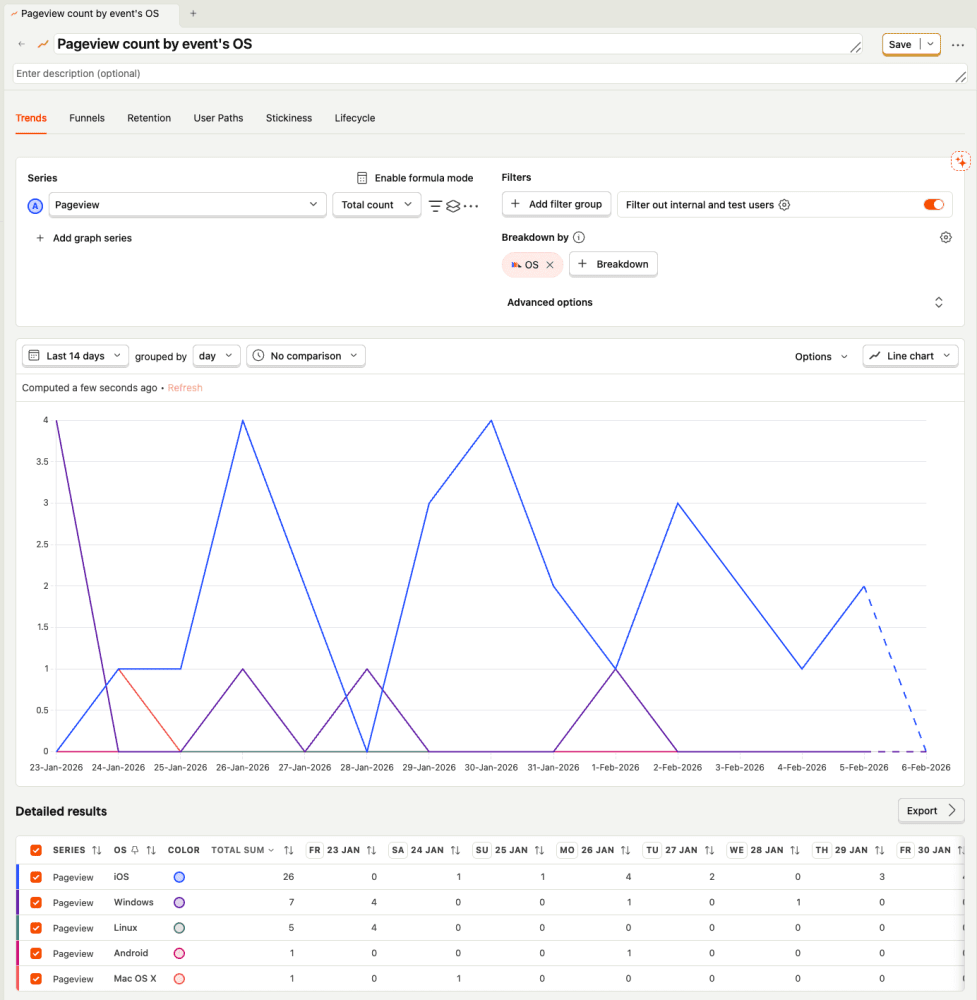
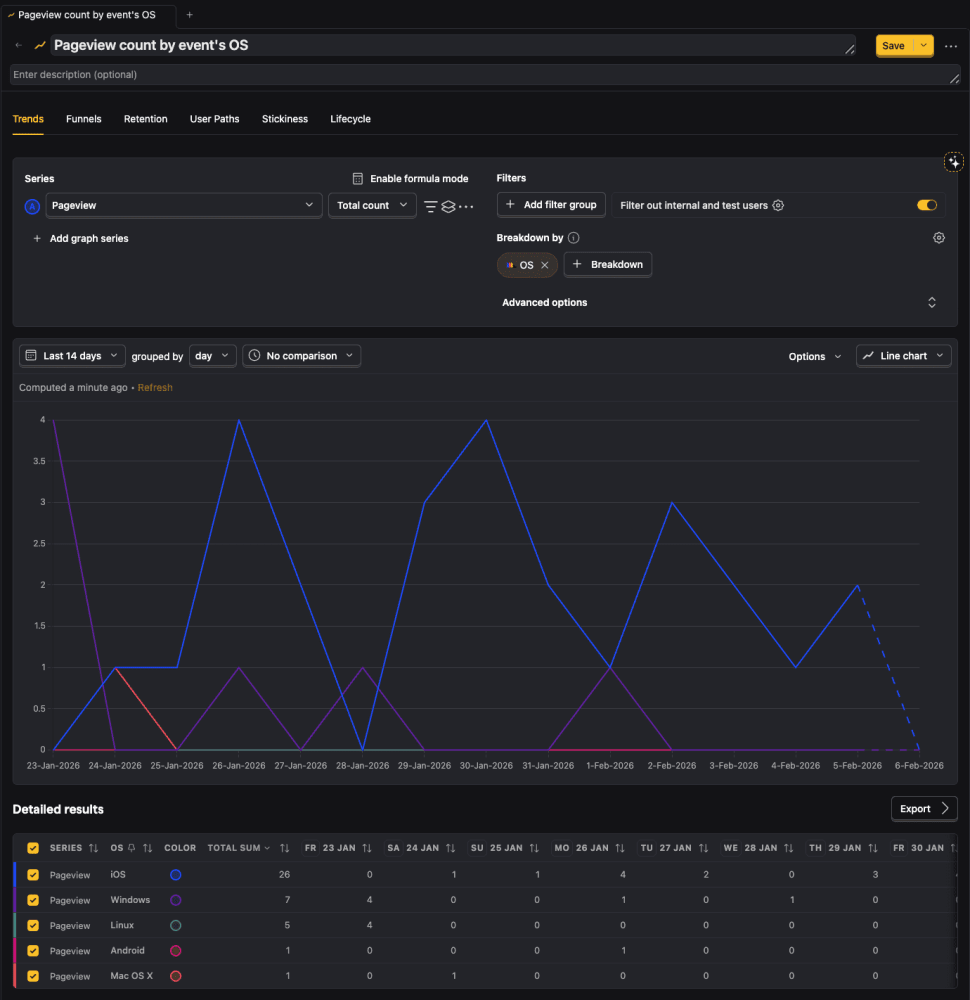
Step 2: Create an endpoint from the insight
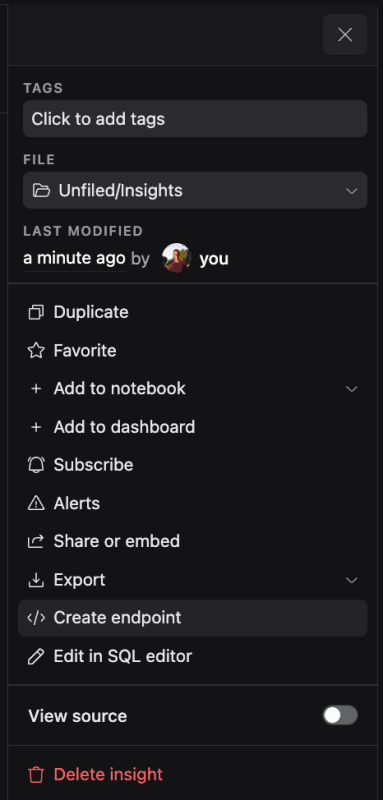
- Click the three dots menu in the top right of your insight.
- Select
Create endpoint. This opens up a modal. - Name your endpoint (e.g.,
pageviews_by_os), and optionally give it a description. - Click
Create endpoint.

Step 3: Execute with the breakdown variable
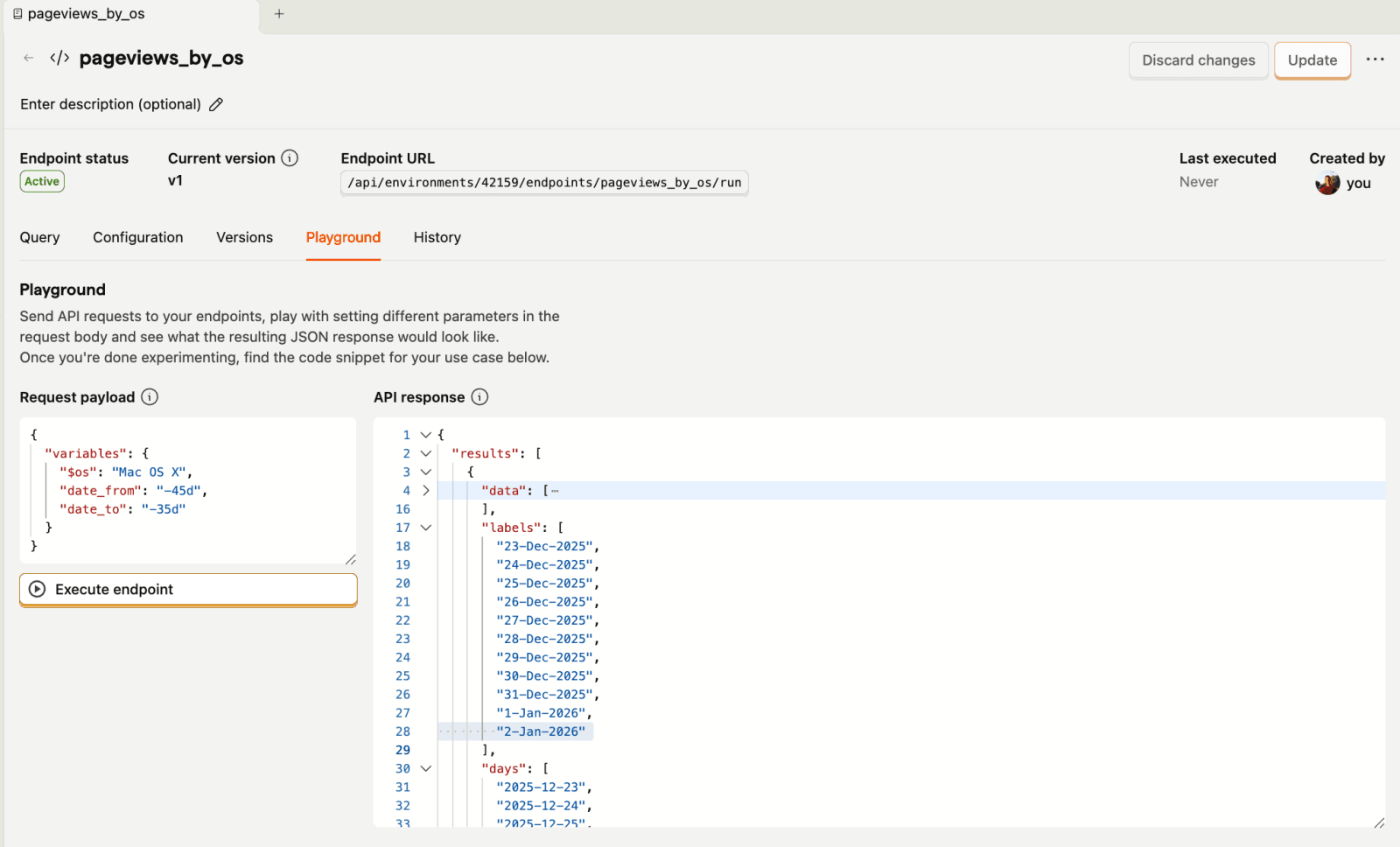
For insight-based endpoints with breakdowns, each breakdown property name automatically becomes a magic variable. Pass the variable in your request to filter results to a specific breakdown value.
The response will only include data where $os equals "Mac OS X".


If your endpoint is materialized, you must provide the breakdown variable. This prevents accidentally returning all breakdown values when you intended to filter.
Multiple breakdowns
If your insight has multiple breakdowns configured, each breakdown property name becomes a variable. Pass all breakdown variables when executing:
The response will only include data matching all specified breakdown values.
Step 4: Use date variables (non-materialized only)
For non-materialized insight endpoints, you can also filter by date range using date_from and date_to:

Materialized endpoints have pre-computed data, so date_from and date_to variables are not supported. Passing them will fail the request.
Only breakdown variables can be passed to a materialized insight-based endpoint.
Supported insight types
Breakdown variables work with:
- TrendsQuery - filter trend data by breakdown value
- RetentionQuery - filter retention cohorts by breakdown value
Insights with multiple breakdowns are supported. Each breakdown property becomes a separate variable that you can pass when executing the endpoint.
Next steps
- Learn more about variables in endpoints
- Materialize your endpoint for faster response times
- Generate a typed SDK from your endpoint's OpenAPI spec