# MDX components - Handbook
There are some nifty MDX components available for use in Markdown content. These components are included globally, so you don't need to do anything special to use them (like renaming `.md` to `.mdx` or manually importing them at the top of the file).
## Images
### Product screenshots
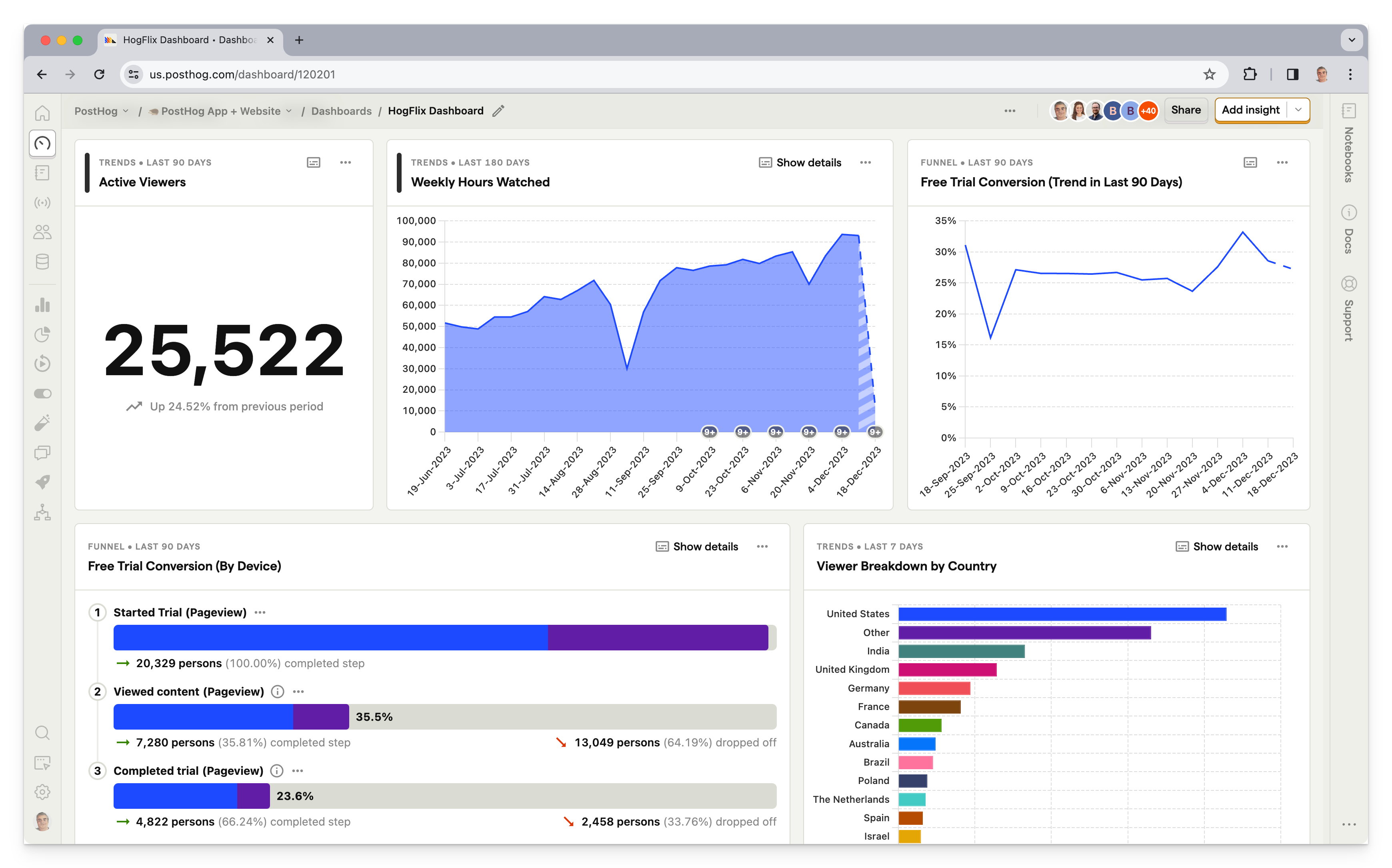
The `` component encapsulates an image with a border and background. It's useful since the app's background matches the website background, and without using this component, it can be hard to differentiate between the screenshot and normal page content. It also optionally supports dark mode screenshots.
You use it by passing image URLs to the `imageLight` and `imageDark` props like this:
TSX
PostHog AI
```jsx
```
Optionally pass `zoom={false}` if you don't want the image to be zoomable, otherwise it will be zoomable by default.
*Note: If you don't have a dark image, just leave out the `imageDark` prop and the light screenshot will be used for both color modes.*
### Image slider
You can create a slider or carousel of images by wrapping them in the `` component like this:
HTML
PostHog AI
```html

```
See an example in our [open-source analytics tools post](/blog/best-open-source-analytics-tools.md#1-posthog).
## Videos
Th `` component works the same as product screenshots (above) for videos [uploaded to Cloudinary](/handbook/content/posthog-style-guide.md#adding-media) but supports light and dark videos.
1. Import the video(s) at the top of the post (directly following the MDX file's frontmatter and dashes):
HTML
PostHog AI
```html
| --- | --- |
| // + | Green highlight | Represents additions in diffs |
| // - | Red highlight | Represents removals in diffs |
| // HIGHLIGHT | Yellow highlight | General emphasis without special meaning |
## Preview
JavaScript
PostHog AI
```javascript
const a = 1
const b = 2
const c = a + b
console.log(a + b)
console.log(c)
console.log('end')
```
## Markdown
MDX
PostHog AI
```jsx
```js filename=index.js
const a = 1
const b = 2
const c = a + b
console.log(a + b)
console.log(c)
console.log('end')
```
```
### Collapsed code blocks
In some cases, such as large nested config files, you need readers to focus on a specific part of the code block while maintaining the context. You can do this by adding `focusOnLines=` to the code block. This collapses the code block and only shows the lines of code you specify.
## Preview
angular.json
PostHog AI
```json
"build": {
"builder": "@angular-devkit/build-angular:application",
"options": {
"sourceMap": {
"scripts": true,
"styles": true,
"hidden": true,
"vendor": true
}
}
}
```
## Markdown
MDX
PostHog AI
```jsx
```json file=angular.json focusOnLines=4-14
{
"projects": {
"my-app": {
"architect": {
"build": {
"builder": "@angular-devkit/build-angular:application",
"options": {
"sourceMap": {
"scripts": true,
"styles": true,
"hidden": true,
"vendor": true
}
}
}
}
}
}
}
```
```
### Mermaid diagrams
Code blocks can also be used to show mermaid UML diagrams. When using these diagrams, make sure to include a text description of the diagram afterwards for accessibility and LLMs.
## Preview
sequenceDiagram Alice->John: Hello John, how are you? John-->Alice: Great! Alice->John: See you later!
## Markdown
MDX
PostHog AI
```jsx
```mermaid
sequenceDiagram
Alice->John: Hello John, how are you?
John-->Alice: Great!
Alice->John: See you later!
```
```
## Product list
Use `` to render a list of products sourced from `useProduct` hooks. It links each product to `/{slug}` by default using the product's icon, color, and name.
**Auto-source from a product data field** (e.g. every product where `wizardSupport` is set):
TSX
PostHog AI
```jsx
```
- [Product Analytics](/product-analytics.md)
- [Session Replay](/session-replay.md)
- [Error Tracking](/error-tracking.md)
- [Web Analytics](/web-analytics.md)
- [Feature Flags](/feature-flags.md)
- [Experiments](/experiments.md)
- [LLM Analytics](/llm-analytics.md)
- [Logs](/logs.md)
Products are grouped in `sourceValues` order. Plain values (`true`, `"some string"`) filter without an indicator. Object values (`{ value, color }`) also render a colored dot with tooltip text.
**Manual list of products:**
TSX
PostHog AI
```jsx
```
- [Product Analytics](/product-analytics.md)
- [Web Analytics](/web-analytics.md)
- [Session Replay](/session-replay.md)
**Manual list with field-based filtering and indicators:**
TSX
PostHog AI
```jsx
```
- [Product Analytics](/product-analytics.md)
- [Web Analytics](/web-analytics.md)
- [LLM Analytics](/llm-analytics.md)
Only the products whose `wizardSupport` value matches a `sourceValues` entry will render. Other props: `urlPrefix` (default `/`), `className`, `itemClassName`, `iconSize`.
## Wizard command
Use `` to render a copyable install button for the PostHog wizard CLI. Clicking the button copies the command to the clipboard and shows a toast notification.
`npx @posthog/wizard@latest`
[Learn more](/wizard.md)
The command automatically includes `--region eu` or `--region us` based on the user's feature flags.
**Props:**
| Prop | Type | Default | Description |
| --- | --- | --- | --- |
| latest | boolean | true | Appends @latest to the package name |
| slim | boolean | false | Hides the "Learn more" link below the button |
| className | string | '' | Additional classes for the button element |
**Slim mode** (button only, no "Learn more" link):
TSX
PostHog AI
```jsx
```
**Without `@latest`** (used on the homepage and wizard page):
TSX
PostHog AI
```jsx
```
## Call to action
Adding `` to any article will add this simple CTA:
Want to just try it already?
(Sorry for the shameless CTA.)
[Try PostHog - free](https://us.posthog.com/signup)[Schedule a demo](/talk-to-a-human.md)
Don't overuse it, but it's useful for high intent pages, like comparisons.
## Feature comparison tables
When comparing features between two or more products, use the `` component which sources data from the `src/hooks/competitorData/` directory and lets you compare specific features across multiple competitors.
TSX
PostHog AI
```jsx
```
Read more in the [product & feature comparisons handbook page](/handbook/engineering/posthog-com/product-comparisons.md).
## Captions
You can add captions below images using the following code:
TSX
PostHog AI
```jsx
Add you caption copy here
```
Here's an example of what it looks like:
Adding the 'Buy Now' call to action and adjusting the text enabled Webshare to boost conversion by 26%
## Customer quotes
Add a styled quote component using the following code:

Viktor Eriksson
Software Engineer, Lovable
> PostHog is super cool because it is such a broad platform. If you're building a new product or at a startup, it's a no-brainer to use PostHog. It's the only all-in-one platform like it for developers.
**Product-specific quote**
JSX
PostHog AI
```jsx
```

Tomás Gouveia
Digital Marketer, Significa
> PostHog gives me all the same information Plausible used to give us, and a lot more. It's way more powerful and insightful than Plausible.
**Generic quote**
JSX
PostHog AI
```jsx
```
We mainly use them in customer stories and some product pages.
Quotes are sourced from the `useCustomers` hook and can reference product-specific quotes or general quotes by someone at a company. Be sure to add the customer's information to the `useCustomers` hook in `src/hooks/useCustomers.tsx`.
**Example**
TSX
PostHog AI
```jsx
quotes: {
viktor_eriksson: {
name: 'Viktor Eriksson',
role: 'Software Engineer',
image: {
thumb: 'https://res.cloudinary.com/dmukukwp6/image/upload/q_auto,f_auto/viktor_00c779a706.jpg',
},
quotes: [
"PostHog is super cool because it is such a broad platform. If you're building a new product or at a startup, it's a no-brainer to use PostHog. It's the only all-in -one platform like it for developers.",
],
},
},
```
## Collapsible sections
The combination of `` and `` components enables you to add a collapsible section to your page. Useful for FAQs or details not relevant to the main content.
HTML
PostHog AI
```html
Can I specify some events to be identified and others to be anonymous for the same users?
Not if you already identified them. Once a user is identified, all _future_ events for that user are associated with
their person profile and are captured as identified events.
```
## Tabs
Tabs enable you to display different content in a single section. We often use them to show different code examples for different languages, like in [installation pages](/docs/product-analytics/installation.md).
To use them:
1. Import the `Tab` component.
2. Set up `Tab.Group`, `Tab.List`, and `Tab.Panel` for each tab you want to display. The `tabs` prop in `Tab.Group` should be an array of strings, one for each tab. This enables you to link to each tab by its name.
3. Add the content for each tab in the `Tab.Panel` components. You should use snippets for readability, maintainability, and to avoid duplication, but you can use multiple snippets in a single tab.
For example, here's how we set up the tabs for the error tracking installation page:
JSX
PostHog AI
```jsx
import Tab from "components/Tab"
import WebInstall from '../integrate/_snippets/install-web.mdx'
import JSWebErrorTracking from './_snippets/web-install-error-tracking.mdx'
import PythonInstall from '../integrate/_snippets/install-python.mdx'
import PythonErrorTracking from './_snippets/python-install-error-tracking.mdx'
import NextJSErrorTracking from './_snippets/nextjs-install-error-tracking.mdx'
import UploadSourceMaps from './_snippets/upload-source-maps.mdx'
import UploadSourceMapsSteps from './_snippets/upload-source-maps-steps.mdx'
Error tracking enables you to track, investigate, and resolve exceptions your customers face. Getting this working requires installing PostHog:
WebNext.jsPython
```
You can default to a specific tab by passing the tab name in the query string like:
PostHog AI
```
/docs/product-analytics/installation?tab=web
```
## Links
### Linking internally
Use Markdown's standard syntax for linking internally.
PostHog AI
```
[Link text](/absolute-path/to/url)
```
Be sure to use *relative links* (exclude `https://posthog.com`) with *absolute paths* (reference the root of the domain with a preceding `/`).
| Correct syntax | /absolute-path/to/url |
| Incorrect syntax | https://posthog.com/absolute-path/to/url |
**Open a new PostHog window**
To open a link in a new window within the PostHog.com OS interface, use `state={{ newWindow: true }}` like:
TSX
PostHog AI
```jsx
Link text
```
### Linking externally
The `` component is used throughout the site, and is accessible within Markdown. (When used *internally*, it takes advantage of [Gatsby's `` features](https://www.gatsbyjs.com/docs/reference/built-in-components/gatsby-link/) like prefetching and client-side navigation between routes).
While that doesn't apply here, using it comes with some handy parameters that you can see in action via the link above:
- Add `external` to a) open the link in a new tab, and b) add the *external link* icon (for UX best practices if forcing a link to open in a new window)
- If, for some reason, you need to hide the icon, use `externalNoIcon` instead
Example:
PostHog AI
```
click here
```
### Private links
Sometimes we link to confidential information in our handbook. Since the handbook is public, it's useful to indicate when a link is private so visitors aren't confused as to why they can't access a URL (like a Slack link or private GitHub repo). Use the `` component for this. See an example ([on our share options page.](/handbook/people/share-options.md#what-are-my-share-options-actually-worth))
PostHog AI
```
click here
```
Private links will always open in a new browser tab.
## Mention a team member
Use this component to mention a team member in a post. It will link to their community profile and appears like this: [Cory Watilo](/community/profiles/30200.md)
PostHog AI
```
```
There's also a `photo` parameter which will inline their photo next to their name like this: [Cory WatiloCory Watilo](/community/profiles/30200.md)
## Mention a small team
Use this component to mention a small team in a post. It will link to their team page and appears like this:[](/teams/website.md)
[](/teams/website.md)
[
](/teams/website.md)
[Website Team
Website Team](/teams/website.md)
PostHog AI
```
```
The default version shows the team's mini crest and name in a bordered "chip" style. There's also a `noMiniCrest` parameter to omit the mini crest and border for inline usage like this: [Website Team](/teams/website.md)
PostHog AI
```
```
Both versions will show the full team crest on hover. Clicking the tooltip will open the team page in a new window.
## Embedded posts
You can embed what looks like a Tweet an X post using the `` component. It's used on the [terms](/terms.md) and [privacy policy](/privacy.md) pages, but was componentized for use in blog posts to break up bullet points at the top of the post.
*Note: This does **not** actually embed an X post ; it's just styled to look like one.*
[

](https://x.com/james406)
James Hawkins
[@james406](https://x.com/james406)
Here's what a post looks like. It's designed to have a familiar look that makes it easy to scan.
ReplyRepostLike
[

](https://x.com/james406)
James Hawkins
[@james406](https://x.com/james406)
If you show multiple posts in a row, they'll be connected by a vertical line to make it look like a thread.
ReplyRepostLike
**Usage**
Be sure to change the alert message which appears if you click one of the action buttons (reply, repost, like).
TSX
PostHog AI
```jsx
If you show multiple posts in a row, they'll be connected by a vertical line to make it look like a thread.
```
You can optionally center the post with the `mx-auto` class (shown in the example code, but *not* used in the preview above).
### Community questions
Ask a question
### Was this page useful?
HelpfulCould be better